Event time proposal
If you're unable to attend an event at the scheduled time, you can propose an alternate meeting time instead of declining the invitation or contacting the organizer separately. Your proposal is sent to the organizer, who can review it, compare it with the availability of all participants, and update the event if required.
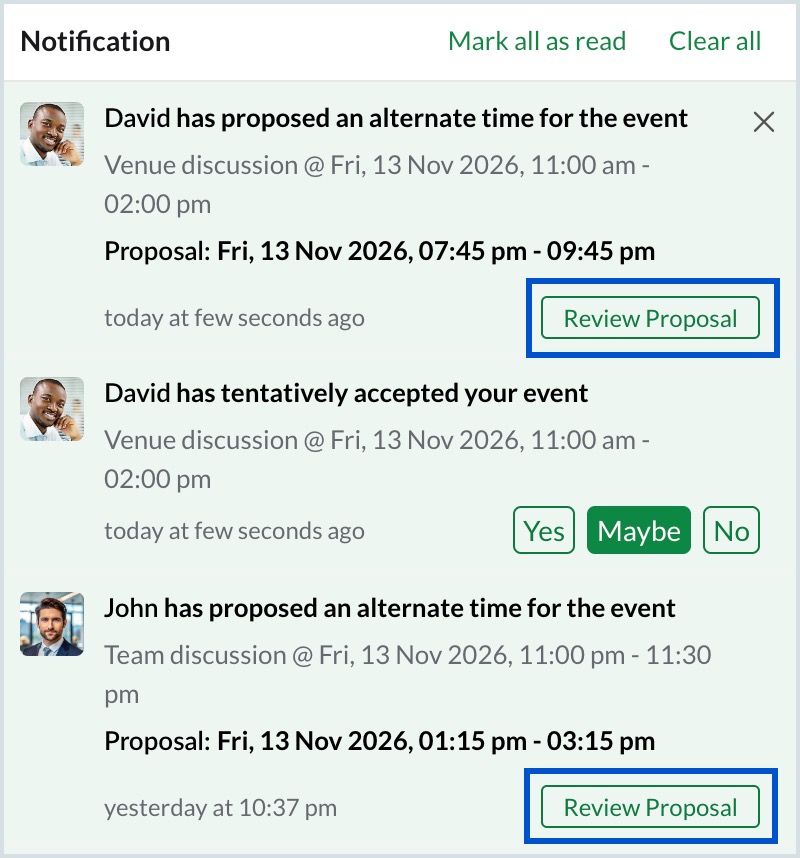
Organizers receive event time proposals in Zoho Calendar notifications and in the updated invitation email.
Propose a new event time
You can propose a new meeting time from the calendar, the event details, or the event invitation email. Regardless of where you initiate the proposal, the proposal window and workflow remain the same.
From the view event tab
Steps to propose a new event time from the view event tab:
- Log in to Zoho Calendar.
- Select the event from the grid or from the in app notiifcation for which you want to propose a new time.
- Click Propose a new time in the event view pop-up.
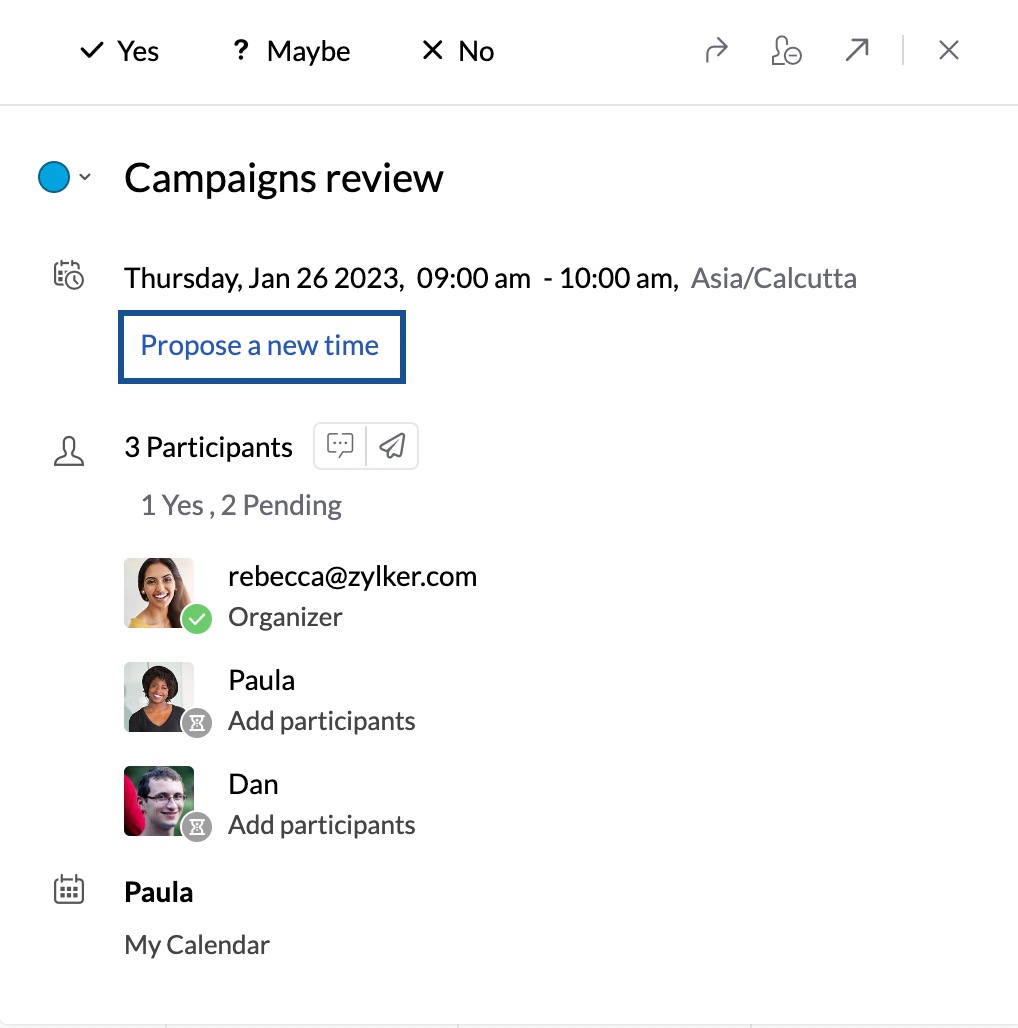
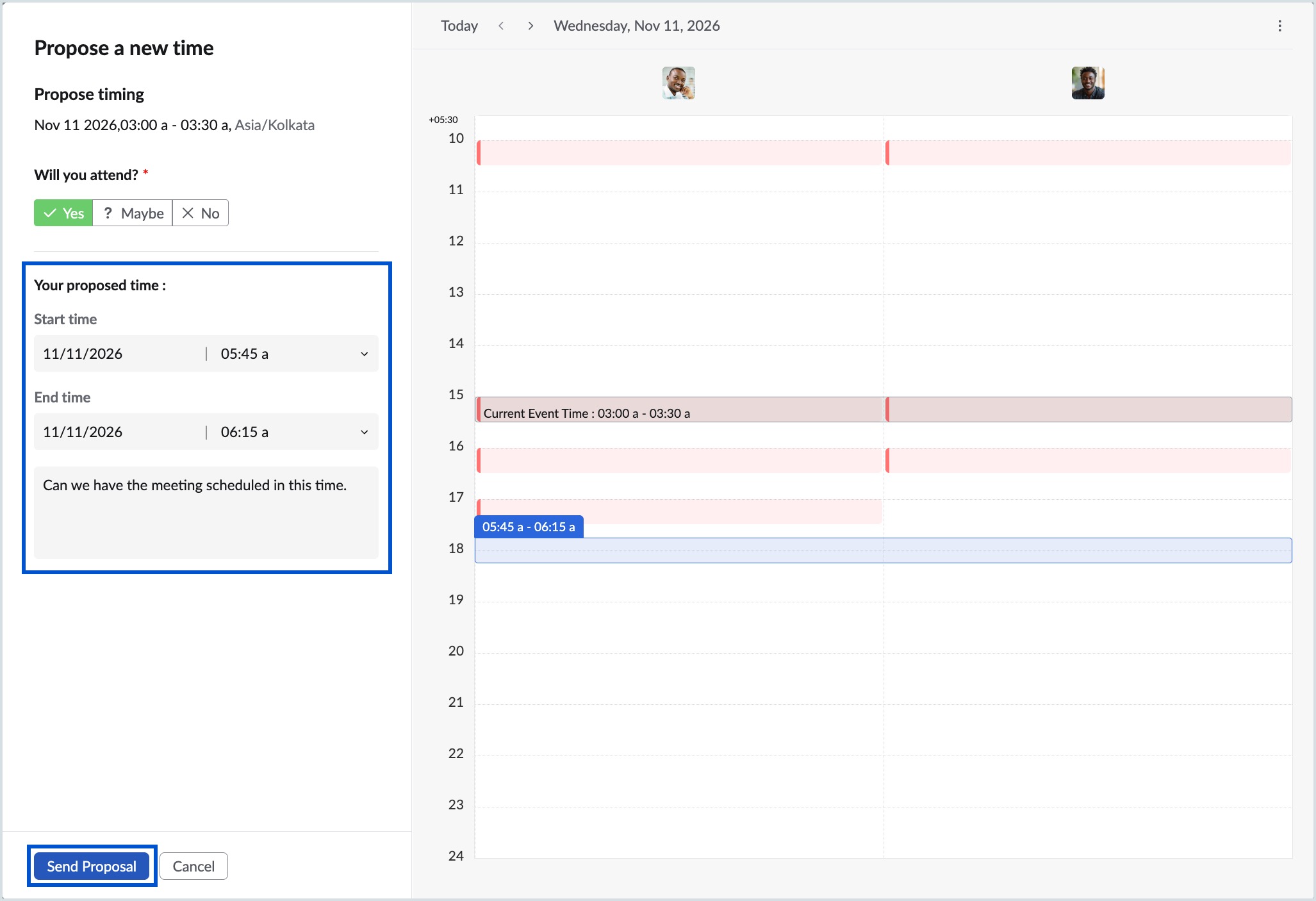
- Under Will you attend?, select Yes, Maybe, or No.
- Under Your proposed time, choose the preferred Start time and End time.
- Enter a message for the organizer and other participants (Optional).
- Click Send proposal.
Note
The Propose a new time option is unavailable for attendees with edit event permission and for All Day events.
After you send the proposal, the organizer receives a notification in Zoho Calendar and an updated invitation email. Your proposed time and message are displayed in the event details for the organizer to review. The event schedule remains unchanged until the organizer approves the proposal.
If multiple attendees propose different meeting times, each proposal is displayed separately under the respective attendee in the event details. The organizer can review all proposals before approving one.
From the event invitation email
Steps to propose a new event time from the event invitation email:
- Sign in to your Zoho Mail account.
- Open the event invitation email and click Propose a new time.
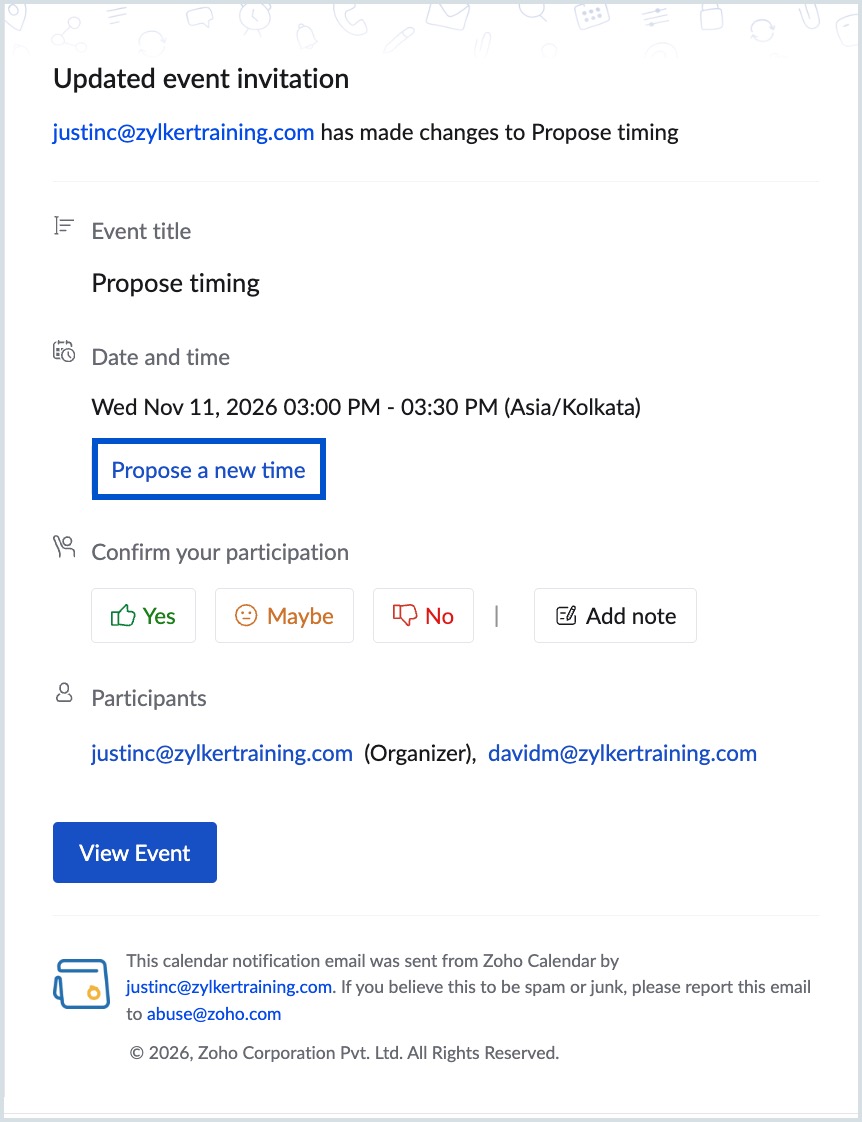
- Under Will you attend?, select Yes, Maybe, or No.
- Under Your proposed time, select the Start time and End time.
- Enter a message for the organizer and other participants (Optional).
- Check your availability in the calendar on the right.
- Click Send Proposal.
Your proposal is sent to the organizer by email and as an in-app notification. Your RSVP and message are sent with it. The original event time stays the same until the organizer approves your proposal.
Review a proposal
When an attendee proposes a new meeting time, organizers can review the proposal before deciding whether to update the event.
A proposal can be opened from any of the following locations:
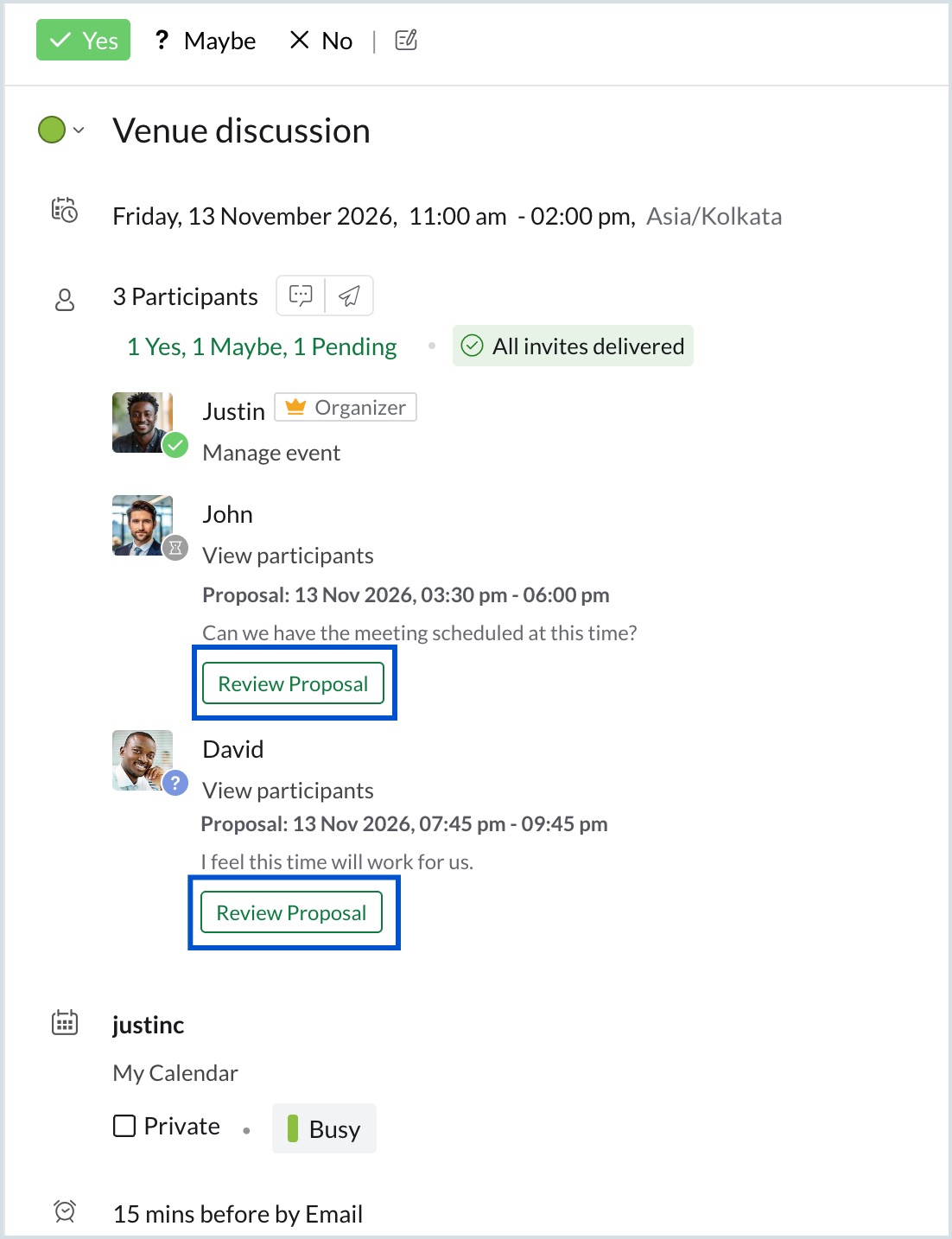
- Notifications – Open the notification and click Review Proposal.
- Event details – Open the event and click Review Proposal below the attendee's proposal.
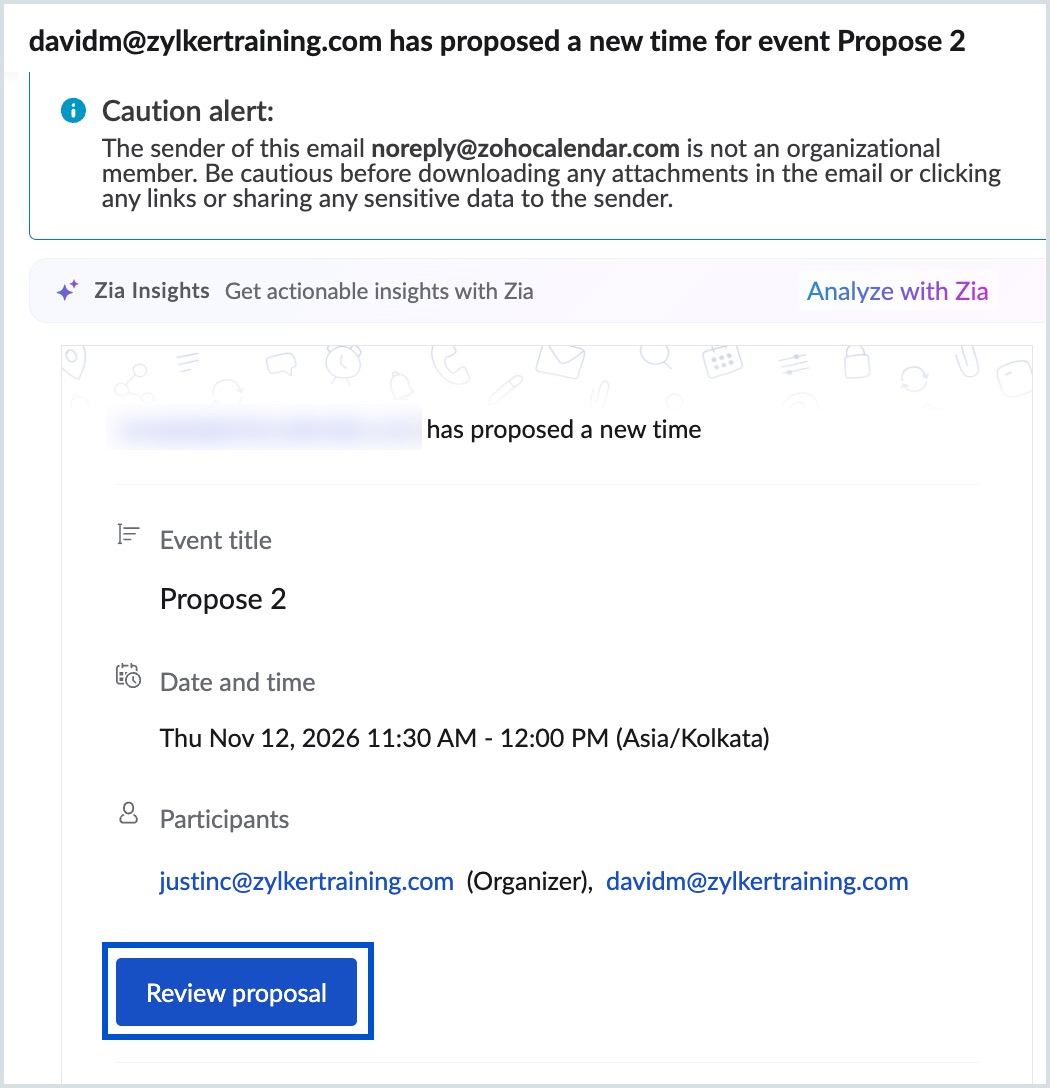
- Invitation email – Open the updated invitation email in Zoho Mail and click Review Proposal.
If multiple attendees submit proposals, each proposal can be reviewed individually from any of these locations.
Approve a proposal
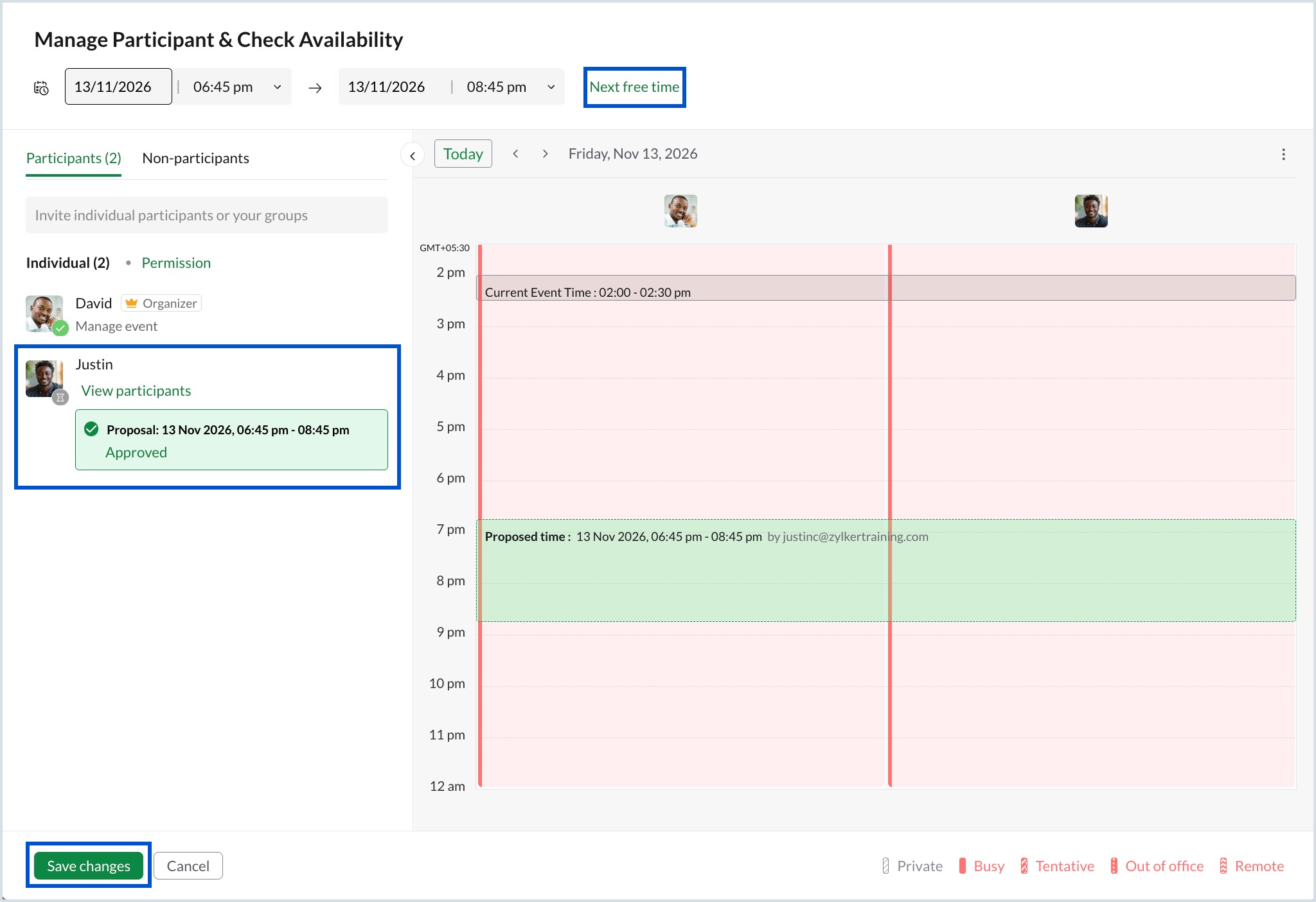
Clicking Review Proposal opens the Manage Participant & Check Availability window. This window displays attendee proposals alongside participant availability, allowing you to compare schedules before updating the event.
The proposed meeting time is highlighted on the availability calendar. Participant availability is displayed using status indicators such as Busy, Tentative, Out of office, Private, and Remote.
Approve a proposal from a single attendee
- Log in to Zoho Calendar.
- Click Review Proposal in the event notification, event details page, or event invitation email to open the proposal.
- Review the attendee's proposed meeting time and message.
- Compare participant availability using the calendar on the right.
- If required, click Next free time to view another available time slot.
- The proposal is automatically marked as Approved.
- Click Save changes.
- In the Send event invitation dialog, choose how you'd like to notify attendees and click Confirm.
The event is updated with the approved meeting time, and updated invitations are sent to the respective attendee.
Approve a proposal from multiple attendees
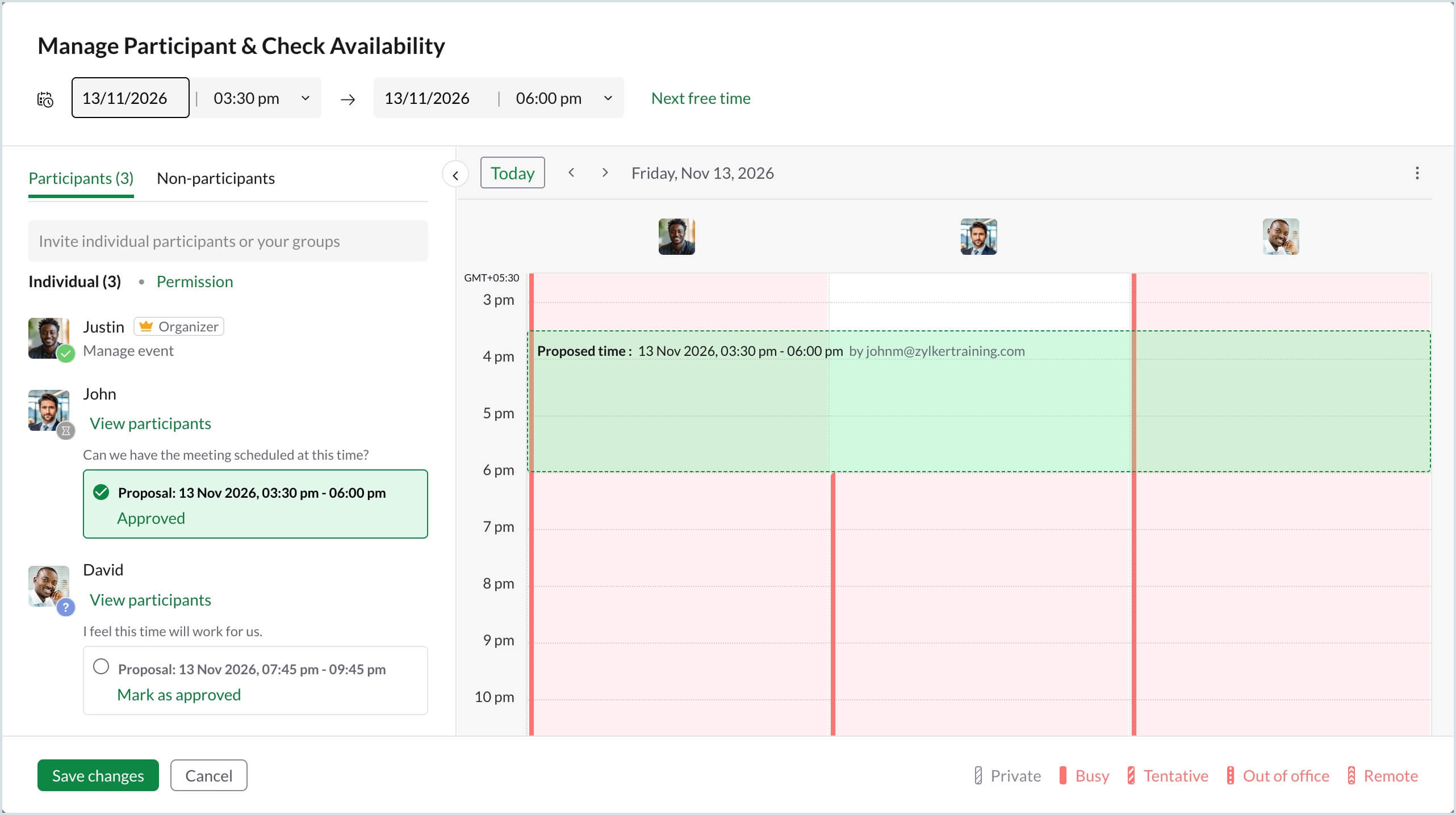
When multiple attendees propose different meeting times, all proposals are displayed in the Manage Participant & Check Availability window.
- Log in to Zoho Calendar.
- Click Review Proposal in the event notification, event details page, or event invitation email to open the proposal.
- In the Manage Participant & Check Availability window, review the proposed meeting time and message for each attendee.
- Check each participant’s availability. To look for another slot, click Next free time.
- The earliest proposal is selected by default.
- To approve a different proposal, select Mark as approved, shown next to the proposal.
- Click Save changes.
- Choose how you'd like to notify attendees and click Confirm.
The event is updated using the approved meeting time, and updated invitations are sent to the attendees.
Note
The event is updated only after you save the change. To leave the event as it is, click Cancel.