

Zia on WhatsApp

Zia on WhatsApp is an AI-powered chatbot that lets you interact with Zoho Books through WhatsApp. You can ask questions, retrieve financial data, and create transactions directly from WhatsApp, similar to how you use Ask Zia within Zoho Books.
Configure Access for Zia on WhatsApp
Users must have permission to access AI Features in Zoho Books before they can set up Zia on WhatsApp.
Note: The Admin role has permission to access AI Features by default.
To enable AI Features for a role:
- Go to Settings.
- Select Roles under Users & Roles.
- Select the role for which you want to enable AI Features.
- On the Role page, under the General tab, navigate to AI Features and select the Configure and Manage AI Features checkbox.
- Click Proceed.
Users with this role will be able to access Zia on WhatsApp after an admin grants them access from the AI Control Center.
Configure Zia on WhatsApp
An Admin must enable Zia on WhatsApp from the organization’s AI Control Center settings before users can access it.
To configure Zia on WhatsApp:
- Go to Settings.
- Select AI Control Center under Organization Settings.
- Navigate to the Preferences tab.
- Enable the toggle for Zia on WhatsApp.
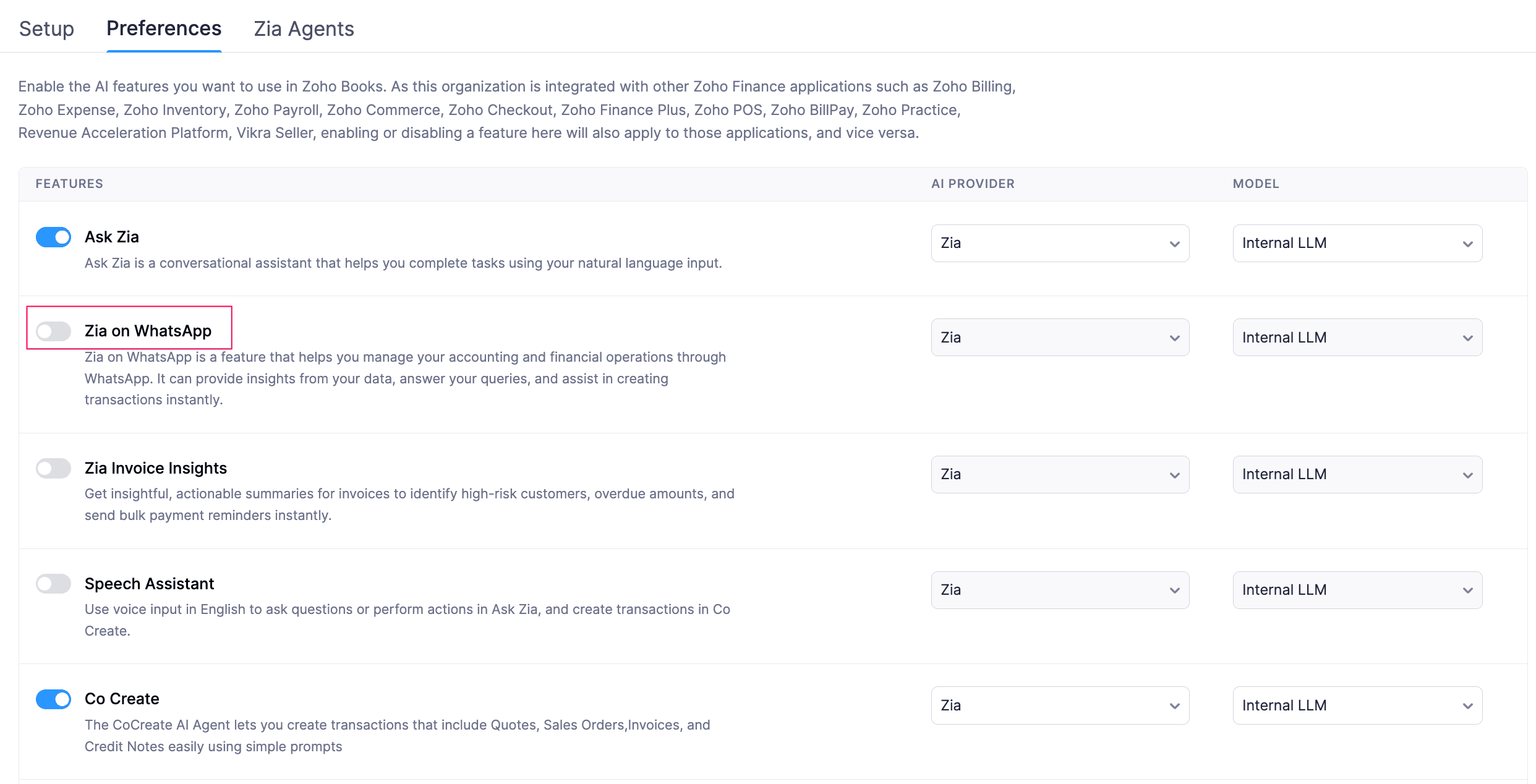
- Click Save.
- In the AI Terms and Conditions pop-up, read the terms and select the checkbox to confirm that you agree to them.
- Click Proceed.
Zia on WhatsApp will be enabled for your organization. A warning message will appear on the same page stating that users won’t be able to access Zia on WhatsApp until they are added. Click Add Users in the warning to add users.
Add Users to Zia on WhatsApp
After enabling Zia on WhatsApp, select the users in your organization who can access it. Enabling the feature doesn’t give you access automatically, so if you want to use Zia on WhatsApp yourself, make sure you add yourself as a user as well.
To add users:
- Go to Settings.
- Select AI Control Center under Organization Settings.
- Navigate to the Preferences tab.
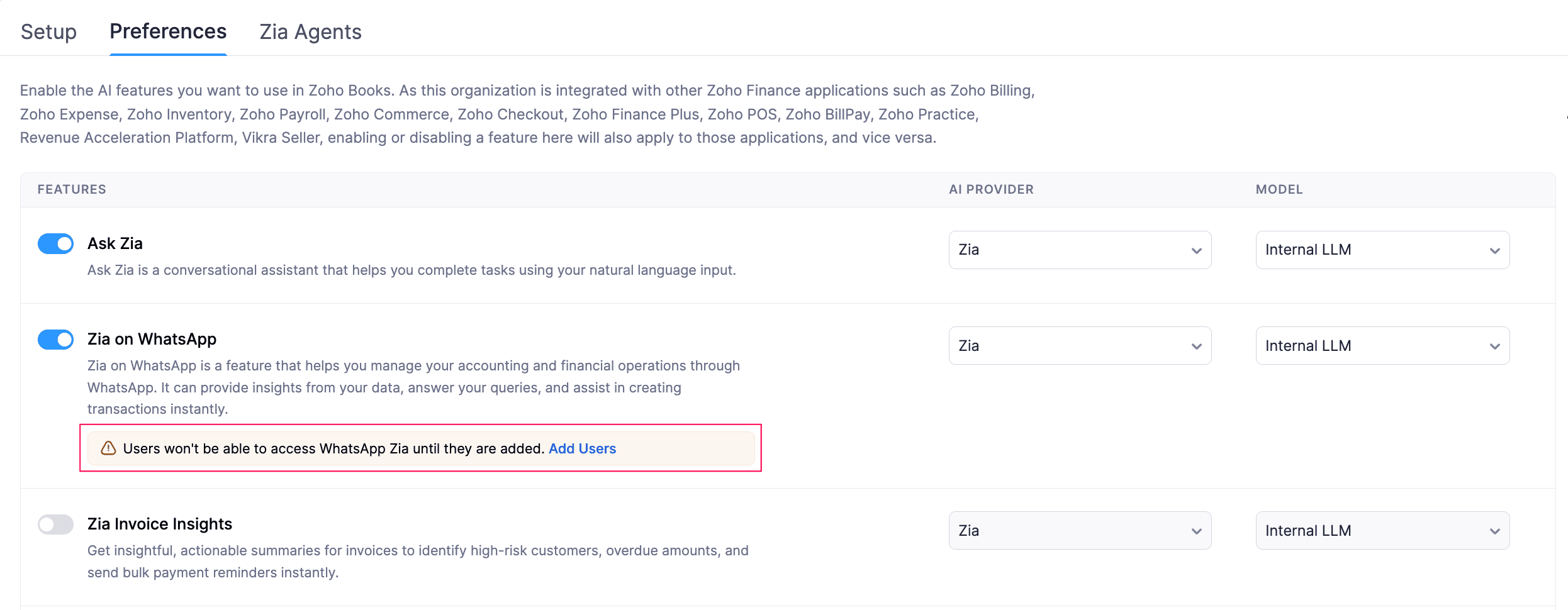
- In the Zia on WhatsApp section, click Add Users in the warning message.
- In the Select Users for Zia on WhatsApp pop-up, click the Select Users field and select the users in your organization to whom you want to grant access.
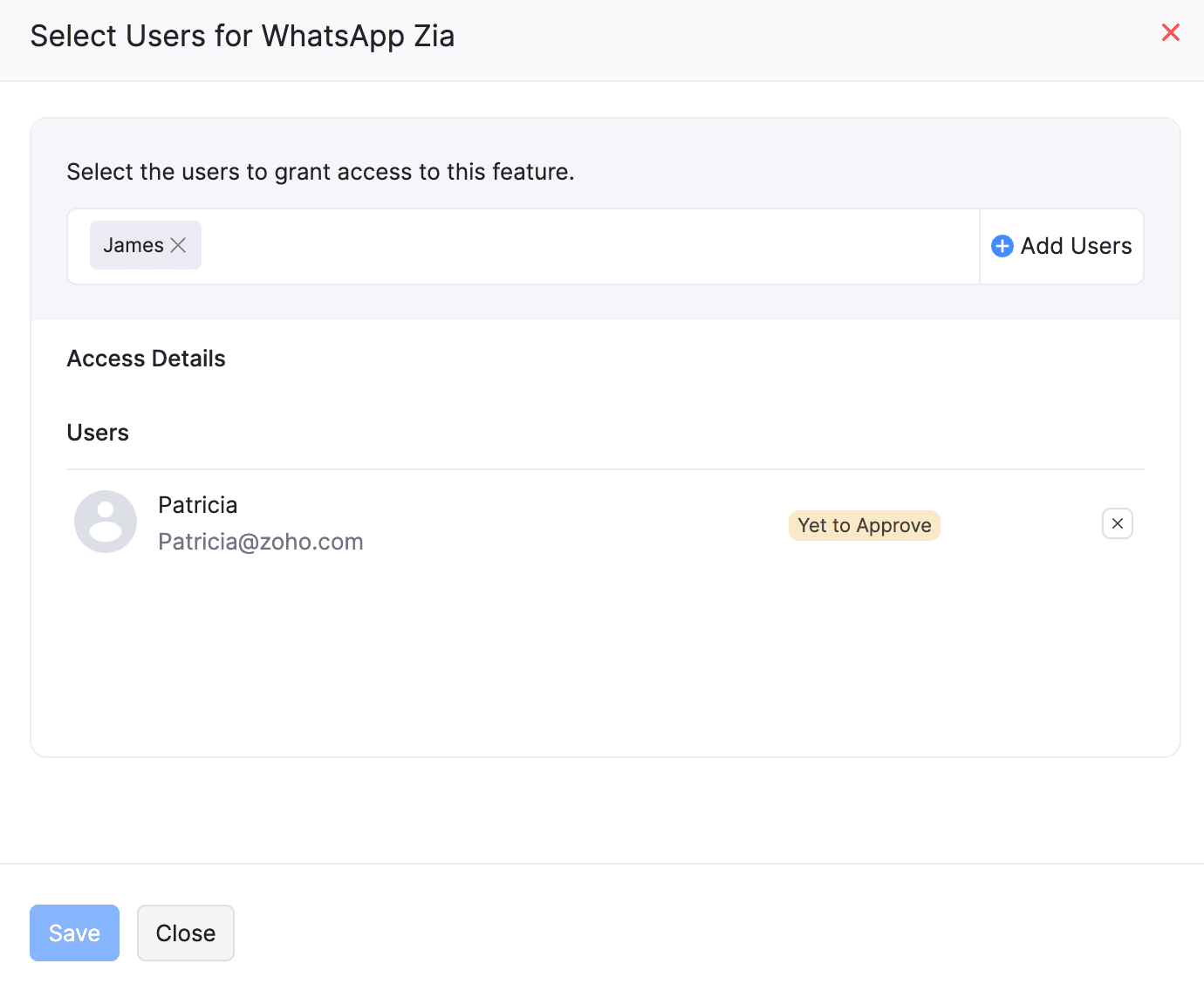
- Click Add Users to add them to the Access Details list.
- Click Save.
The selected users now have access to Zia on WhatsApp. Each user will receive an in-app notification in Zoho Books letting them know that Zia on WhatsApp has been enabled for them. To start using it, they must approve access from their profile.
Remove Users from Zia on WhatsApp
To remove Zia on WhatsApp access for a user:
- Go to Settings.
- Select AI Control Center under Organization Settings.
- Navigate to the Preferences tab.
- In the Zia on WhatsApp section, click Configure.
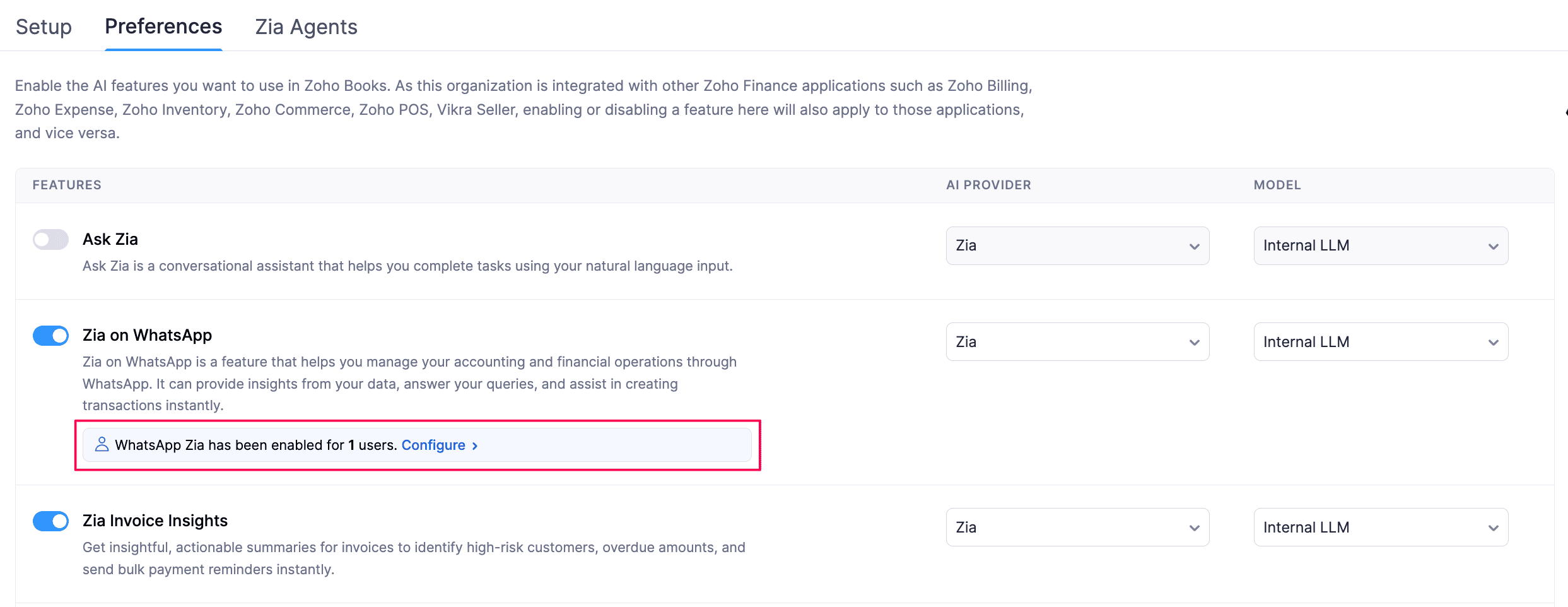
- In the Select Users for Zia on WhatsApp pop-up, click the Remove icon next to the user whose access you want to remove.
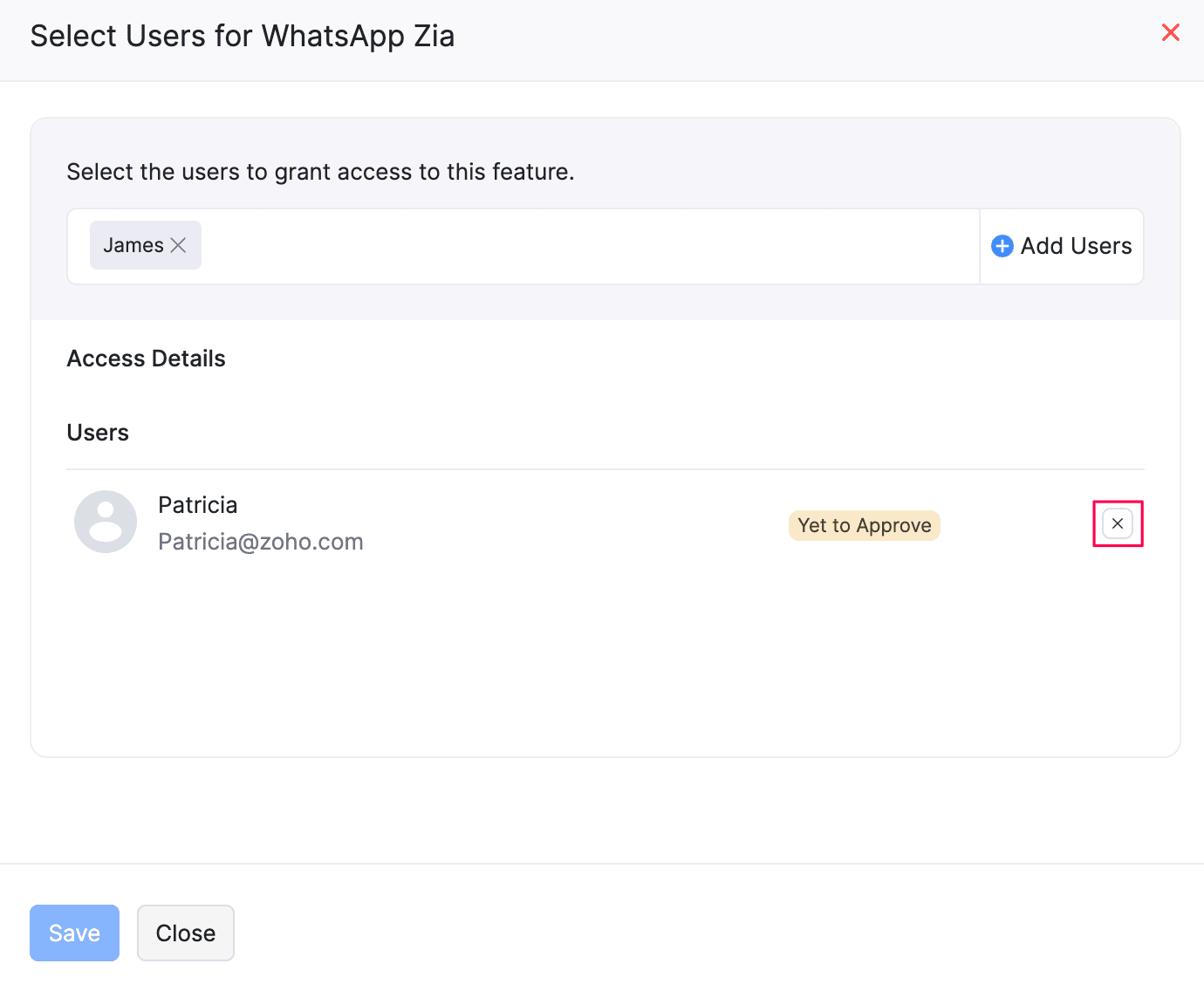
- Click Save.
The user will no longer have access to Zia on WhatsApp.
Approve Access to Zia on WhatsApp
Once the Admin has added you as a Zia on WhatsApp user, you will receive a notification in Zoho Books. You must approve access from your profile before you can start using Zia on WhatsApp.
To approve access:
- Click your profile icon in the top-right corner of your organization.
- Enable the Access WhatsApp Zia toggle.
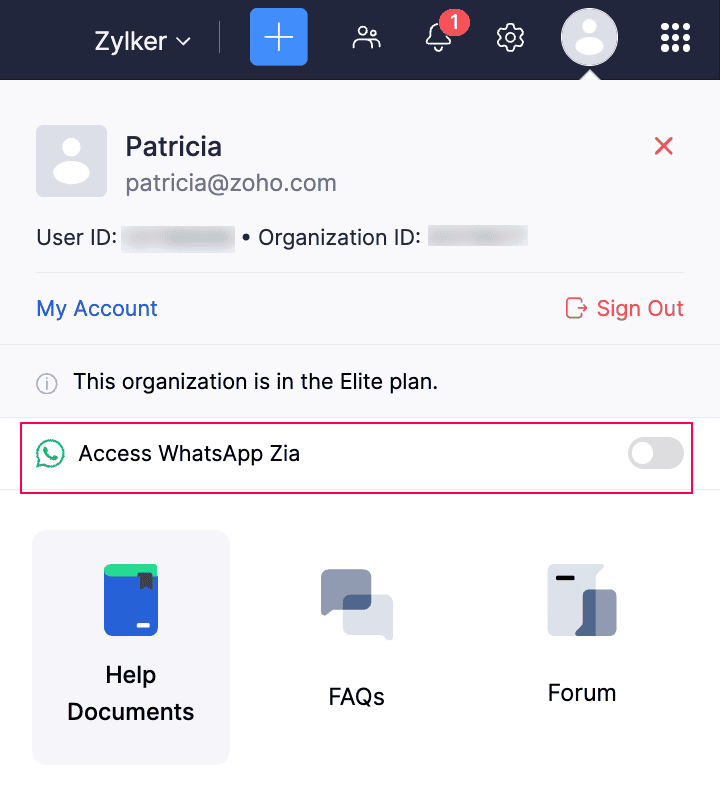
After you enable the Access WhatsApp Zia toggle, a pop-up will appear depending on whether a primary mobile number is registered in your Zoho account.
If a primary mobile number is already registered:
- The Approve Access to Zia on WhatsApp in Zoho Books pop-up appears.
- Select the checkbox to allow your registered number to access Zoho Books using Zia on WhatsApp.
- Click Approve.
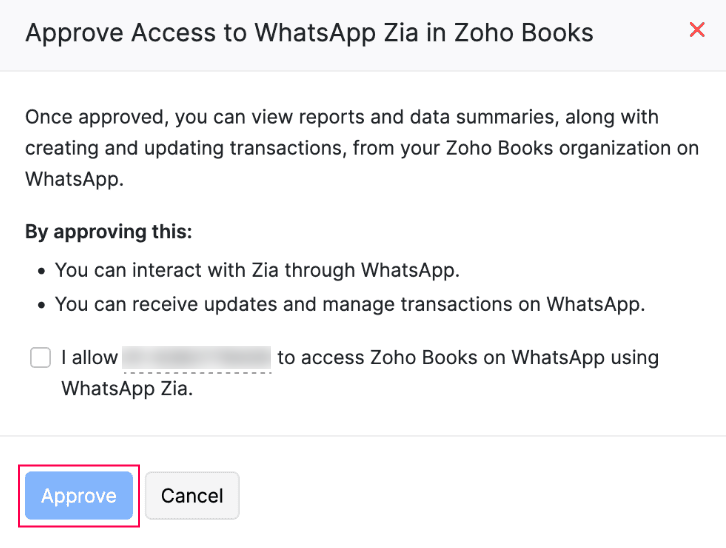
Once approved, you can interact with Zia through WhatsApp, receive updates, and manage transactions.
If a primary mobile number is not registered:
- In the WhatsApp Number Verification Required pop-up, click Go To Zoho Accounts.
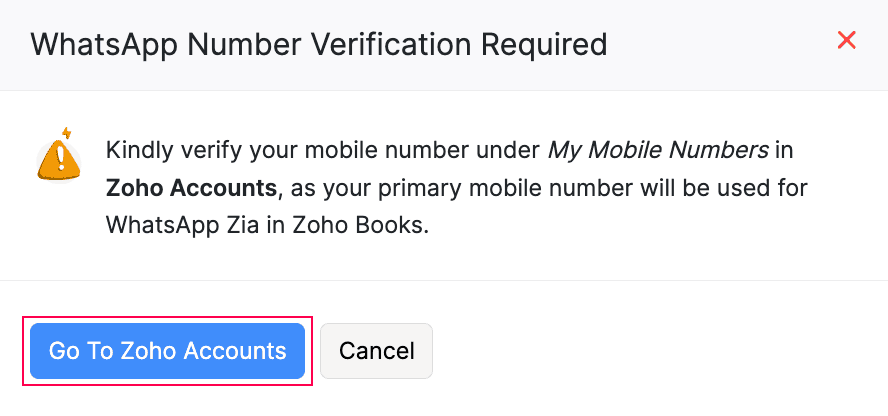
You will be redirected to your Zoho account page. To mark your mobile number as primary:
- Go to Profile, navigate to My Mobile Numbers, and add your primary mobile number. If your number is already added, mark it as Primary.
- Return to Zoho Books and enable the Access WhatsApp Zia toggle again in your profile.
- In the Approve Access to Zia on WhatsApp in Zoho Books pop-up, select the checkbox to allow your registered number to access Zoho Books using Zia on WhatsApp.
- Click Approve.
Zia on WhatsApp access will be approved for your account. Your profile menu will show the Access WhatsApp Zia toggle as enabled, along with a Start your chat now link displaying the Zia on WhatsApp contact number.
Zia on WhatsApp identifies you using the primary mobile number registered in your Zoho account. Messages sent from this number are used to connect you to your Zoho Books organization.
Start a Chat with Zia on WhatsApp
Once your access is approved, Zoho Books Zia assistant will send a greeting message to your registered WhatsApp number. You can reply to this message directly in WhatsApp, or start a chat with Zoho Books Zia assistant from your Zoho Books profile, which opens the conversation in WhatsApp Web.
To start a chat with Zoho Books Zia assistant from your organization:
- Go to your Zoho Books organization.
- Click your profile icon in the top-right.
- Click Start your chat now under Access WhatsApp Zia.
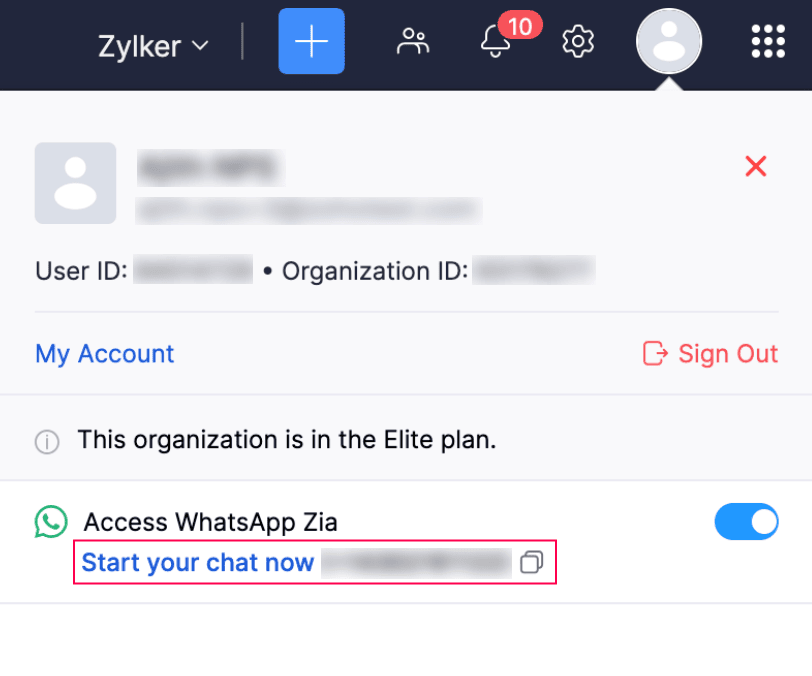
You will be redirected to your chat with Zoho Books Zia assistant on WhatsApp Web.
Zoho Books’ Zia assistant currently supports queries and actions across the following modules: Reports, Invoices, Customers, Vendors, Items, and Quotes. For example, you can ask:
- How many invoices are overdue this month?
- What is the outstanding balance for customer Zylker Inc?
- Create an invoice for Bailey with five USB-C Hubs.
- Show me my Profit and Loss for this quarter.
Zoho Books Zia assistant retrieves or creates the requested data in Zoho Books and responds in the chat.
A Zoho Books Zia assistant chat session is active for 6 hours from when it starts and ends automatically after this period.
Switch Between Zoho Books Organizations
Zoho Books Zia assistant identifies your organization based on the primary mobile number registered in your Zoho account.
- If your number is associated with one Zoho Books organization, Zoho Books Zia assistant connects to that organization automatically when you start a chat.
- If your Zoho account is associated with multiple Zoho Books organizations, Zoho Books Zia assistant asks you to select an organization at the start of each session in the chat. Once selected, all queries in that session will be answered in the context of that organization.
To query a different organization, you must end the current session and start a new one in your WhatsApp chat. To do this:
- Open your chat with Zia on WhatsApp.
- Send End Chat to close the current session.
- Send Hi to start a new session.
- Select the required organization from the list when prompted.
Send Voice Messages to Zoho Books Zia Assistant
You can send voice messages in your chat with Zoho Books Zia assistant instead of typing your queries. Zia will transcribe your voice note, show you the transcription, and ask you to confirm it before responding.
To use voice messages, the Speech Assistant must be enabled. To enable it:
- Go to your Zoho Books organization.
- Go to Settings.
- Select AI Control Center under Organization Settings.
- Navigate to the Preferences tab.
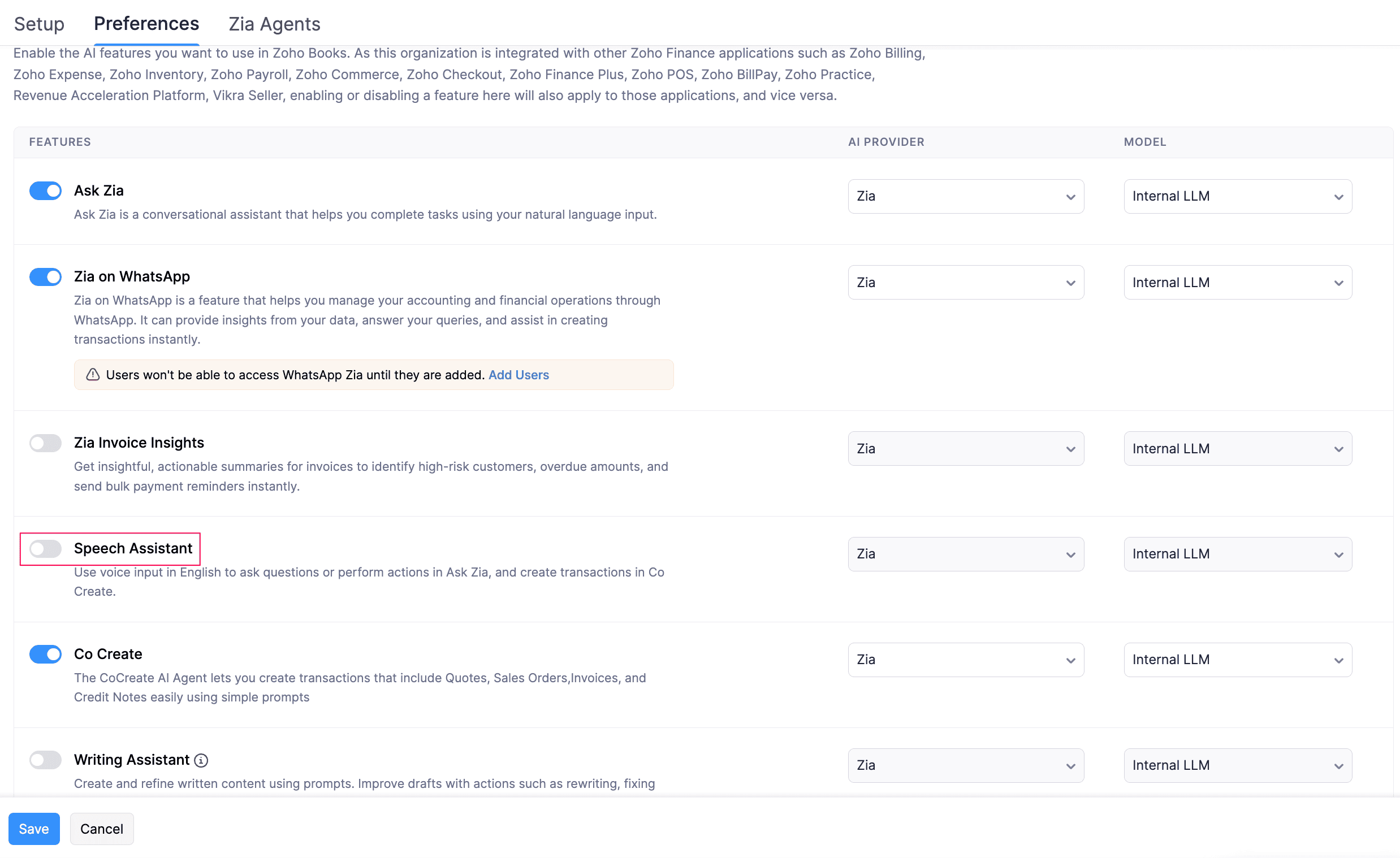
- Enable the toggle next to Speech Assistant.
- Click Save.
To send a voice message:
- Open your chat with Zia on WhatsApp.
- Record and send a voice note with your query.
- Review the transcription Zia displays and confirm it.
Zia on WhatsApp will process your request and respond accordingly.
 Yes