Zoho One Free Plan help articles

Zoho One Free Plan - Overview

Zoho One Free Plan gives very small teams ongoing, no-cost access to a defined set of Zoho One applications. You can move to this plan once your Zoho One trial or subscription ends, or by signing up directly without starting a trial. There's no time limit on how long you can stay on the Free Plan, and no payment details are required.

Note: Zoho One Free Plan is being rolled out in phases. It is currently available only in LATAM regions (excluding Brazil). Availability in other regions will be announced separately.

What's included

  1. Up to 3 users per organization.
  2. Access to some Zoho One applications on their free tier. Supported apps include: Zoho CRM, Zoho Bigin, Zoho SalesIQ, Zoho Campaigns, Zoho Forms, Zoho Backstage, Zoho Desk, Zoho Projects, Zoho Learn, Zoho Sprints, Zoho Vault, Zoho People, Zoho Recruit, Zoho Contracts, Zoho Creator, and Zoho DataPrep
  3. Core Zoho One features, including Admin Panel (aka Directory), Spaces, Dashboard, Action Panel, and Quick Nav. Directory in particular is never disassociated from your Zoho One organization, even on Free Plan. It always stays mapped to your account, using Directory's own free-plan limits.
  4. Support through community forums and email.

What's not included

  1. Add-ons. Add-ons of any kind aren't available on Free Plan. All applications on Zoho One Free Plan run on their free tier only.
  2. Additional user licenses. The Free Plan is capped at 3 users. You can't purchase more licenses while on this plan.
  3. Classic support. Available only for paid subscriptions.
  4. Certain application features. Some features that are restricted on an application's own free tier remain restricted under Zoho One Free Plan. For example, the Client Portal in Zoho CRM remains restricted under Zoho One Free Plan.

How you can move to Free Plan

There are a few ways to move to Zoho One Free Plan:

  • Direct sign-up: You sign up for Zoho One and choose to continue with Free Plan instead of starting a trial. You can still start a 30-day trial anytime afterward; see Upgrading from Free Plan to Trial or Paid Subscription below
  • Trial expiry: Your 30-day Zoho One trial ends. The next time you access Zoho One, you'll be prompted to move to a paid plan, extend your trial, or move to Free Plan.
  • Cancelling a paid subscription: While cancelling your paid Zoho One subscription, you choose to move your applications to Free Plan instead of cancelling it entirely.
  • Failed payment: If a renewal payment doesn't go through and stays unpaid past the grace period, your subscription is marked expired. The next time you access Zoho One, you'll be prompted to renew your plan or move to Free Plan.

Direct sign-up, trial expiry, and cancelling a paid subscription are all covered step-by-step in Sign up for / Switch to Zoho One Free Plan.

Note: You'll continue to see this prompt each time you sign in until you choose an option. If your account stays idle without any action, see What happens if you don't take any action.

Upgrading from Free Plan to Trial or Paid Subscription

You can start a 30-day trial or upgrade to a paid subscription at any time from the Subscription page or your Profile panel. Upgrading from Free Plan gives your organization access to all 50+ Zoho One applications and removes the 3-user cap for the duration of the trial or subscription. For step-by-step instructions, see Upgrade from Zoho One Free Plan

Note: If you close your Zoho One account instead of upgrading, your applications will be disassociated and, where available, moved to their own standalone free plans.
Sign up for / Switch to Zoho One Free Plan

You can move your organization to Zoho One Free Plan in three ways: by signing up directly without starting a trial, by switching over once your trial ends (or before it ends), or by choosing Free Plan if you're already cancelling a paid subscription. This article walks you through all three paths.

Info:

  • Subscription-related actions can only be performed by the Organization Owner.
  • If your purchase was made offline, please contact your account manager or sales@zohocorp.com to switch to Free Plan or upgrade to a different subscription.

Sign up directly to Free Plan

If you're new to Zoho One and don't want to start a 30-day trial, you can sign up straight to Free Plan.

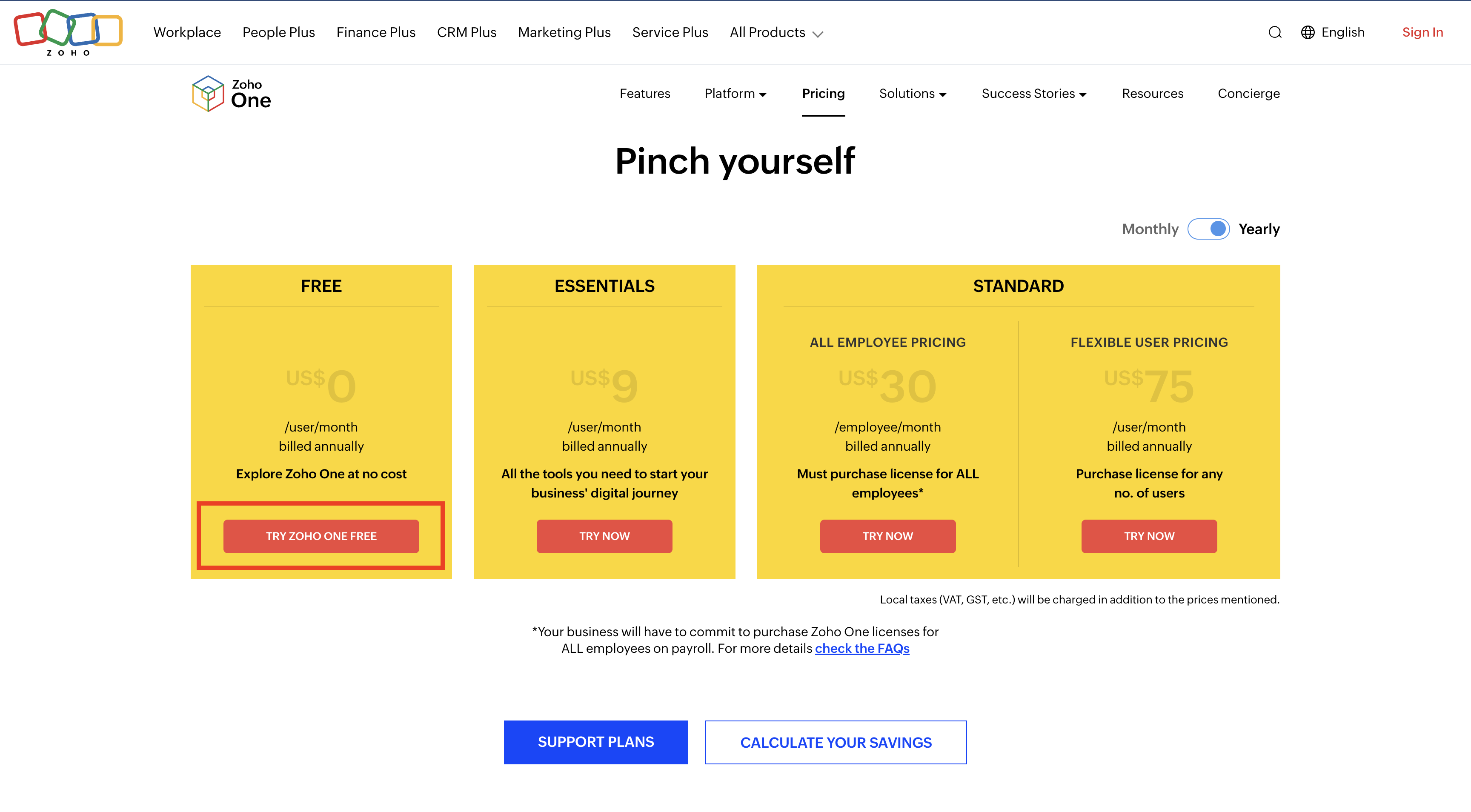
  1. Go to Zoho One's pricing page, then click Try Zoho One Free Plan.
    Zoho One pricing page with the Try Zoho One Free button highlighted below the plan cards
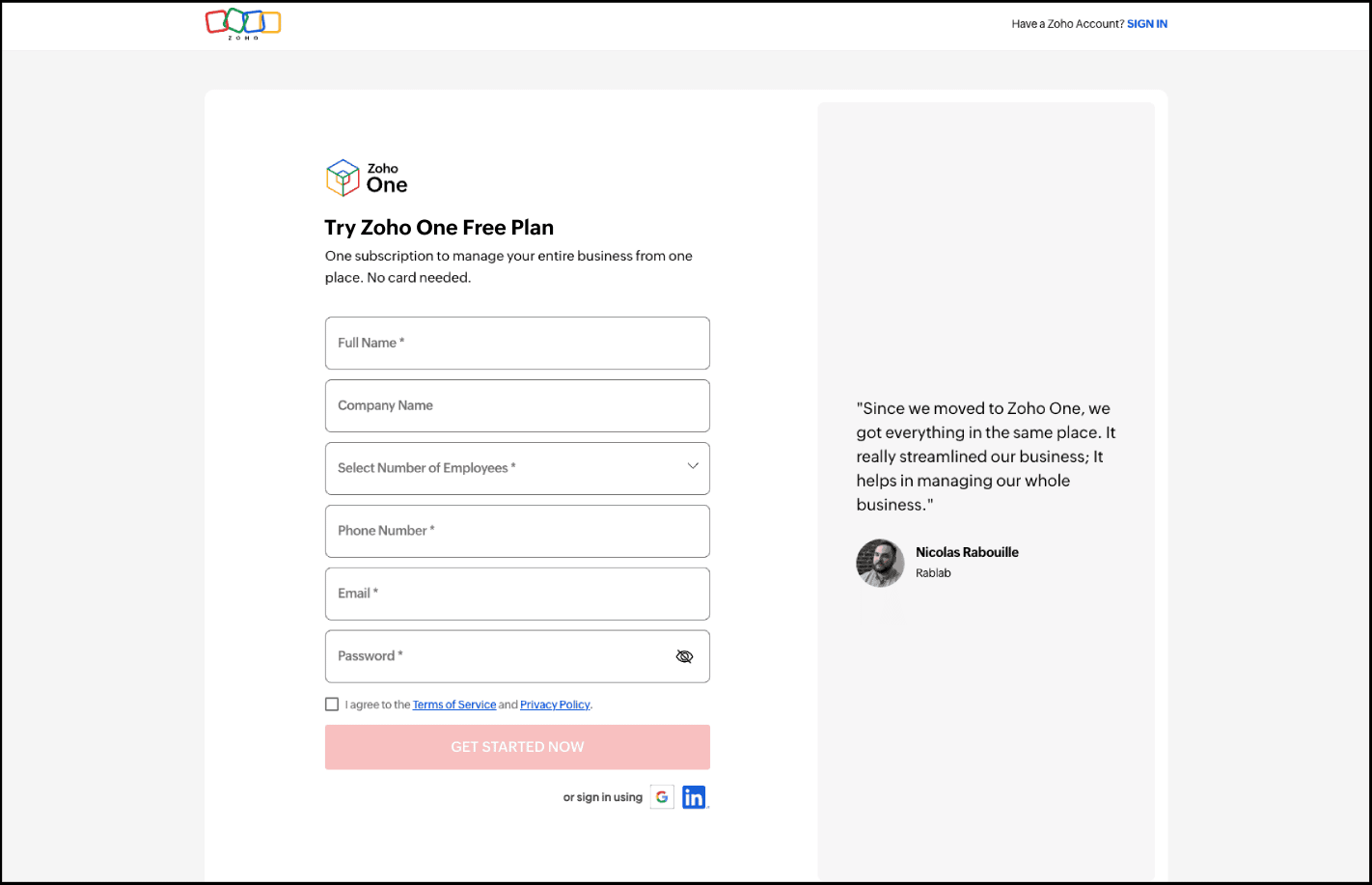
  2. Enter all the requested details, then click Get Started Now.
    Try Zoho One Free Plan sign-up form with name, company, employees, phone, email and password fields
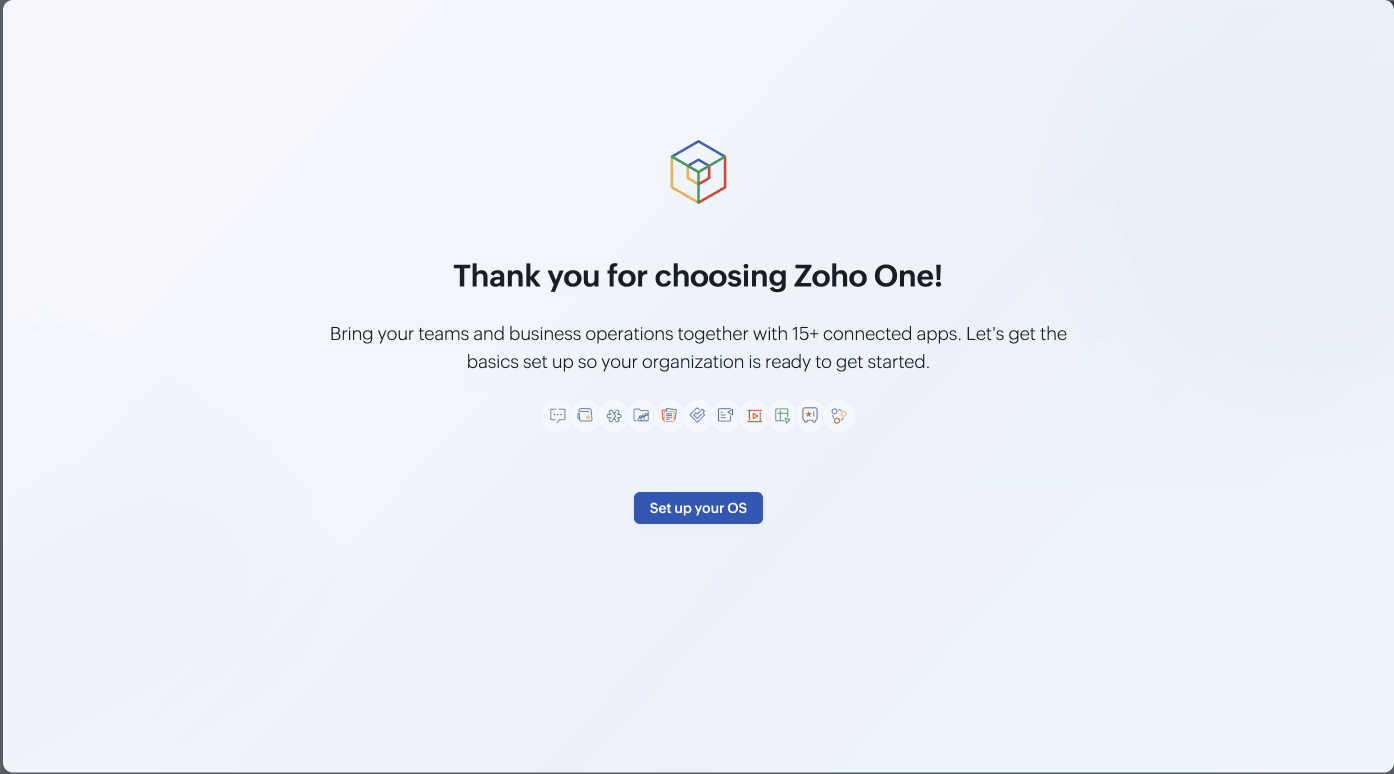
  3. On the next screen, click Set up your OS.
    Thank you for choosing Zoho One screen with the Set up your OS button
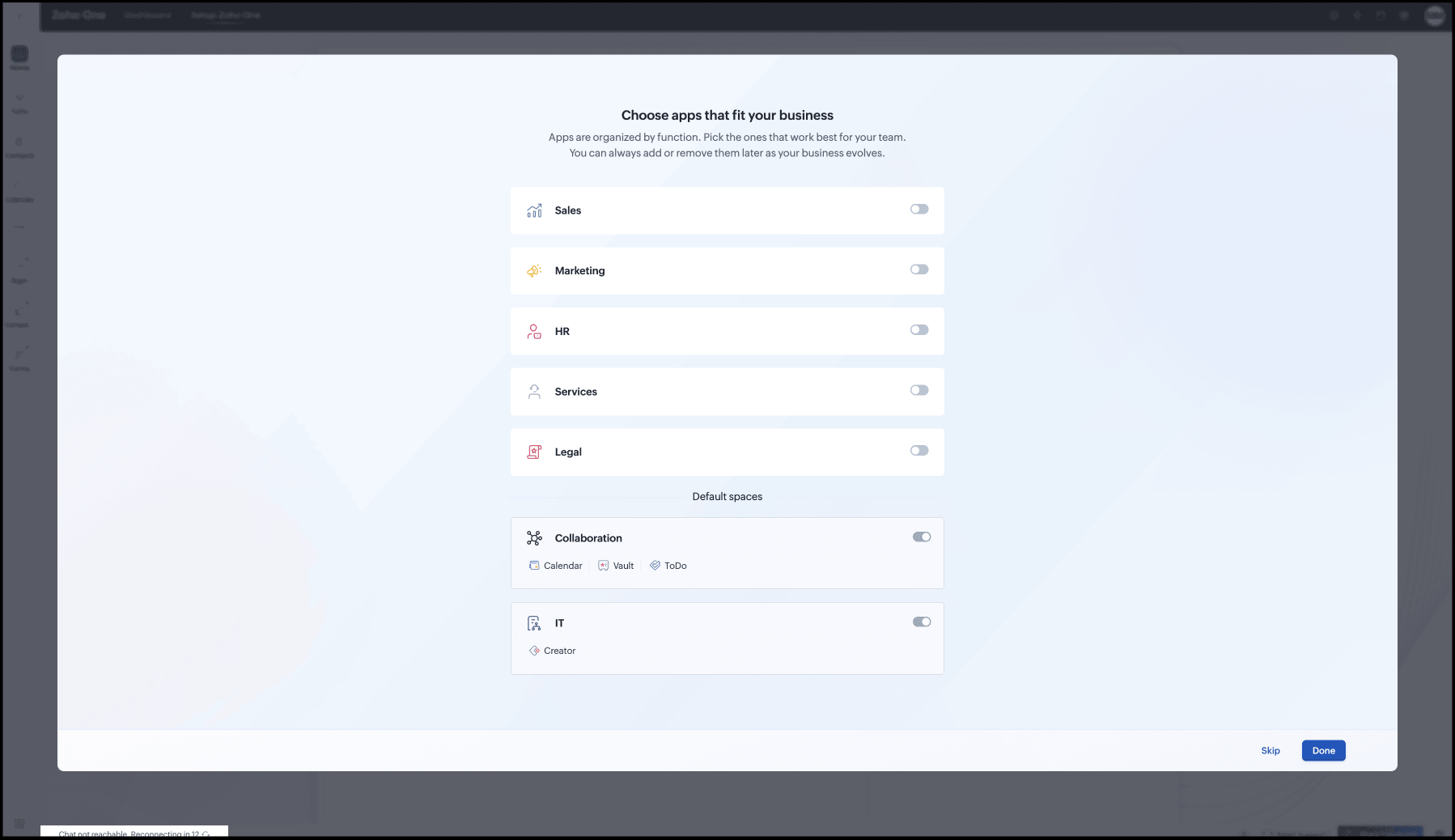
  4. On the next screen, turn on the app categories that fit your team (Sales, Marketing, HR, Services, Legal). You can always add or remove these later as your business evolves. (You can see the default spaces—Collaboration, IT—enabled.) Click Done.
    Choose apps that fit your business screen with toggles for Sales, Marketing, HR, Services and Legal, and default Collaboration and IT spaces
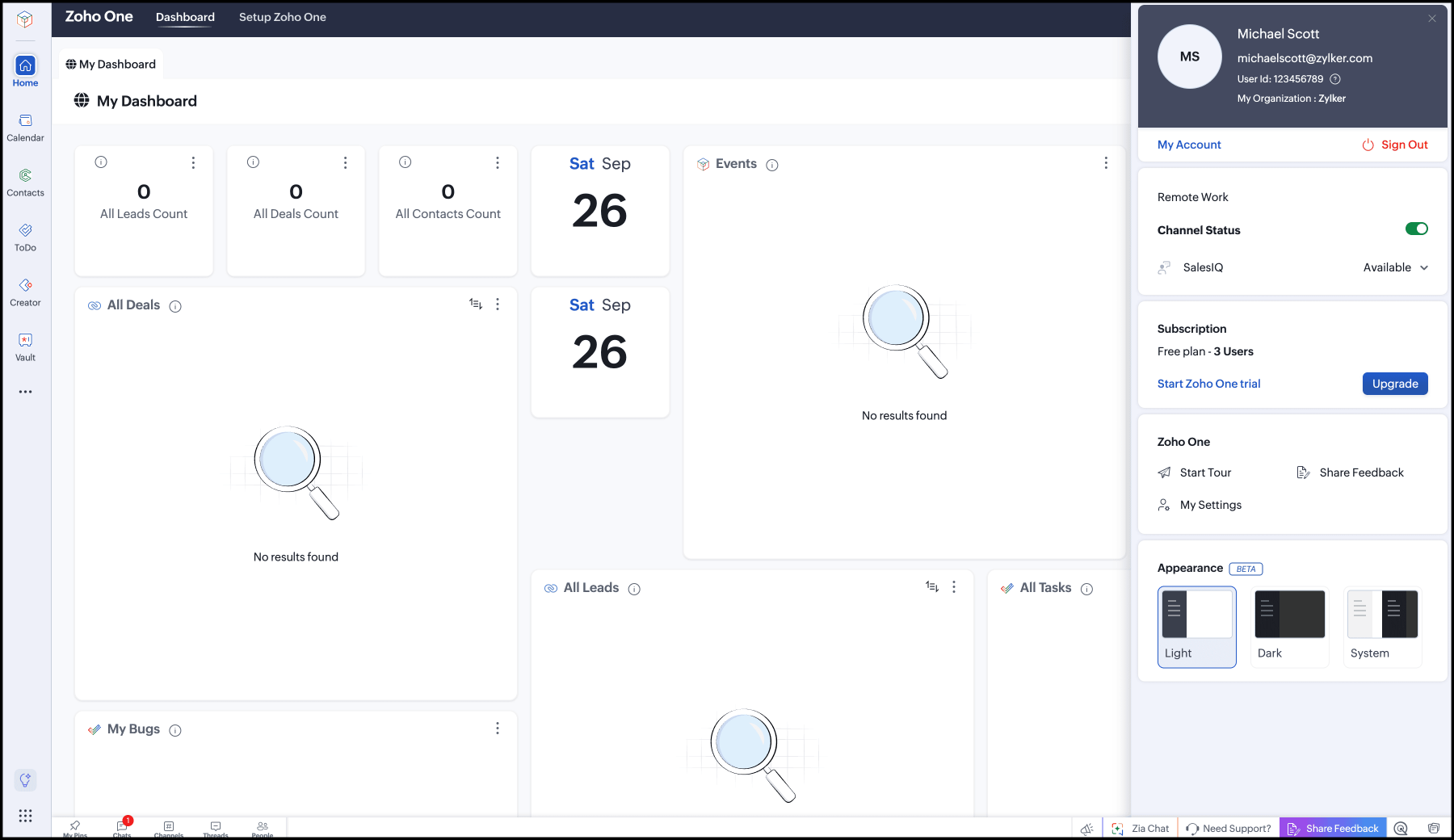
  5. You'll land on your Zoho One home page, ready to start adding users and setting up more applications.
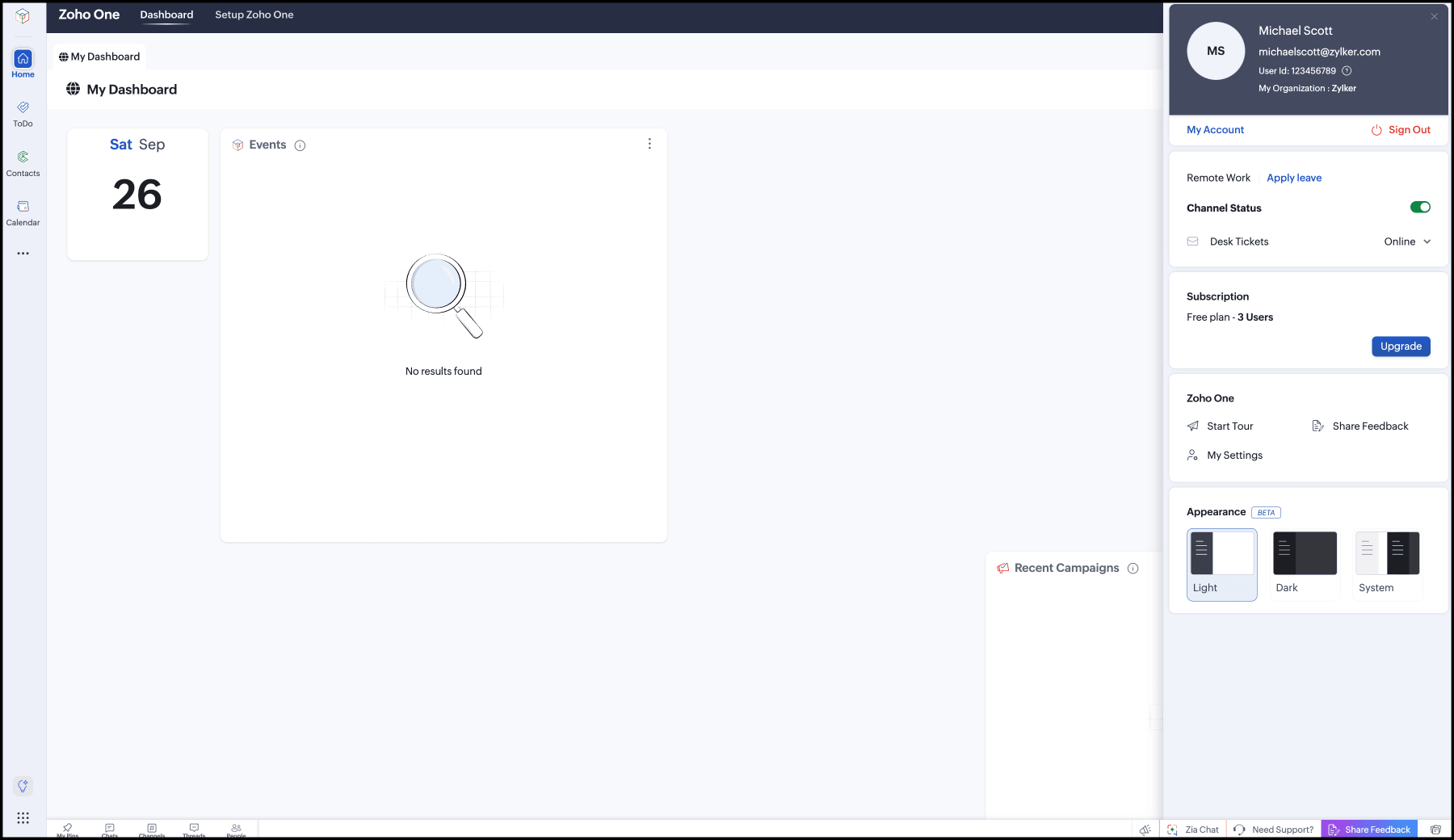
    Zoho One dashboard with the profile panel showing Subscription: Free plan - 3 Users, Start Zoho One trial and Upgrade

Note: Zoho One Free Plan supports up to 3 users, and only some applications on their free tiers. You can check how many user licenses you've used any time from the Subscription tab in your Zoho One Admin Panel.

Switch to Free Plan from an active trial

If you're currently on a Zoho One trial, you can switch to Free Plan at any point; you don't have to wait for the trial to expire.

  1. Sign in to Zoho One, then click your profile icon in the top-right corner.
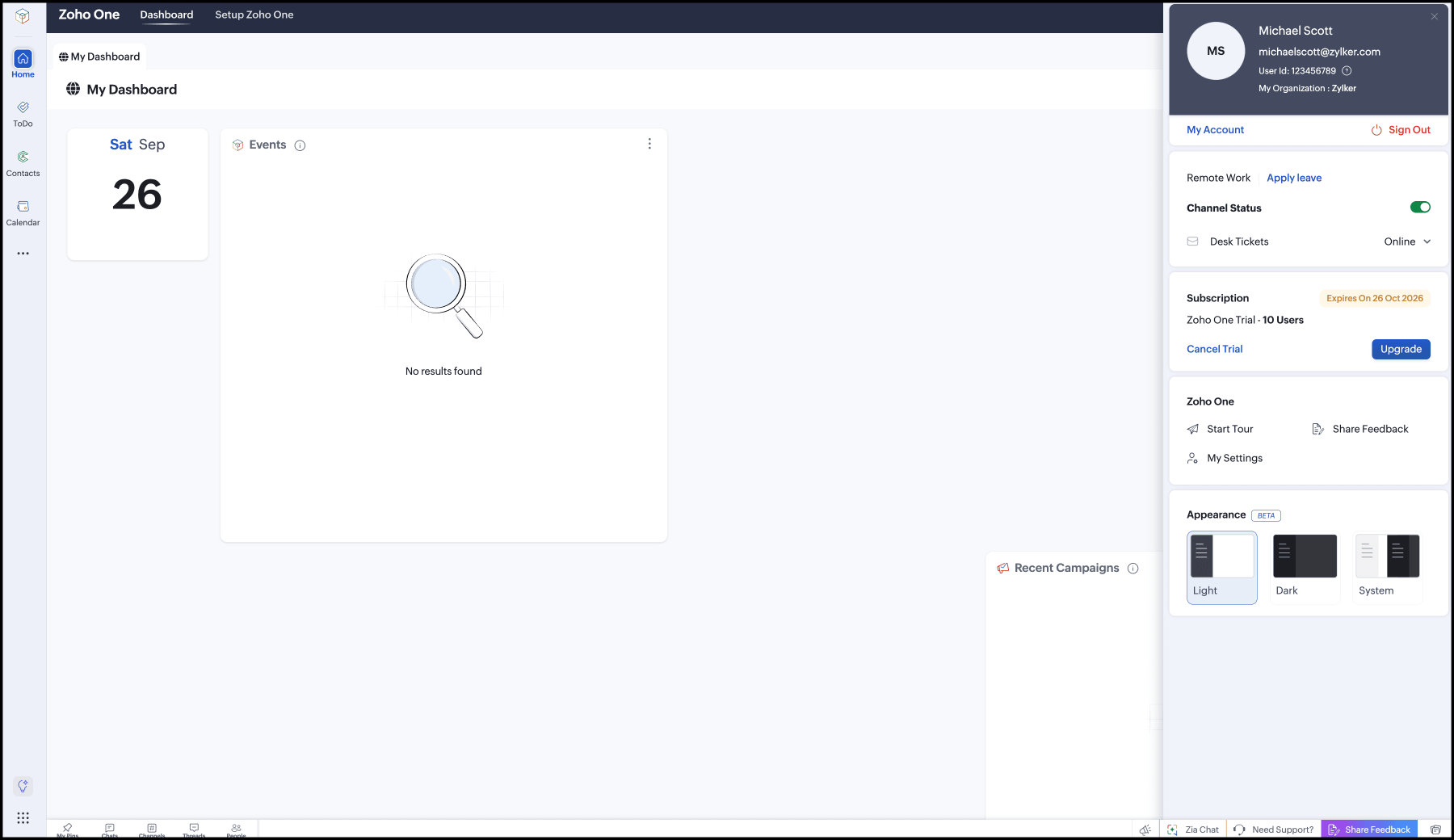
  2. Under Subscription, click Cancel Trial.
    Profile panel during a trial showing Zoho One Trial - 10 Users with Cancel Trial and Upgrade options
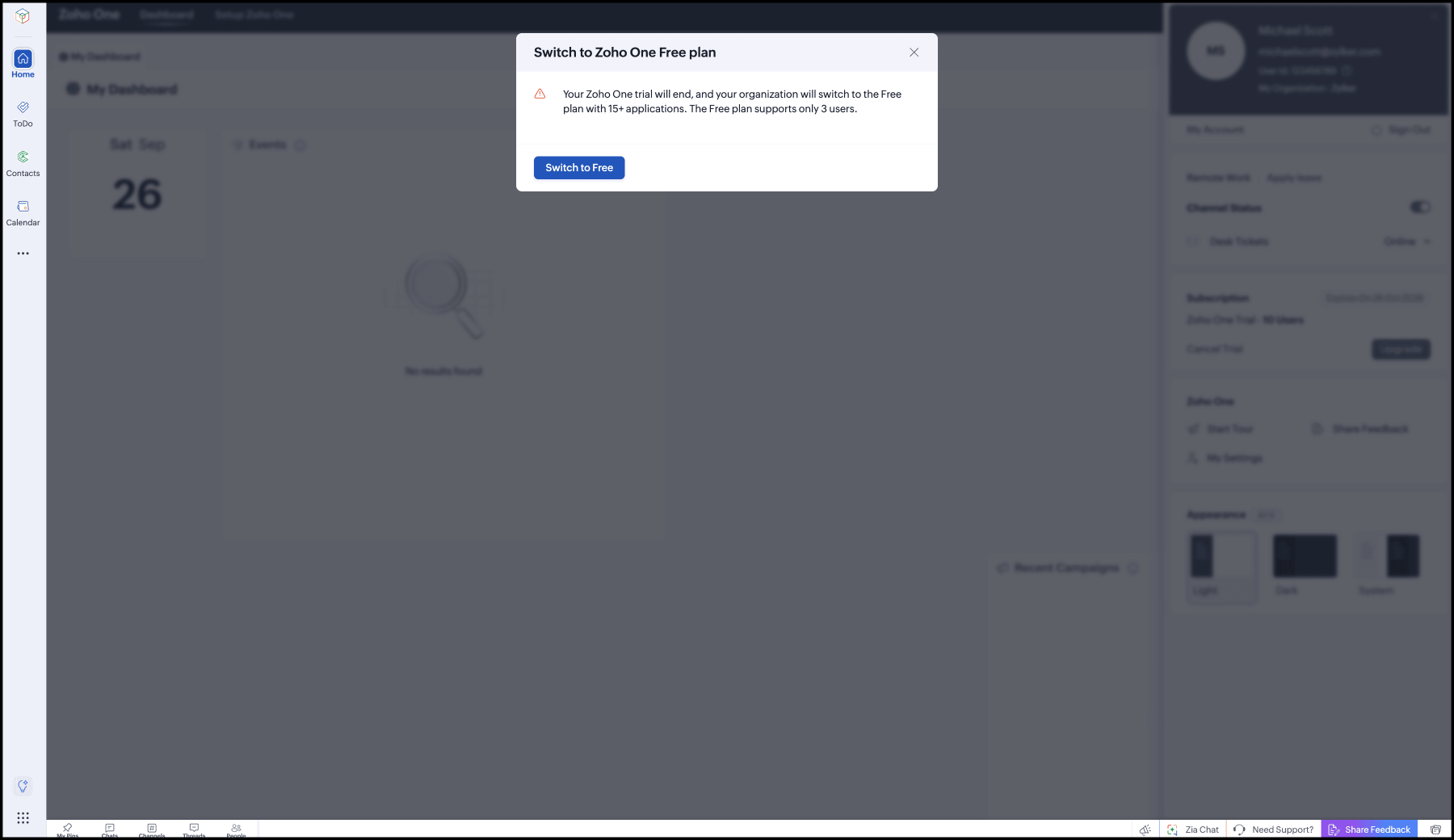
  3. In the dialog box that appears, click Switch to Free.
    Switch to Zoho One Free plan dialog with the Switch to Free button
  4. Your Zoho One dashboard refreshes. Your profile panel now shows Free plan · 3 Users, confirming the switch is complete.
    Profile panel showing Subscription: Free plan - 3 Users with an Upgrade button

Note: If you'd rather let the trial run its full course, you don't need to do anything. See the next section to learn what happens after your Zoho One trial expires.

Switch to Free Plan after trial expiry

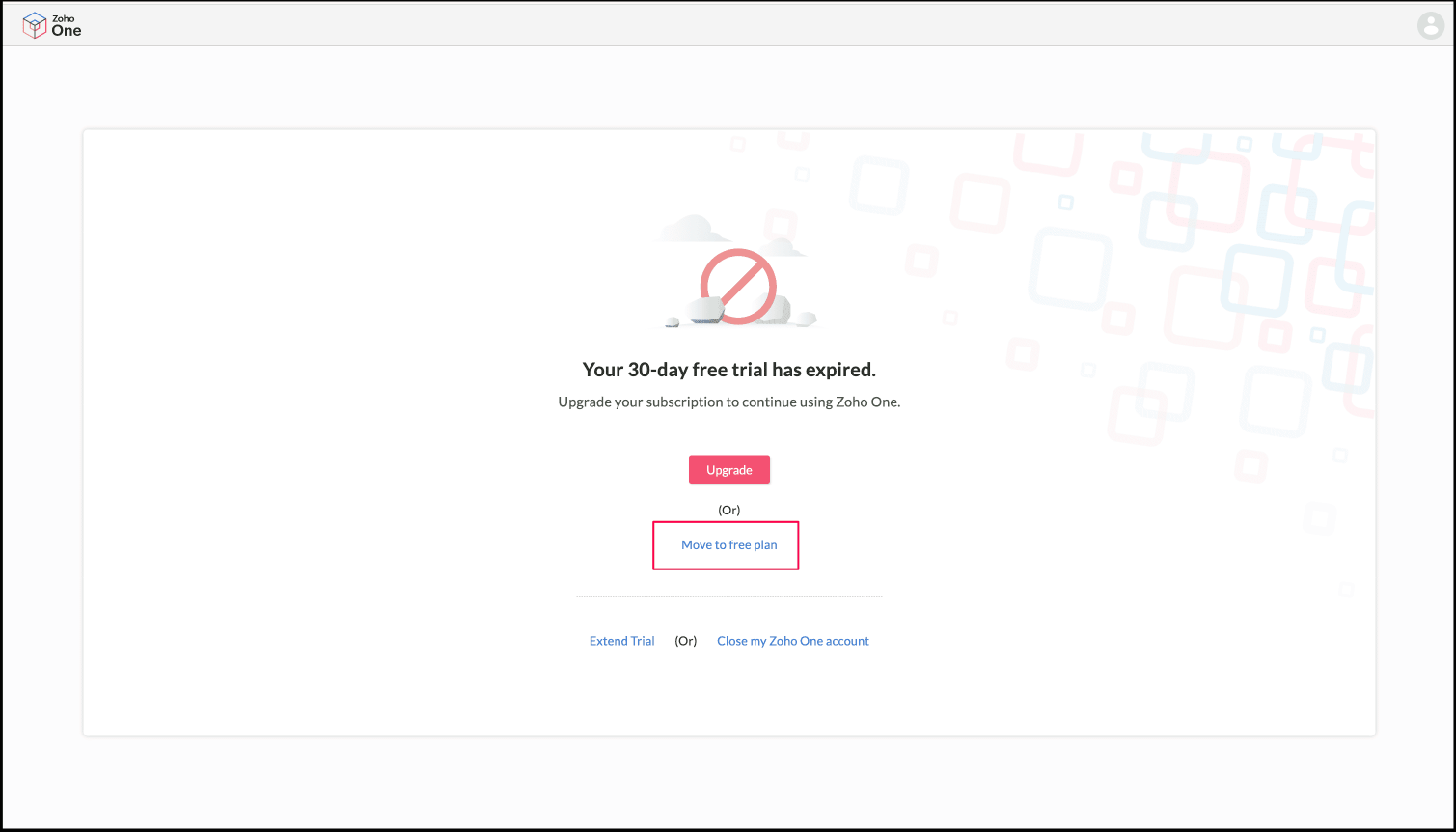
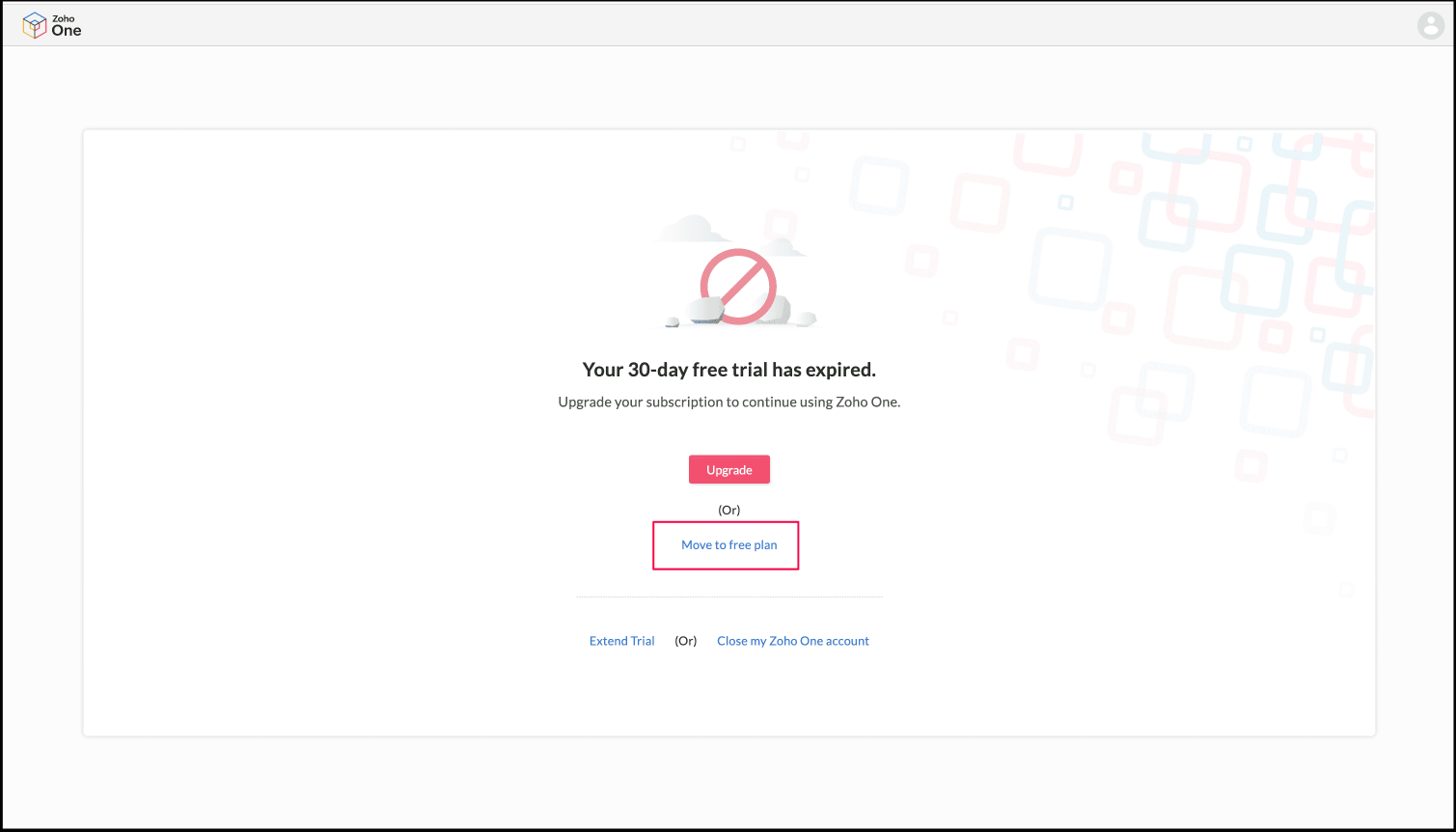
When you access Zoho One after your 30-day Zoho One trial expires, you'll land on the trial-expired landing page. From here, you can move to a paid subscription, extend trial, or move to Zoho One Free Plan. If you choose to move to Free Plan:

  1. On the trial-expired landing page, click Move to Free Plan.
    Your 30-day free trial has expired page with Upgrade, Move to free plan, Extend Trial and Close my Zoho One account options
  2. Continue from step 3 in the "Switch to Free Plan from an active trial" section above.

Switch to Free Plan while cancelling a paid subscription

If you're on a paid Zoho One plan (Essentials or Standard) and want to cancel, you can choose to move your applications to Free Plan instead of cancelling it entirely.

  1. Sign in to Zoho One, then click your profile icon in the top-right corner.
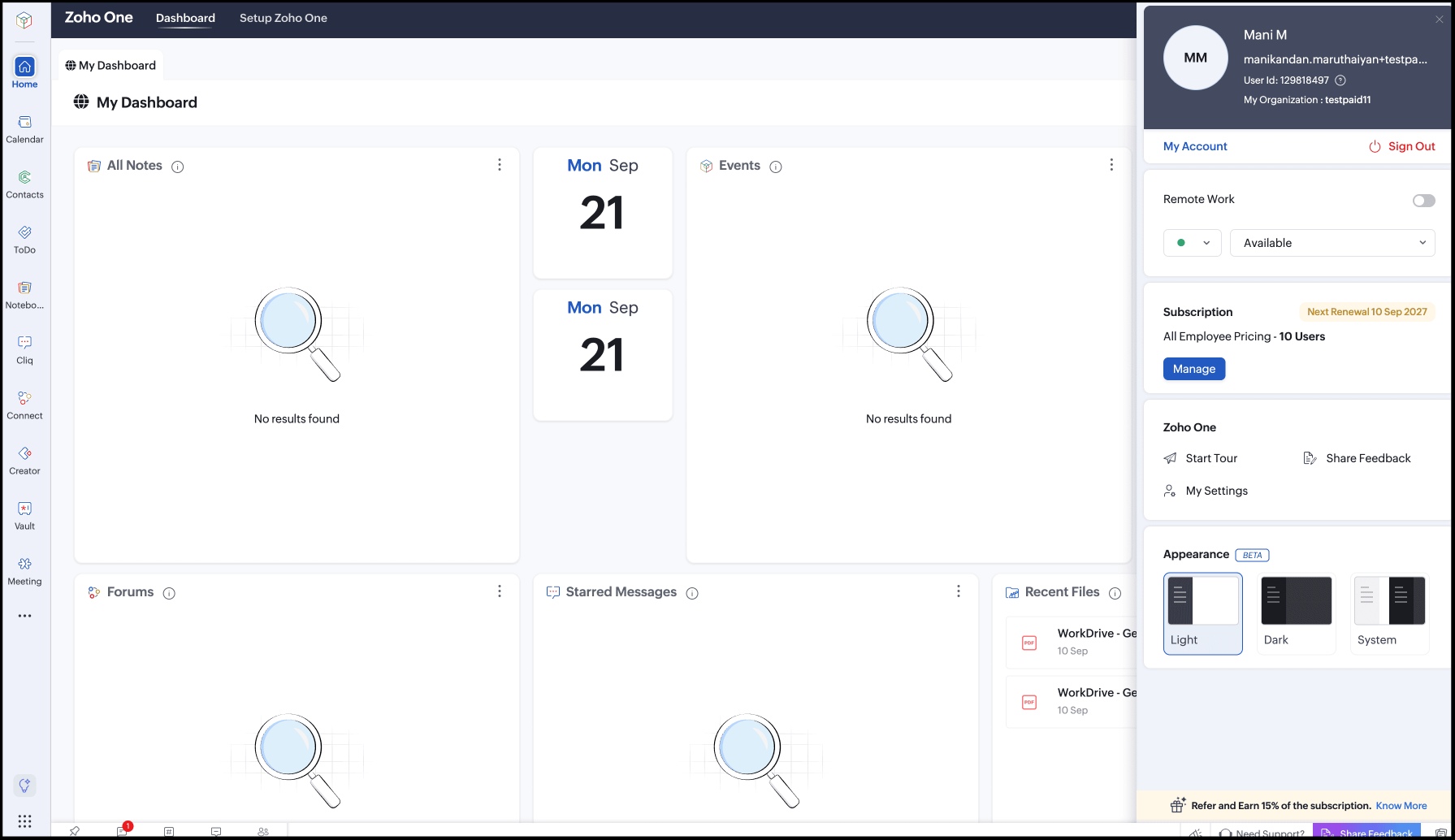
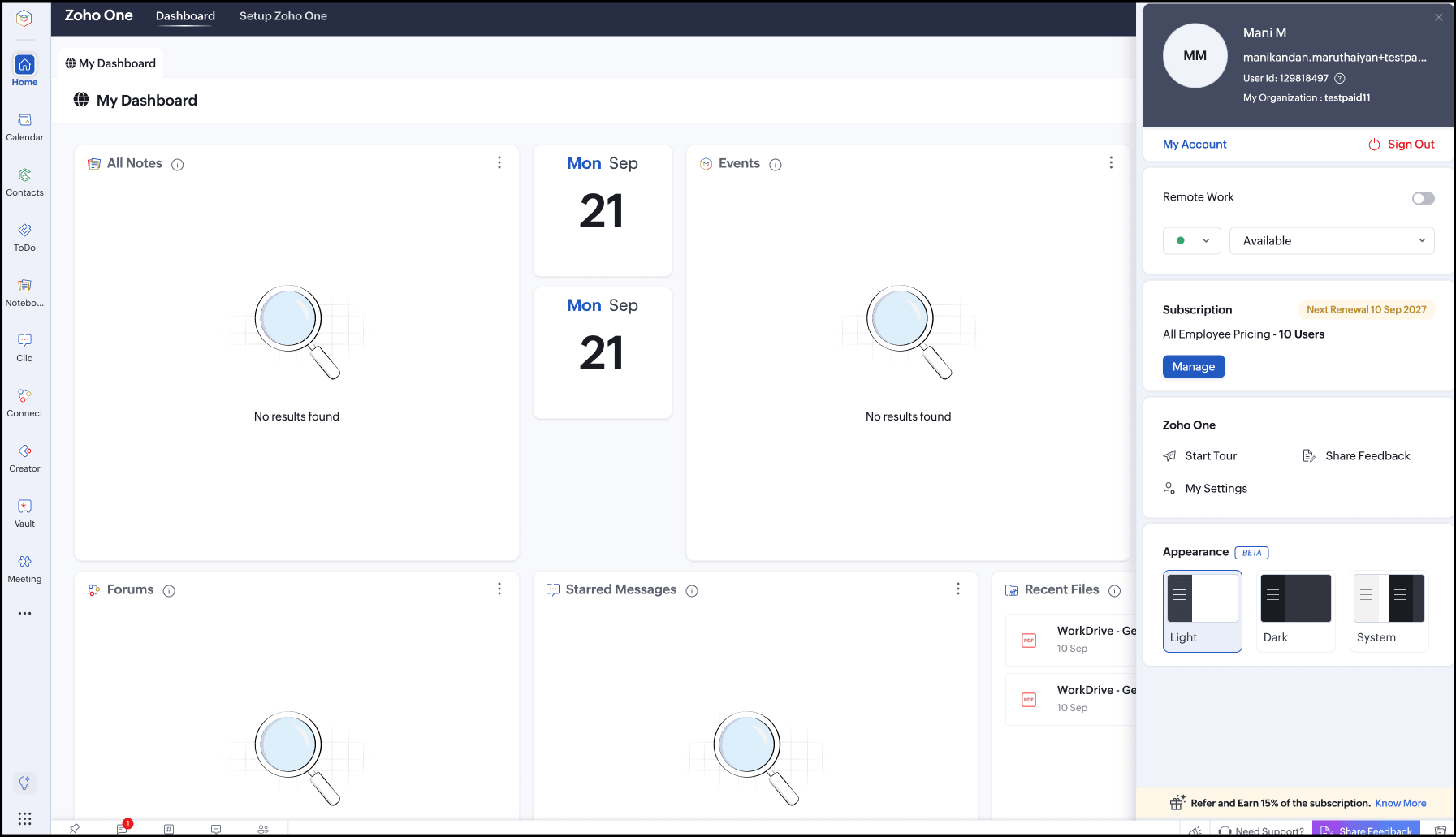
  2. Under Subscription, click Manage.
    Profile panel on a paid plan showing All Employee Pricing - 10 Users with a Manage button
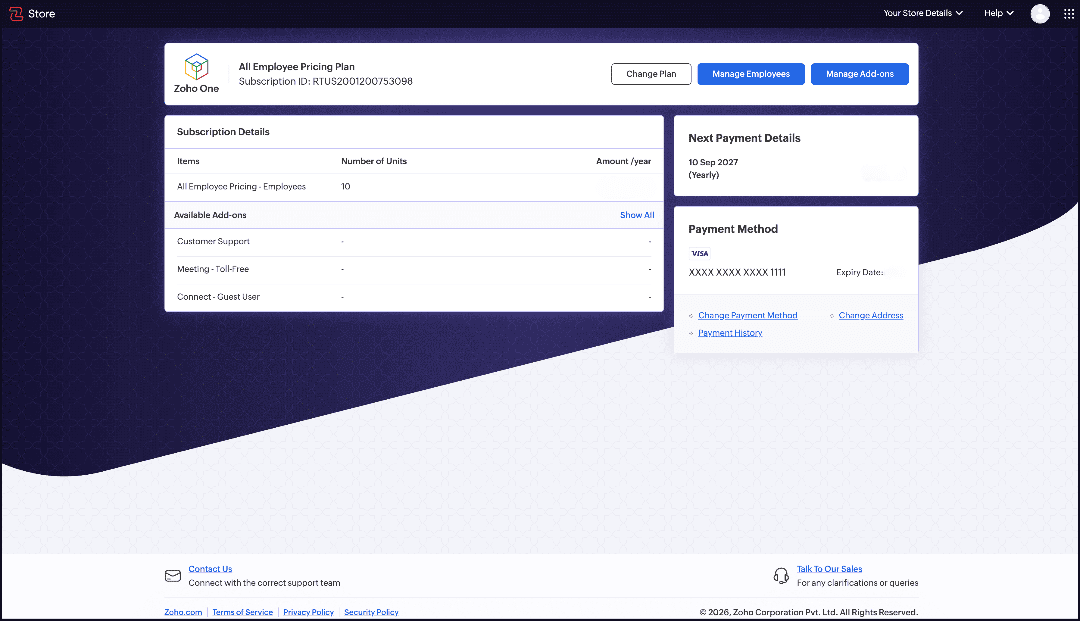
  3. Click Change Plan.
    Zoho Store subscription page for the All Employee Pricing Plan with the Change Plan button
  4. Then, click Cancel Subscription.
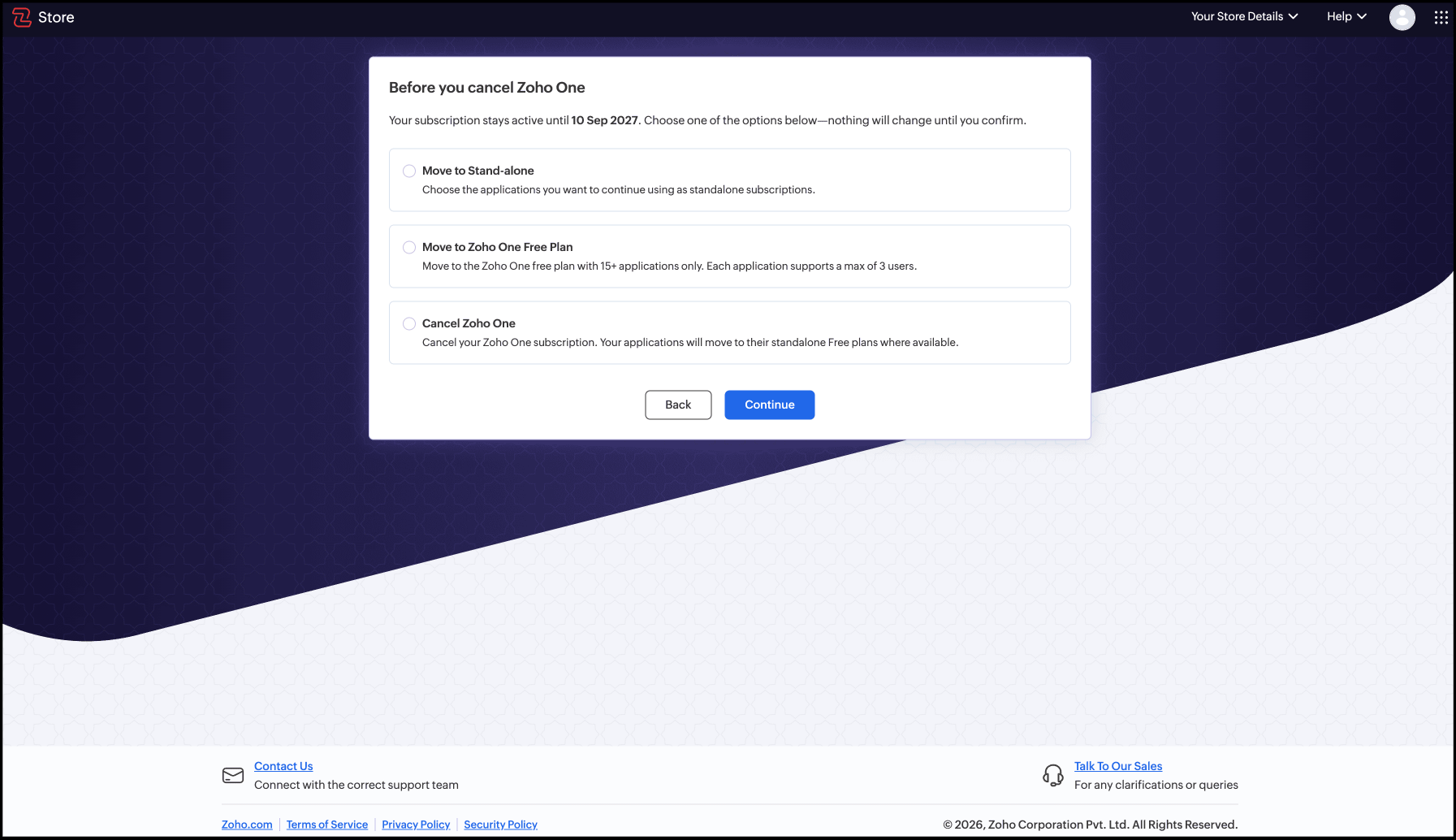
  5. On the next page, select Move to Zoho One Free Plan, then click Continue.
    Before you cancel Zoho One page with options Move to Stand-alone, Move to Zoho One Free Plan and Cancel Zoho One
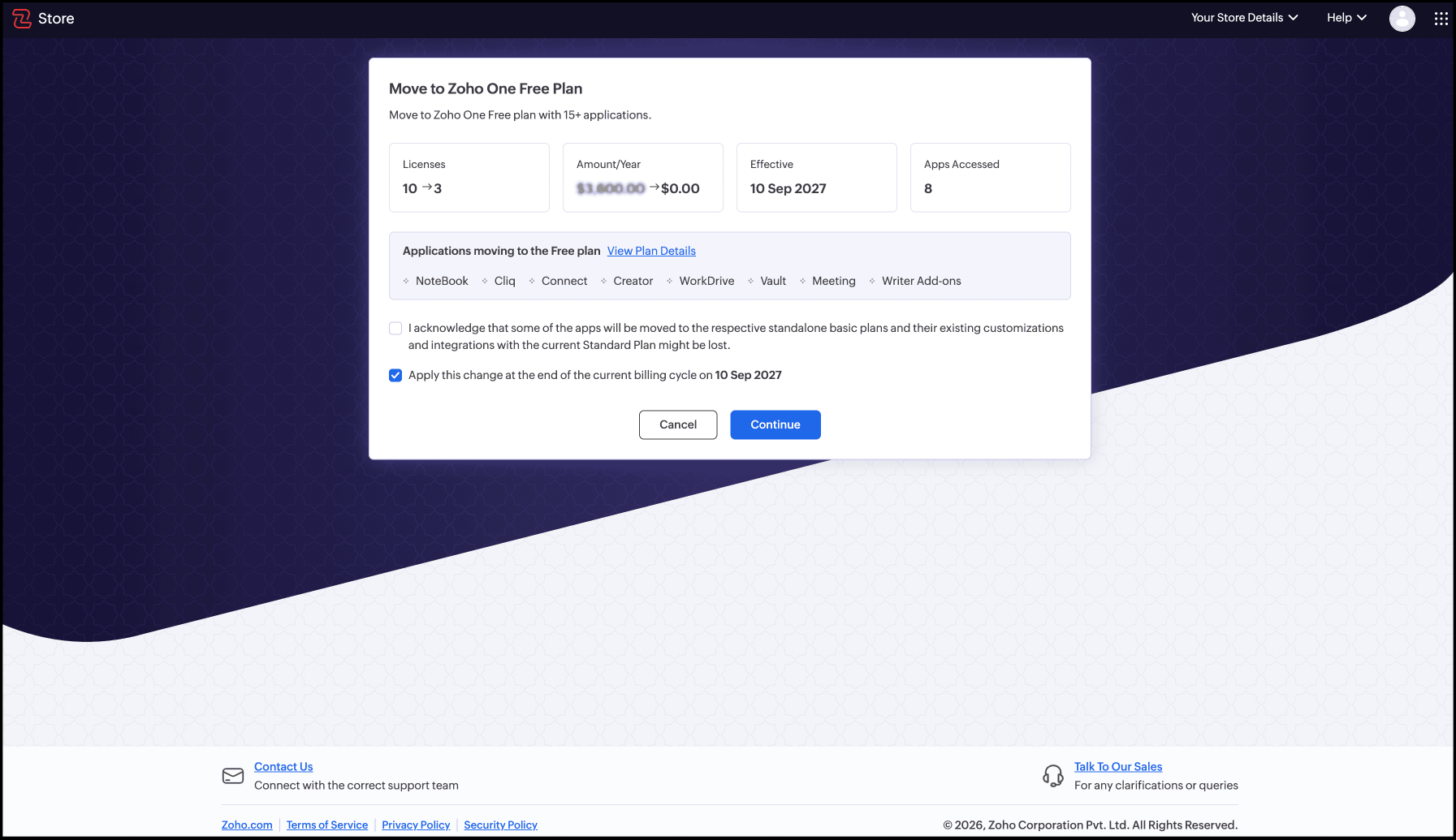
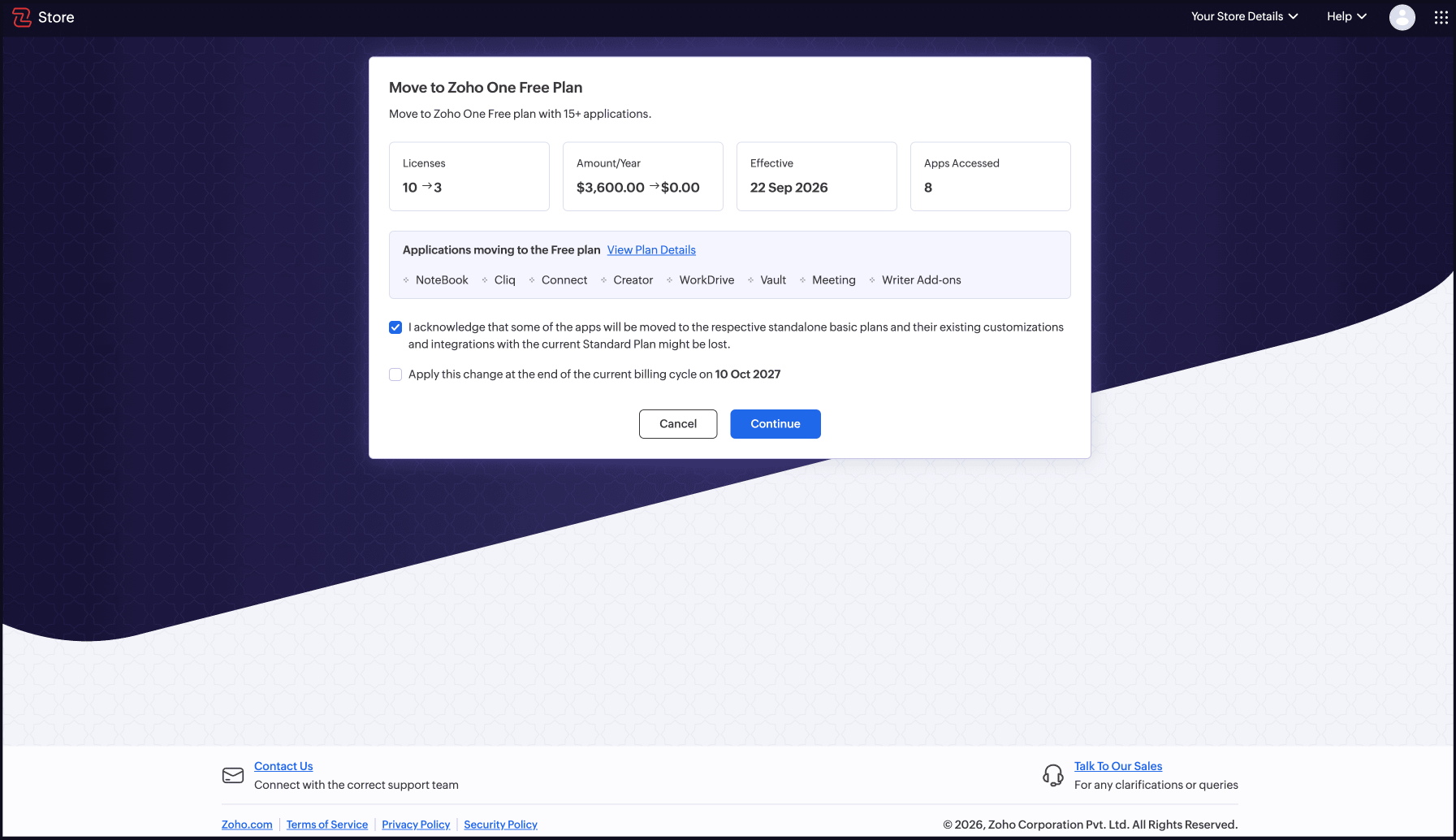
  6. Select the acknowledgment checkbox. Then, choose when the change should take effect using the other checkbox displayed:
    • Leave it (Apply this change at the end of current billing cycle ) selected to keep your paid plan active until your next renewal date, then move to Free Plan automatically at the end.
    • Clear this checkbox selection to move to Free Plan immediately.
  7. Click Continue.
    Move to Zoho One Free Plan dialog showing licenses 10 to 3, amount per year, effective date, apps accessed, and the acknowledgment and billing-cycle checkboxes
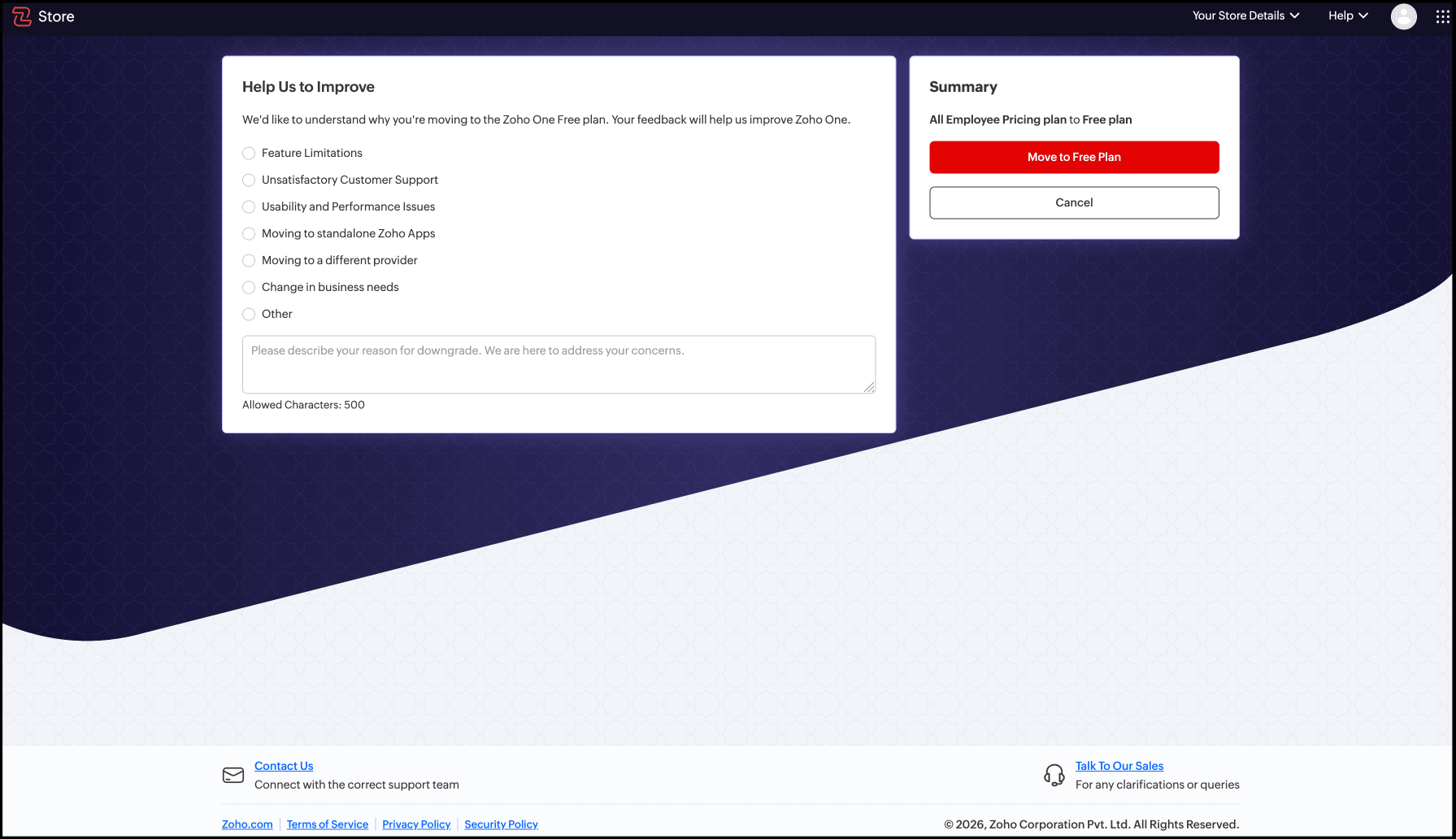
  8. On the next page, select a reason for moving to Free Plan:
    Help Us to Improve page listing reasons for moving to the Free plan, with a Summary panel and Move to Free Plan button
  9. Click Move to Free Plan to continue.

Note:

  • Applications that don't support a free tier are disassociated from Zoho One and, where available, moved to their own standalone free plans. Existing customizations and integrations on those applications may be lost.
  • If your organization has more than 3 users, the extra users are deactivated, not deleted, when you move to Free Plan. You can reactivate them later if you upgrade again, as long as you stay within your plan's user limit.
  1. Once the switch is complete, you'll see one of these two confirmation screens:
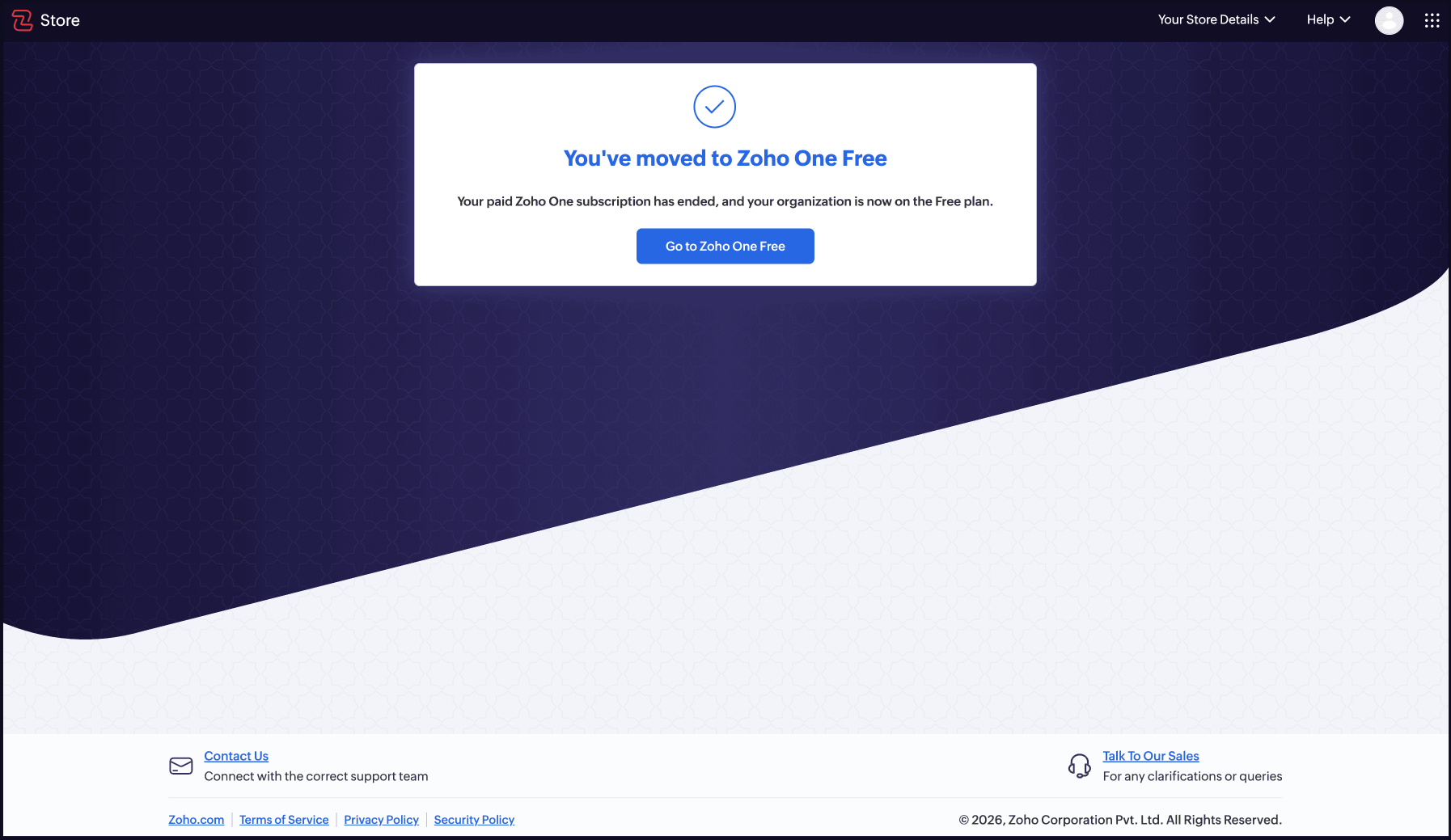
    1. If the change took effect immediately, you'll see a success screen with a link to go to Zoho One Free.
      You've moved to Zoho One Free confirmation screen with the Go to Zoho One Free button
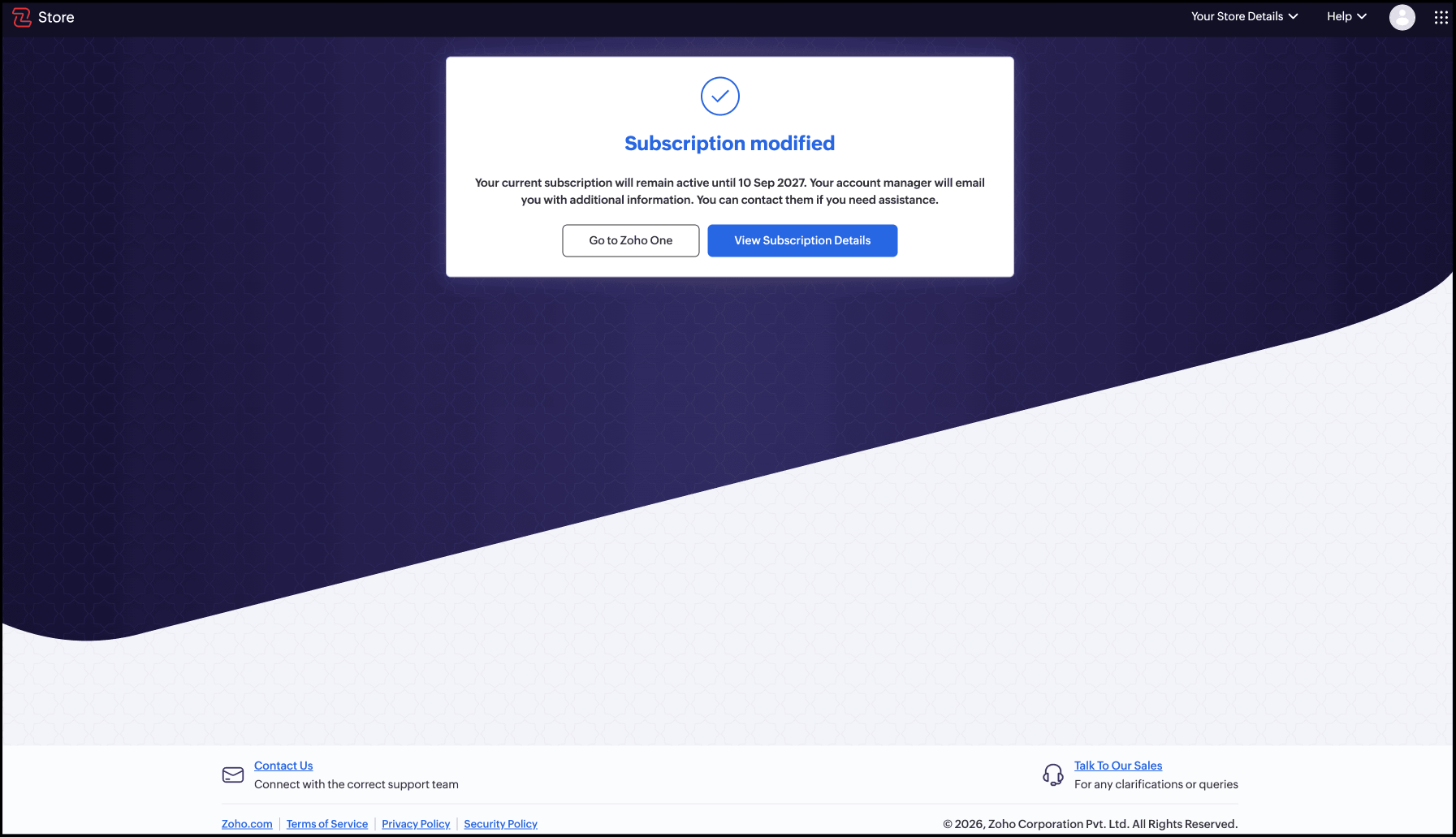
    2. If you scheduled the change for the end of your billing cycle, you'll see the corresponding success screen instead, with links to go to Zoho One and view subscription details.
      Subscription modified confirmation screen with Go to Zoho One and View Subscription Details buttons

Change your mind after scheduling a move to Free Plan

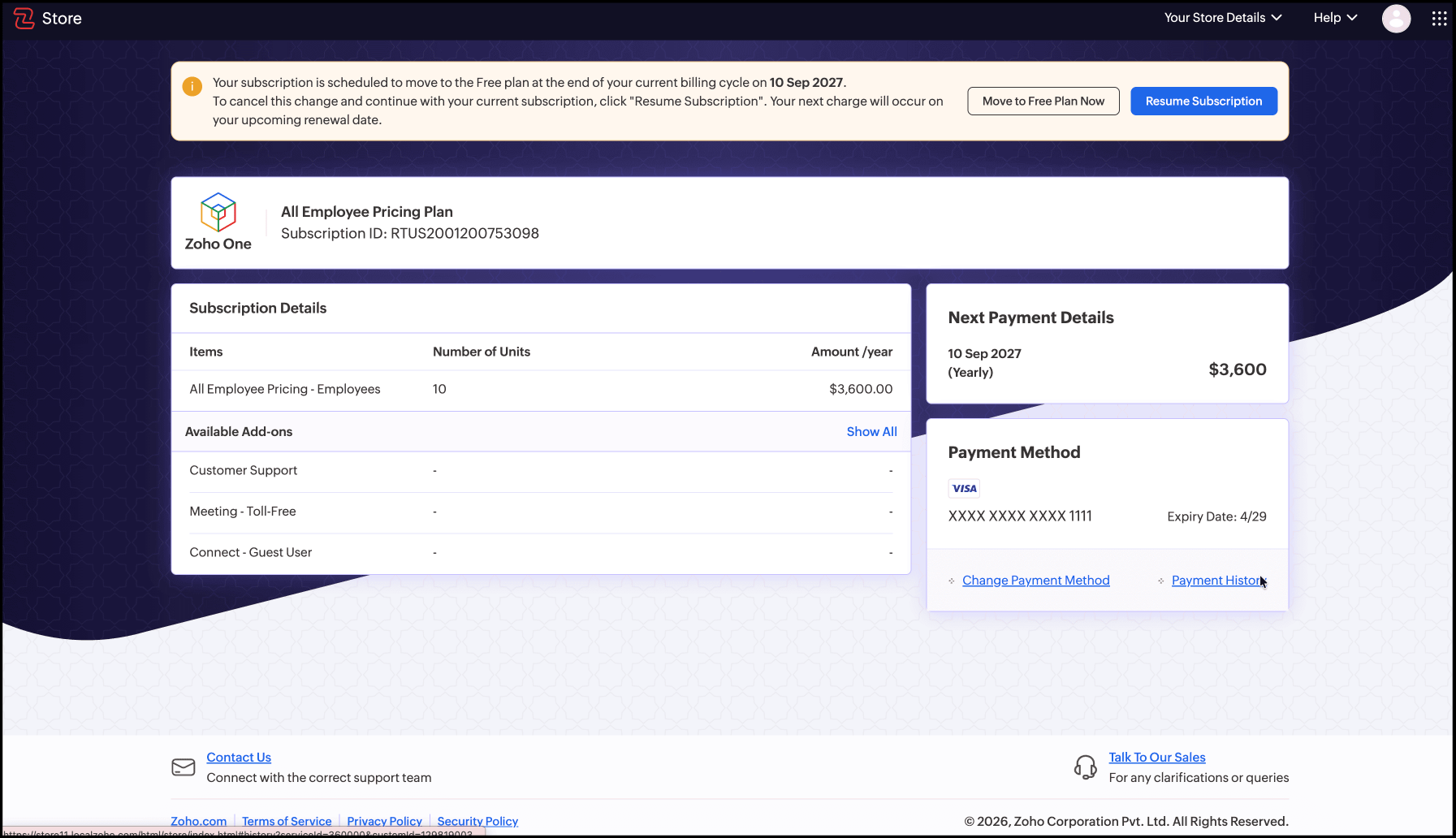
If you scheduled your move to Free Plan for the end of your billing cycle, you'll see a banner on your Subscription page for as long as the change is pending. From there, you can either cancel the change or move to Free Plan sooner than planned.

  1. Sign in to Zoho One, then click your profile icon in the top-right corner.
  2. Under Subscription, click Manage.
    Profile panel on a paid plan with the Manage button under Subscription
  3. On the banner showing your scheduled move to Free Plan, click one of the following:
    • Resume Subscription to cancel the scheduled move and continue your current paid plan. You'll be charged as usual on your next renewal date.
    • Move to Free Plan now to downgrade to Free Plan right away instead of waiting for your billing cycle to end.
    Subscription page banner about the scheduled move to the Free plan with Move to Free Plan Now and Resume Subscription buttons
  4. Based on what you ciick, you see different next steps:
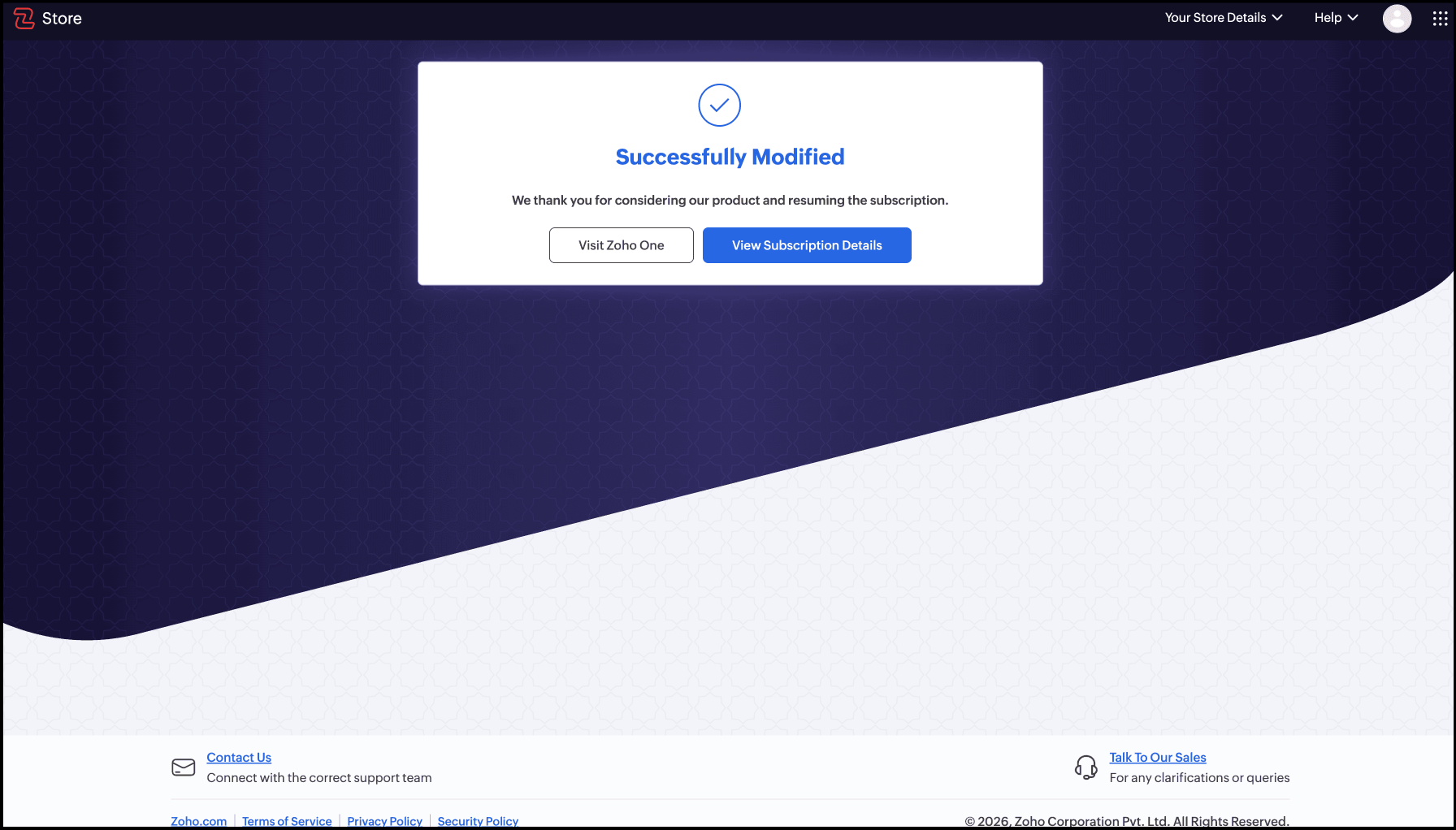
    • If you click Resume Subscription, you'll see the confirmation in the image below, from where you can directly go back to Zoho One home page or view your subscription detalls..
      Successfully Modified confirmation screen with Visit Zoho One and View Subscription Details buttons
    • If you clicked Move to Free Plan Now, steps will be the same from step 6-10a in the previous section (Step 10b won't be applicable here). Important to do: At step 6, you need to leave the checkbox (Apply the change at the end of the billing cycle) UNCHECKED this time.
      Move to Zoho One Free Plan dialog with the acknowledgment checkbox selected and the billing-cycle checkbox cleared

Note: Later if you decide you want to move to Free Plan after clicking Resume Subscription, you'll need to start the switch again from Switch to Free Plan while cancelling a paid subscription above.

Upgrade from Zoho One Free Plan

From Zoho One Free Plan, you can either start a 30-day trial to explore the full product before committing, or upgrade straight to a paid subscription. Both options remove the 3-user cap and give your organization access to all 50+ Zoho One applications.

Info:

  • Subscription-related actions can only be performed by the Organization Owner.
  • If your purchase was made offline, please contact your account manager or sales@zohocorp.com to either upgrade to a different subscription or switch to Free Plan.

Note:

Zoho One has two places to manage your subscription: your profile icon in the top-right corner, for quick actions, and the Admin Panel icon, which opens your organization's full Settings, including a dedicated Subscription page. Both paths are covered below.

Start a 30-day trial from Free Plan

From the Profile panel

  1. Sign in to Zoho One, then click your profile icon in the top-right corner.
  2. Under Subscription, click Start Zoho One Trial.
    Profile panel on Free plan - 3 Users with the Start Zoho One trial link and Upgrade button
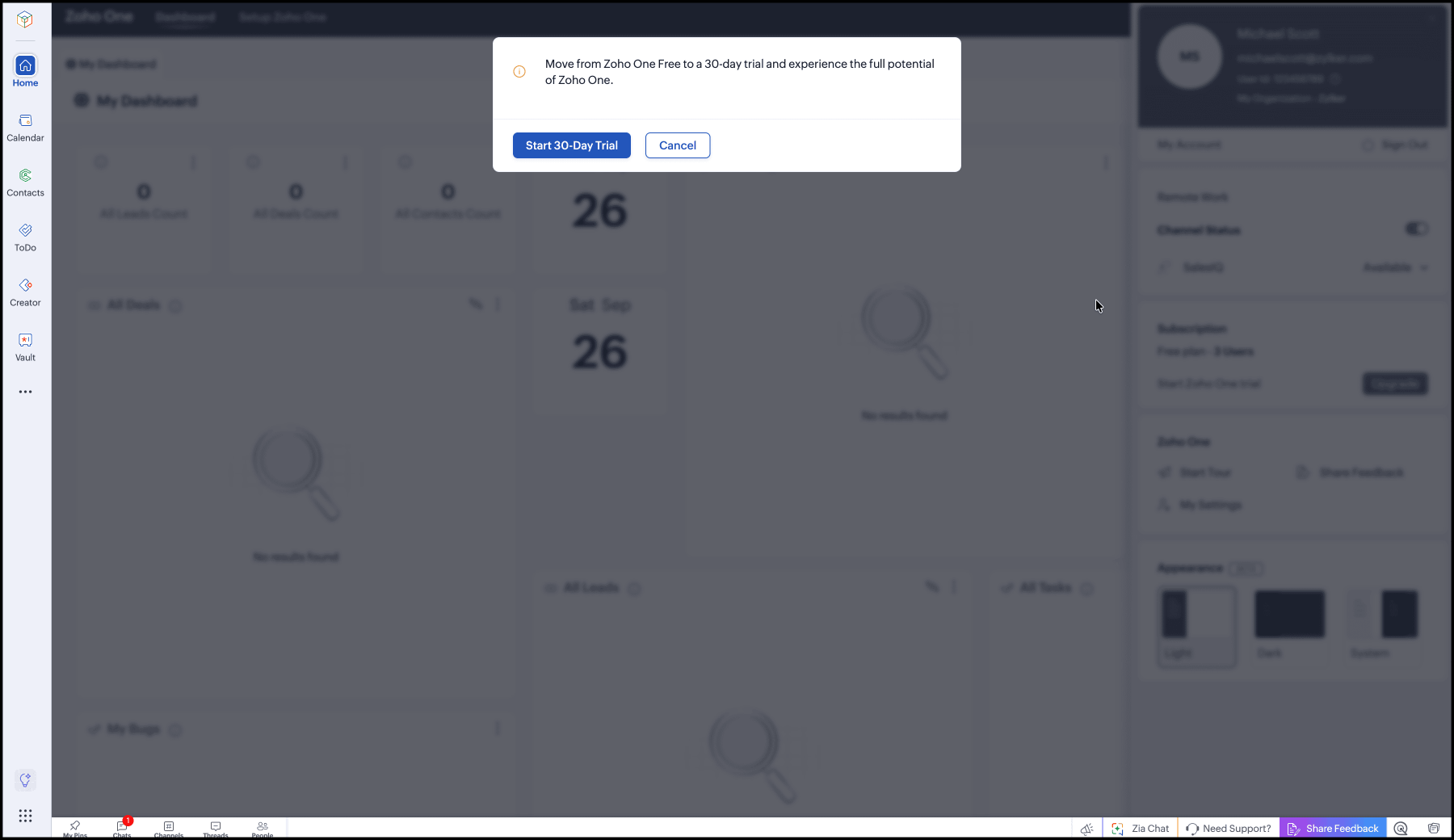
  3. In the dialog that appears, click Start 30-Day Trial.
    Dialog asking to move from Zoho One Free to a 30-day trial, with Start 30-Day Trial and Cancel buttons
  4. Your Zoho One dashboard refreshes and the trial kicks in immediately.
    Profile panel now showing Zoho One Trial - 10 Users

From the Subscription page

  1. Sign in to Zoho One, then click the Admin Panel icon Admin Panel icon in the top-right corner.
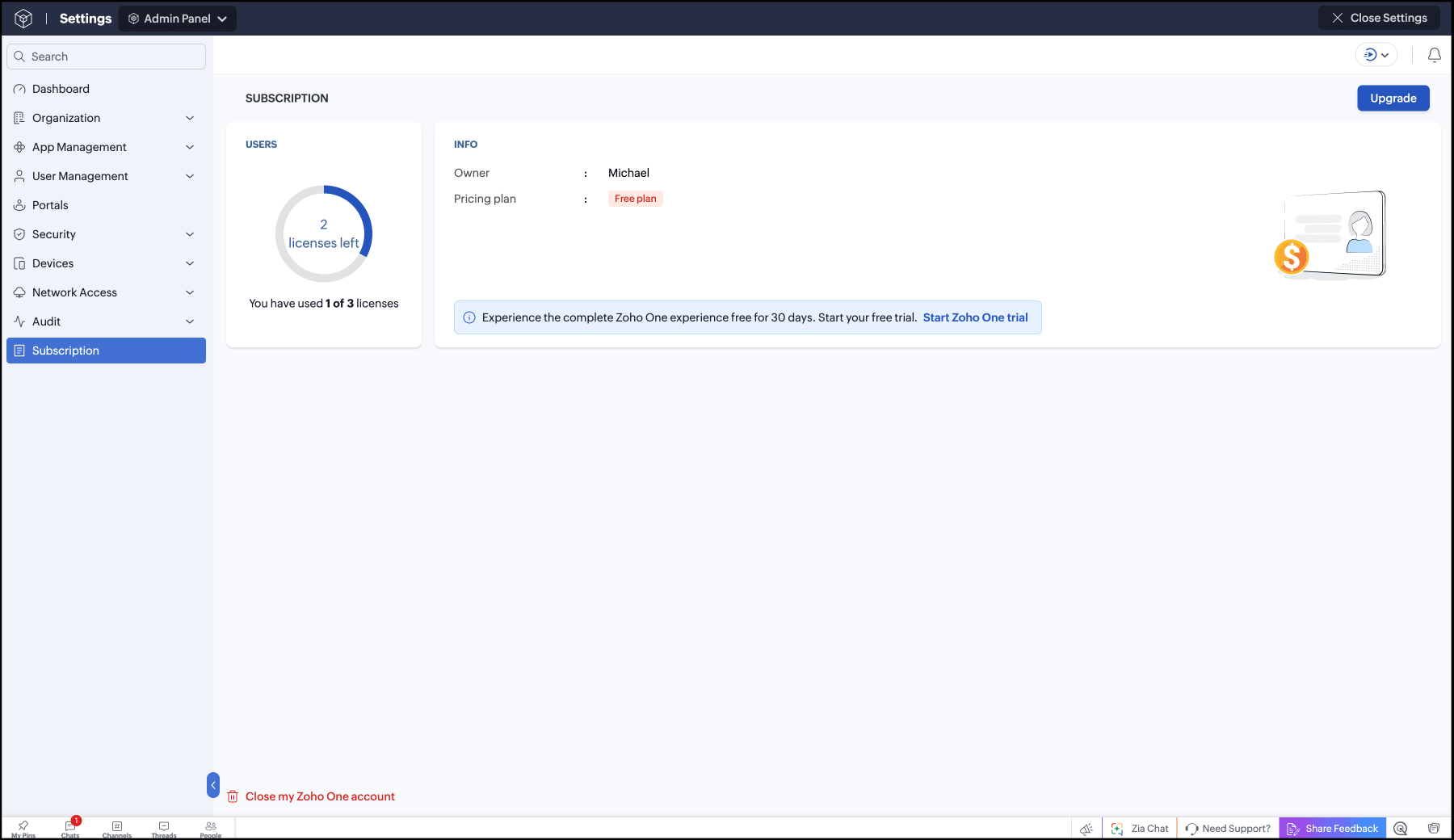
  2. Click Subscription. You can see a blue banner. Click Start Zoho One Trial.
    Admin Panel Subscription page showing 1 of 3 licenses used, Free plan, and a blue banner with Start Zoho One trial
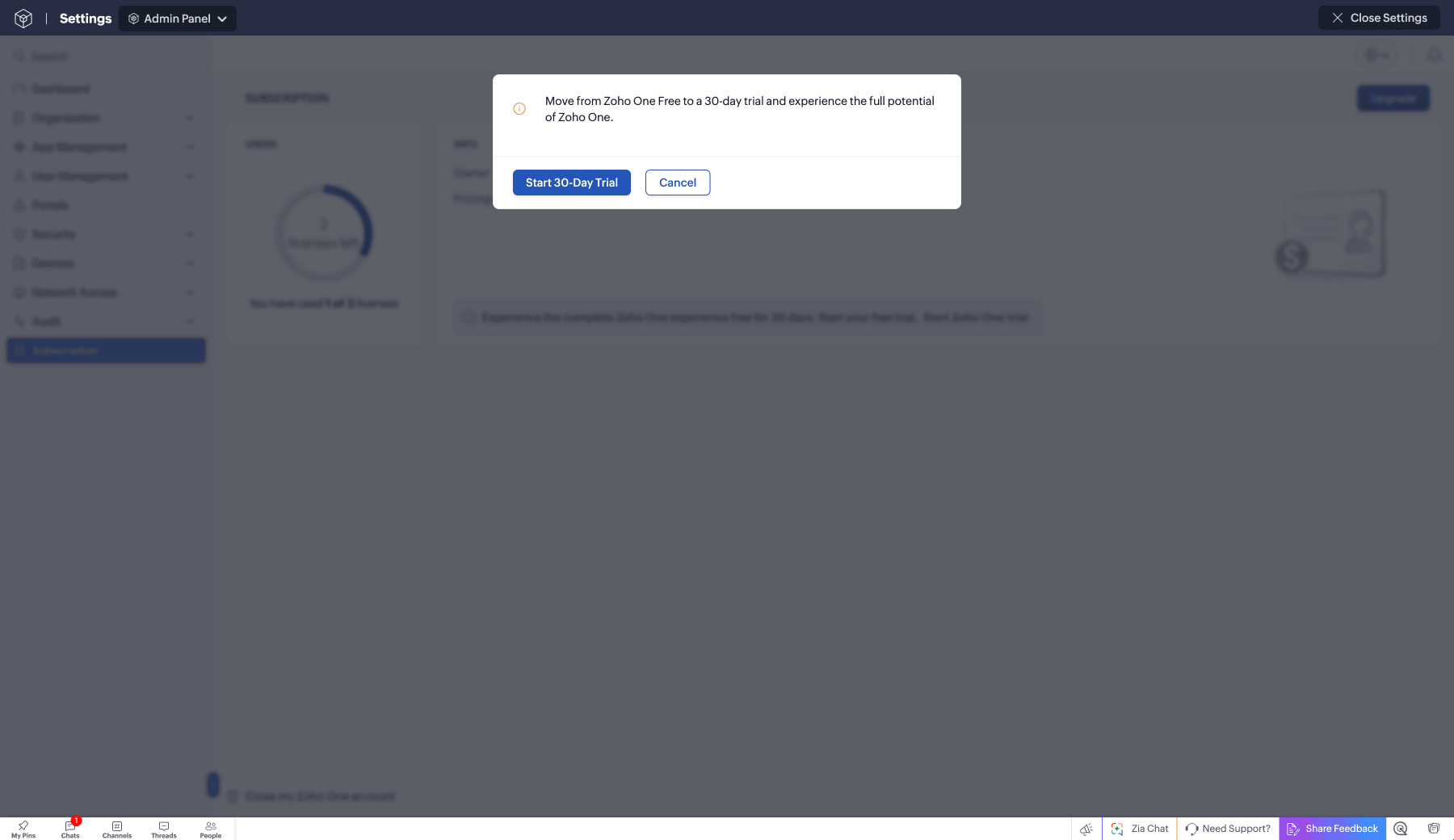
  3. In the dialog that appears, click Start 30-Day Trial.
    Start 30-Day Trial dialog over the Admin Panel Subscription page
  4. Your Zoho One dashboard refreshes and the trial kicks in immediately.
    Profile panel now showing Zoho One Trial - 10 Users

Note: Your Free Trial is enabled instantly — no payment details are needed. If you don't upgrade before the 30 days end, you'll be prompted to renew, extend your trial, or move back to Free Plan the next time you access Zoho One..

Upgrade directly to a paid plan from Free Plan

If you already know which plan you want, you can skip the trial and upgrade straight from Free Plan.

From the Profile Panel:

  1. Sign in to Zoho One, then click your profile icon in the top-right corner.
  2. Under Subscription, click Upgrade. Note: If you have any paid subscriptions to individual services, add them to the Zoho One bundle before you click Upgrade. This lets us calculate your payment on a pro-rata basis.
    Profile panel on Free plan - 3 Users with the Upgrade button
  3. Click Upgrade under the plan you want — Essentials, All Employee Pricing, or Flexible User Pricing. For current pricing in your region, see our Pricing FAQ and Pricing page.
  4. Confirm your choice of plan - Essentials, or one of the two Standard editions (All Employee Pricing or Flexible User Pricing) by clicking Upgrade under it.
  5. Select Pay Period (Monthly or Yearly - Yearly is selected by default) and the no. of additional users you want your org to have after upgrading. Click Next.
  6. Select any add-ons you'd like, such as Customer Support — this is optional, and you can proceed without selecting anything. Click Proceed.
  7. Enter your billing address, choose your payment method, and review the bill summary. Then, click Make Payment.

Once your payment is confirmed, your 3-user cap and application restrictions are lifted immediately, and any applications that had moved to standalone free plans are reassociated with Zoho One where applicable.

From the Subscription page:

  1. Sign in to Zoho One, then click the Admin Panel icon Admin Panel icon in the top-right corner.
  2. Under Subscription, click Upgrade.
    Admin Panel Subscription page on Free plan with the Upgrade button in the top-right corner
  3. Continue from step 3 in "From the Profile Panel" above; the plan selection and purchase flow is identical from this point on.

Close your Zoho One Free Plan account

If you no longer want to use Zoho One, you can close your account directly from Zoho One Free Plan. All applications that have their own free plan move to it automatically as part of this process.

Info:

  • This article applies only if your organization is already on Zoho One Free Plan. If you're on a trial or a paid subscription, see Cancel Zoho One subscription instead. Cancelling from there gives you the option to move to Free Plan rather than closing your account outright.
  • Subscription-related actions can only be performed by the Organization Owner.
  • If your organization was originally set up through an offline/sales-assisted purchase, contact your account manager or sales@zohocorp.com before closing your account; self-service closure may not apply to your organization.

Close your Free Plan account

  1. Sign in to Zoho One, then click the Admin Panel icon Admin Panel icon in the top-right corner.
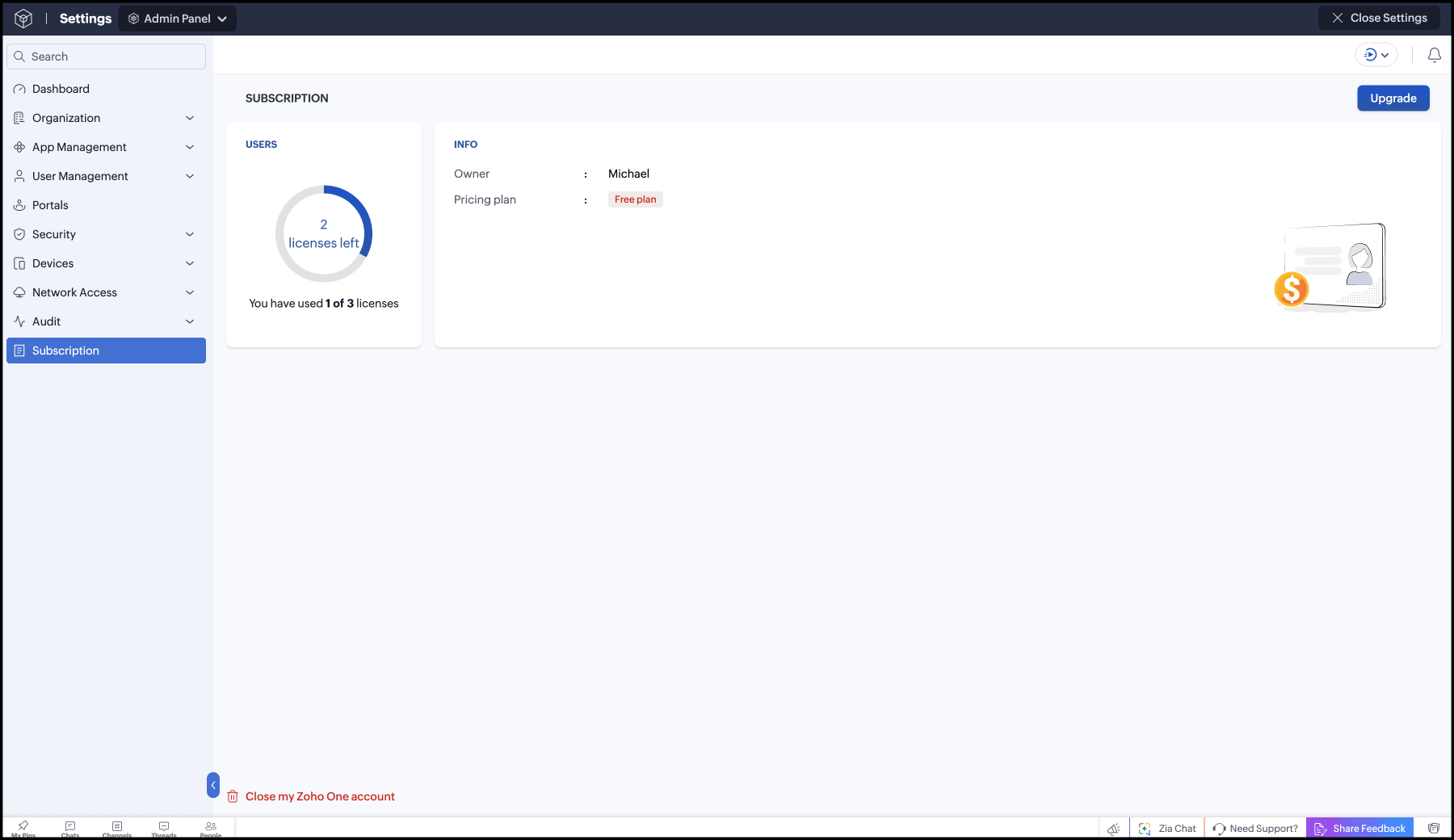
  2. Under Subscription, click Close my Zoho One account.
    Admin Panel Subscription page with the Close my Zoho One account link at the bottom of the left menu
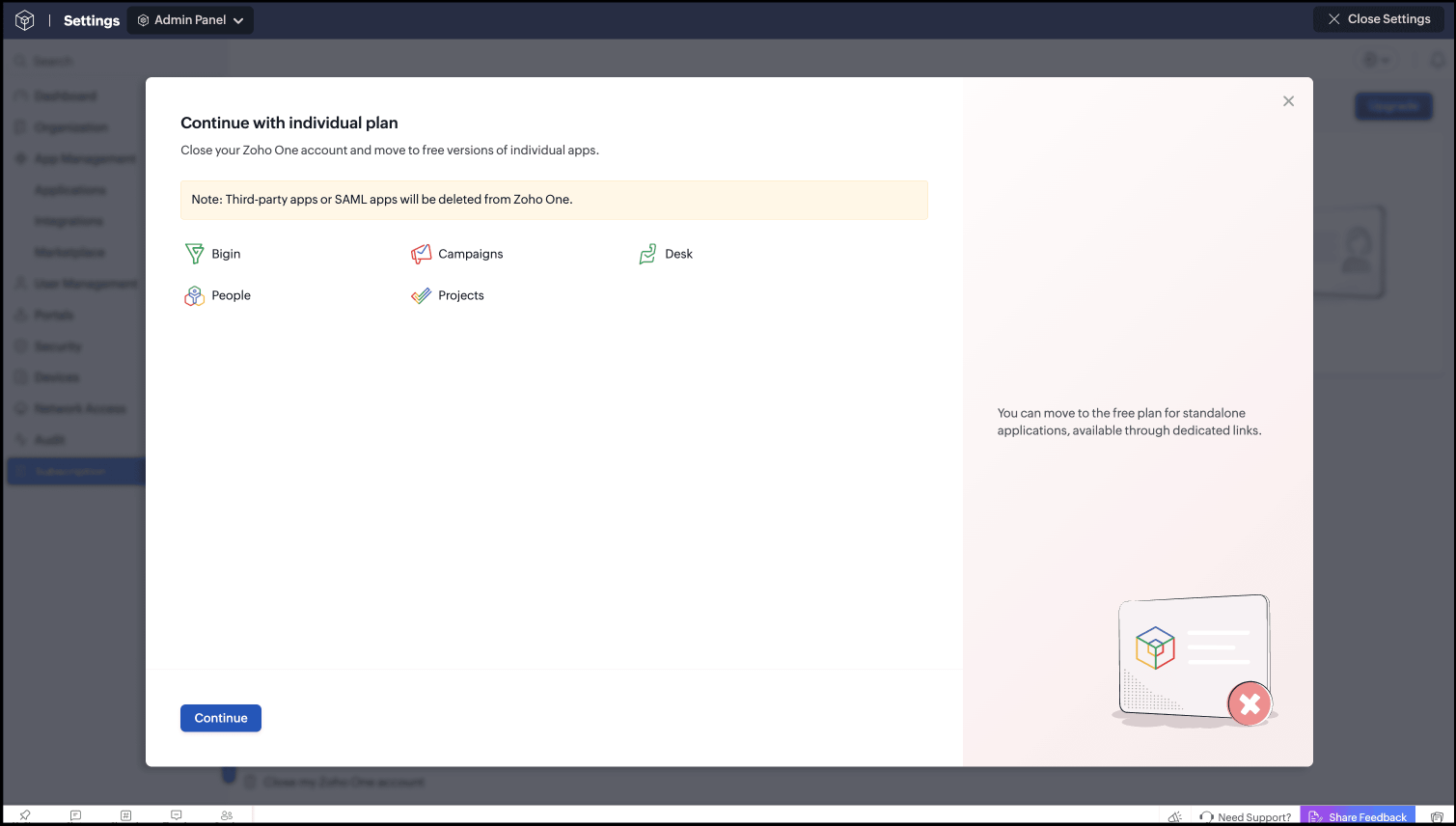
  3. On the next screen, review the applications listed (for example, Bigin, Campaigns, etc.). These move automatically to their own free standalone plans instead of closing along with the rest of your Zoho One account. Note: Third-party apps and SAML apps you've added through Directory are deleted, not preserved, when you close your account. This happens automatically, regardless of which of your other apps qualify for their own free plan. Make sure you no longer need these before continuing. Click Continue.
    Continue with individual plan screen listing Bigin, Campaigns, Desk, People and Projects, with a note that third-party or SAML apps will be deleted
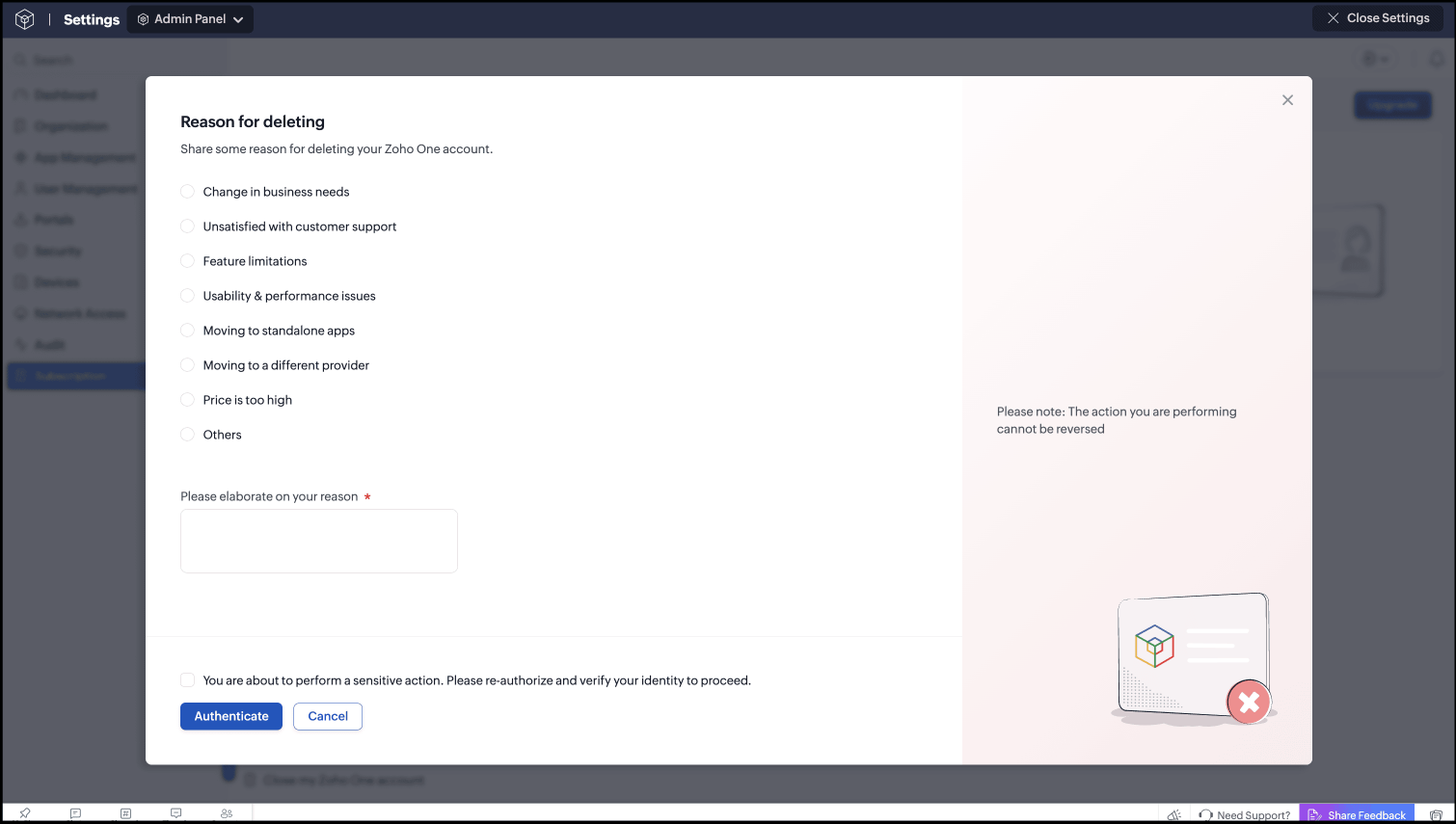
  4. On the next screen, select a reason (or choose Others and describe it in your own words), then select the checkbox confirming you want to perform this sensitive action. Click Authenticate, and re-enter your credentials to verify your identity.
    Reason for deleting screen with a list of reasons, an elaboration box, the sensitive-action checkbox and the Authenticate button
  5. Once verified, click Proceed to Delete. Then, the account gets closed.

Note: Closing your account is permanent and can't be undone. Any data in applications that don't move to a standalone plan will be handled as described in our Privacy Policy.

Close your account from the trial-expired landing page

If your 30-day trial has expired and you haven't yet moved to a plan, you'll see this option directly on the landing page:

  1. On the Your 30-day free trial has expired page, click Close my Zoho One account, next to Extend Trial.
    Your 30-day free trial has expired page with the Close my Zoho One account link next to Extend Trial
  2. Continue from step 3 in the section above to close your account.

Note: From this page, you can also choose Move to Free Plan to continue using Zoho One at no cost instead of closing your account. See Switch to Zoho One Free Plan.

What happens if you don't take any action

If you leave your account idle without closing it or choosing a plan, it won't be closed automatically. Instead, your applications are moved to their own standalone free plans, where available, so you don't lose access to your data.

Note: Currently, only manually closing your account through the steps above removes it. Idle accounts that reach this point are always moved to standalone plans, not closed. Learn about automatic closure of a Zoho One account