


£0 ticket to MTD IT compliance with our bridging capability
Just enter the totals from your spreadsheet data into our template. Review the figures against each category and submit to HMRC.
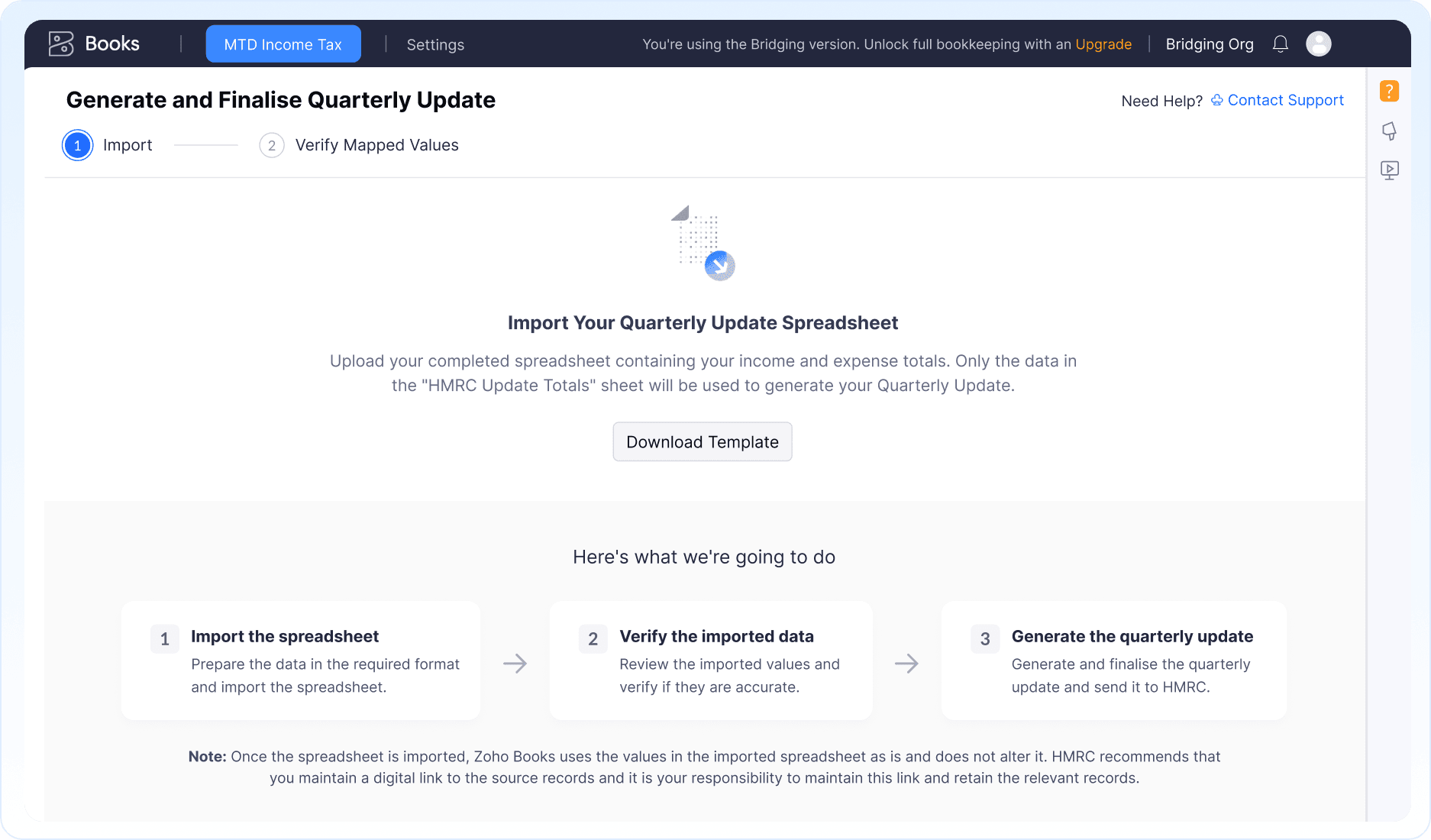

Enter the figures in our template
Submit your tax information in our spreadsheet template based on your business type and import back into Zoho Books. Close the gap between bookkeeping and compliance with our bridging software.

Review the figures
Your spreadsheet data is now in Zoho Books. Finalise the figures against each income and expense category and adjust wherever you see fit.

Submit to HMRC
Submit your quarterly updates and tax return directly to HMRC to stay MTD compliant. Our bridging software is that simple.
Send data from your spreadsheet to HMRC
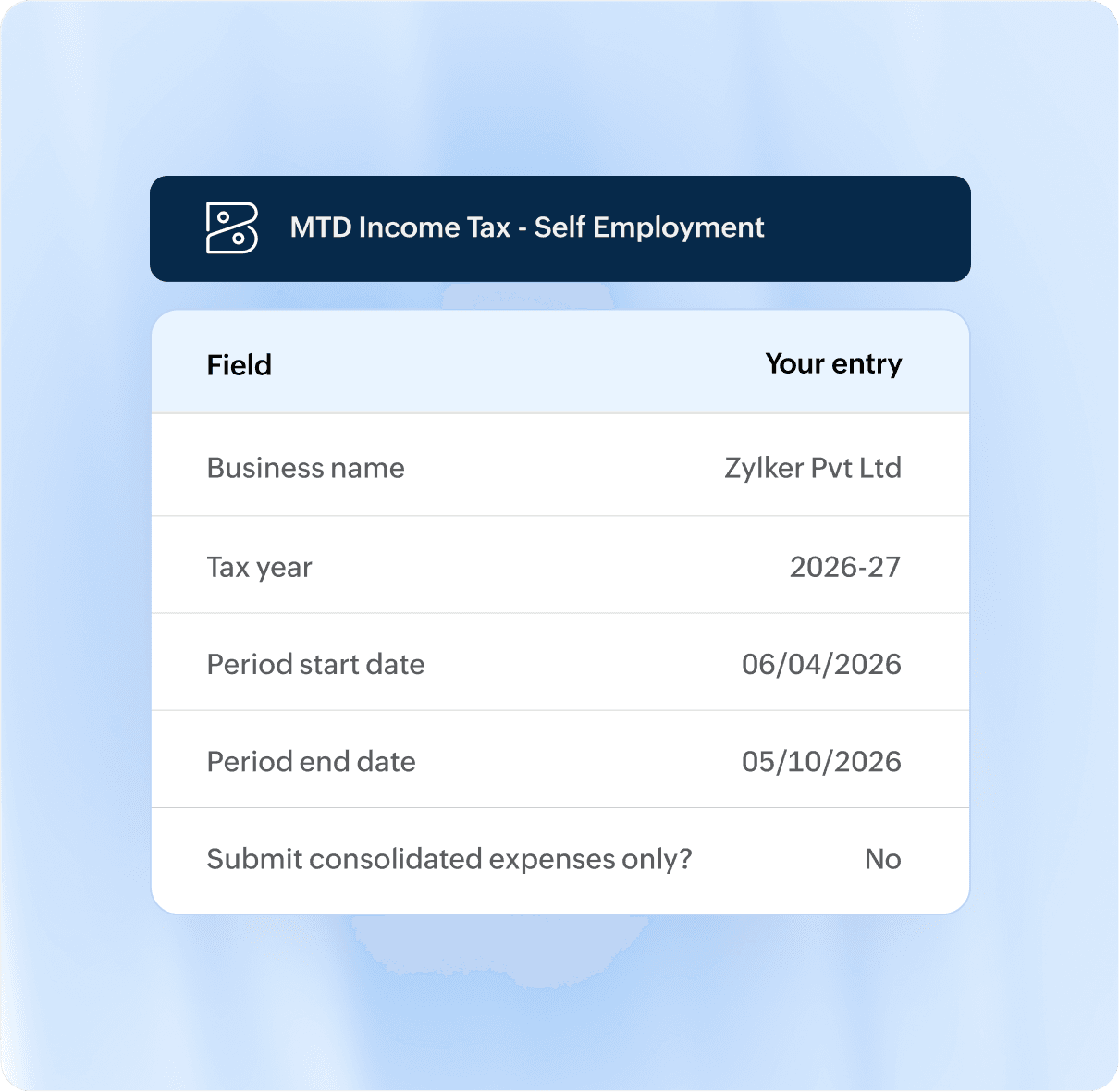
Fill in your submission details
Enter the period for which you are submitting the quarterly update along with your registered Business Name and Tax Year.
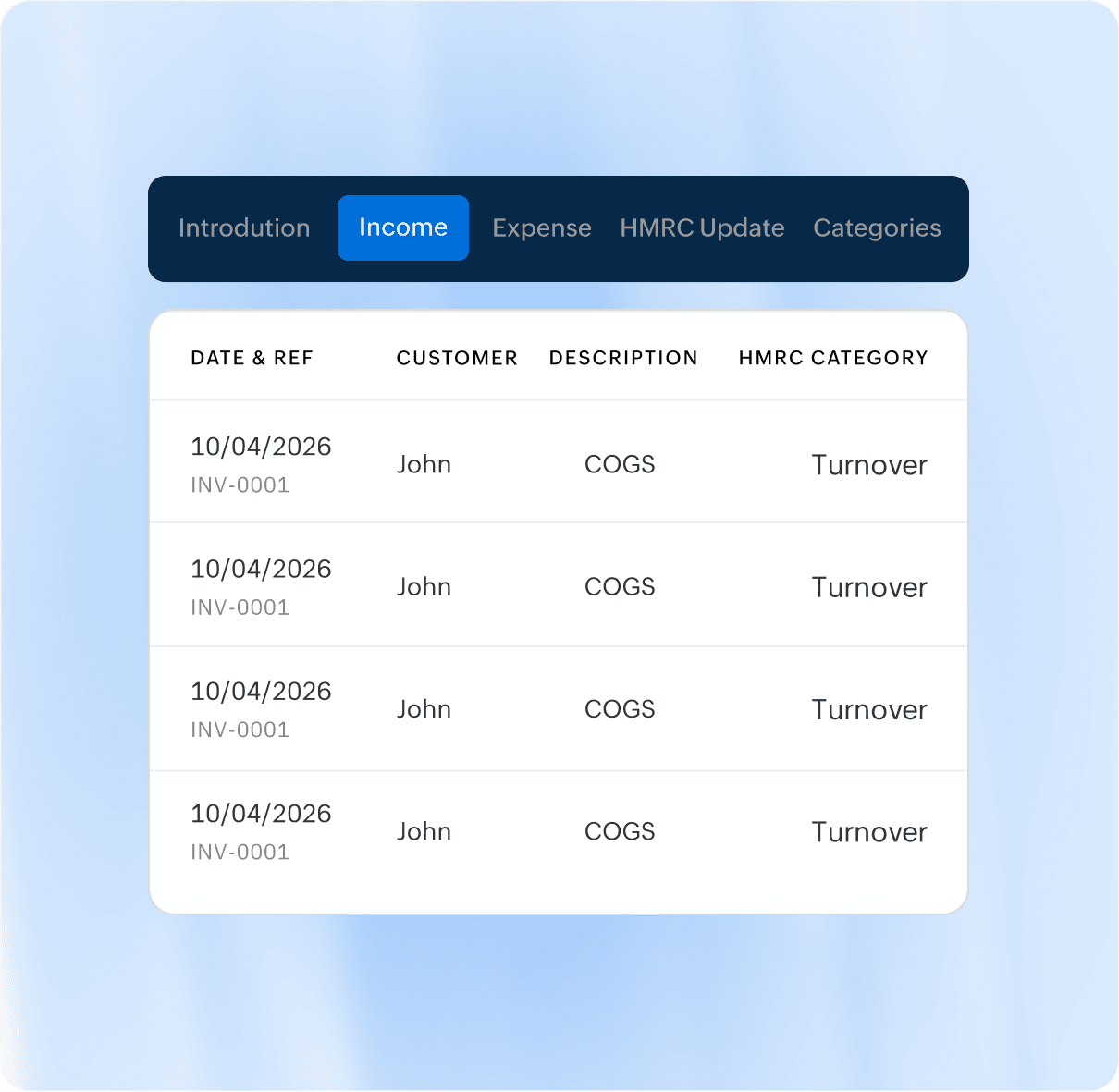
Enter your period income
In the Income tab, calculate and enter your period turnover from your business along with other income sources.
Enter your period expenses
In the Expenses tab, enter all your applicable expenses against the categories for the cumulative quarter period.
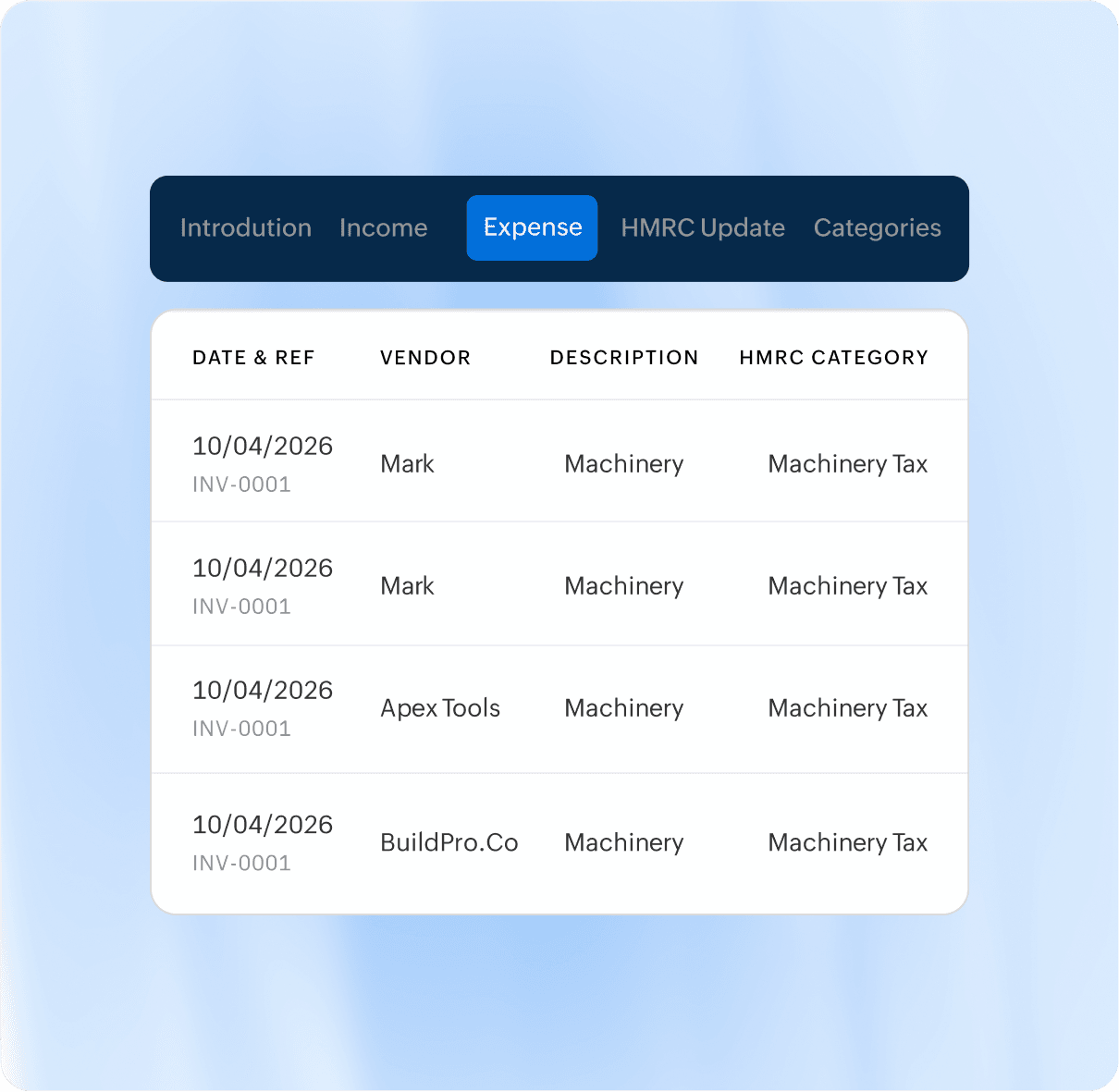
Review your figures
Your income and expense figures are autopopulated in the HMRC Update Totals tab. Review the figures and proceed to submission.
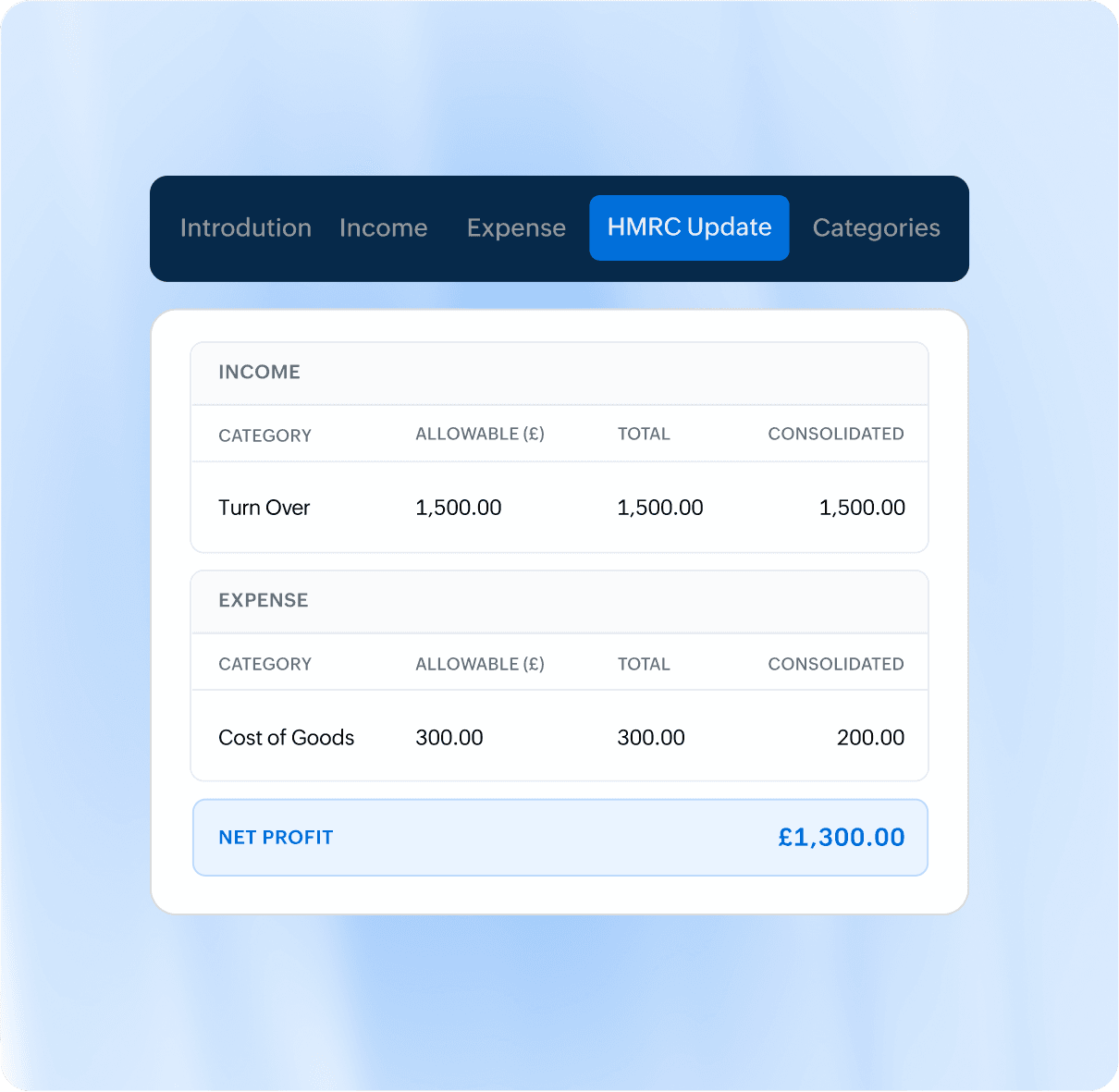
Submit to HMRC
Review the consolidated income and expense figures. Download the spreadsheet in .xlsx format and upload in Zoho Books to submit to HMRC. For more assistance, explore our help document.
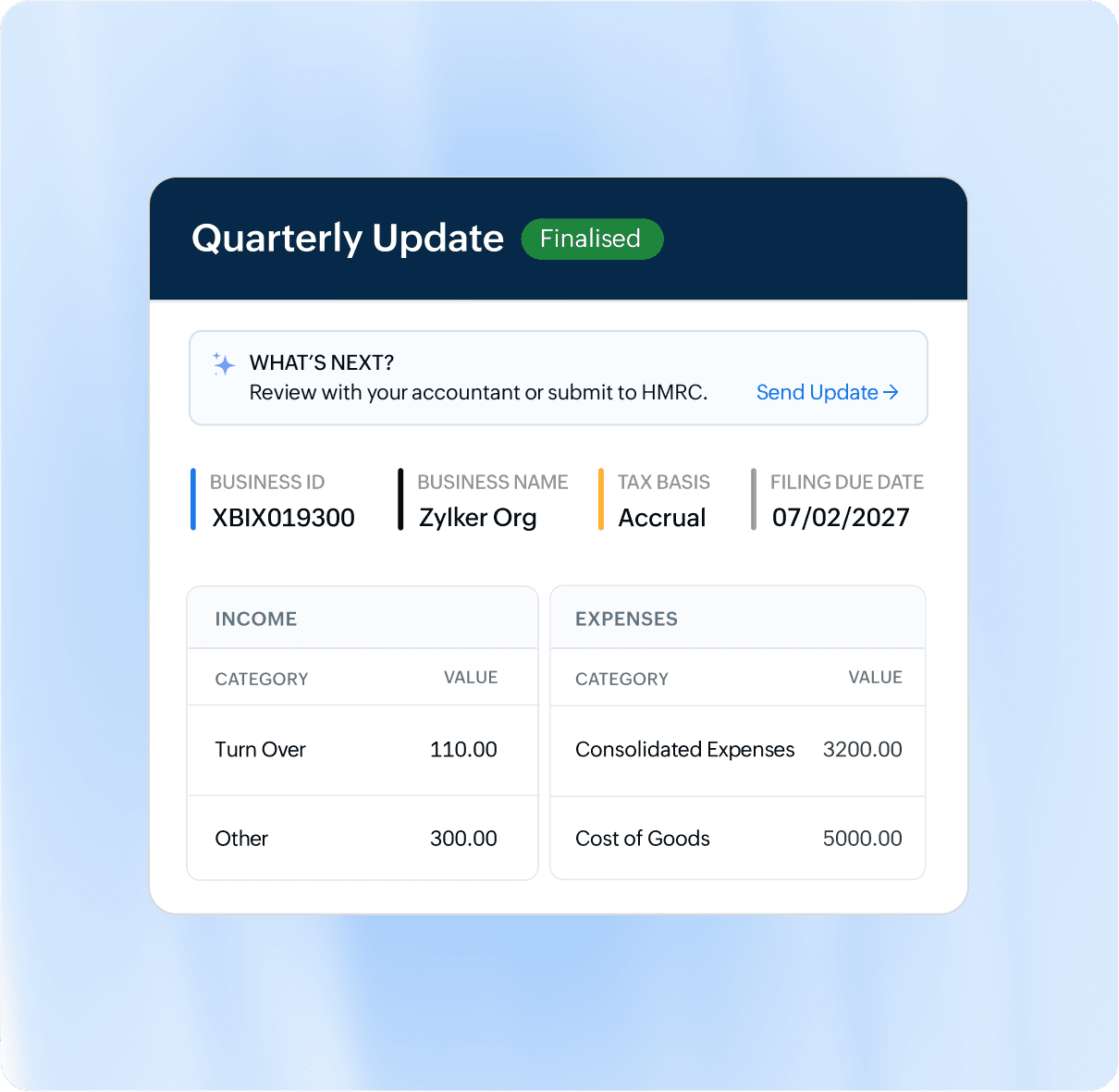
Categorise based on HMRC requirements
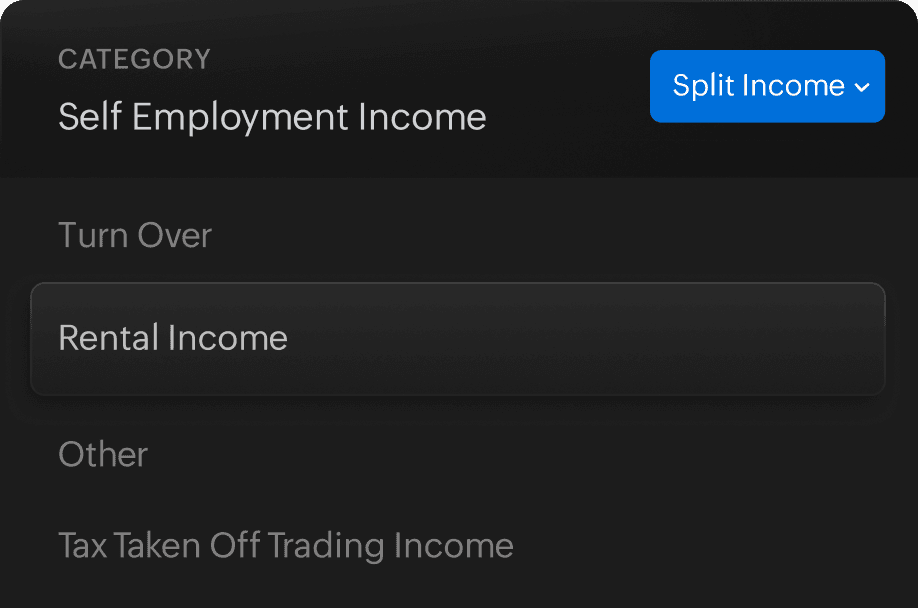
Income categories
Split your income sources between turnover, rental income, tax taken off trading income among others.
Expense categories
Split your expenses across various HMRC-approved categories including maintenance, admin, travel, cost of goods among others.
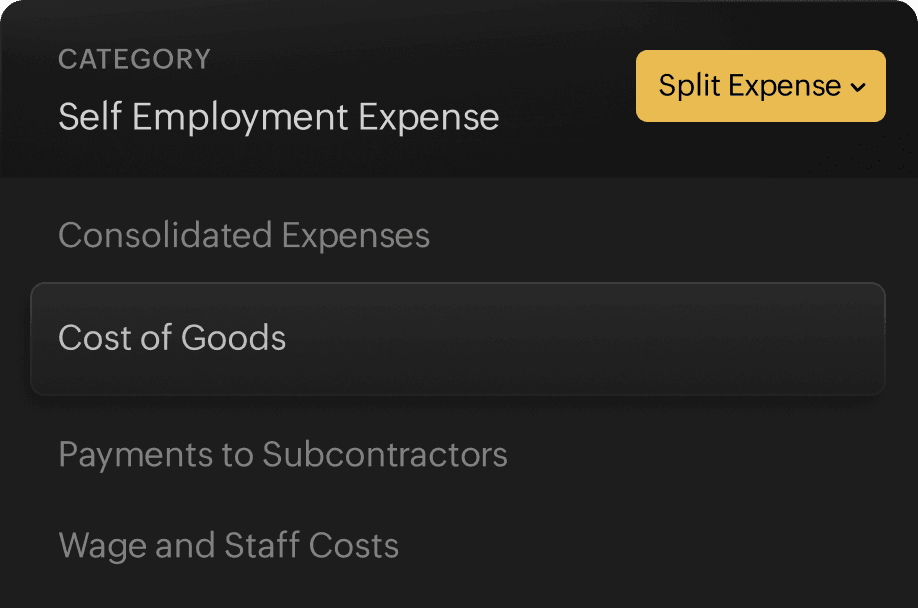
More actions in bridging software

Edit a finalised return
Need to amend the figures during the draft stage or after finalising a quarterly update? Make the necessary changes in the workbook and generate the update again.

Choose what to declare to HMRC
For transactions or information outside of what's required for sending a quarterly update, you can choose "Do not submit to HMRC" in the workbook.

Get assistance
Your step-by-step guide to submitting a quarterly update is just a click away. Leverage our bridging capability for effortless MTD compliance. Access help document
Do more with Zoho
Are you a practising professional?
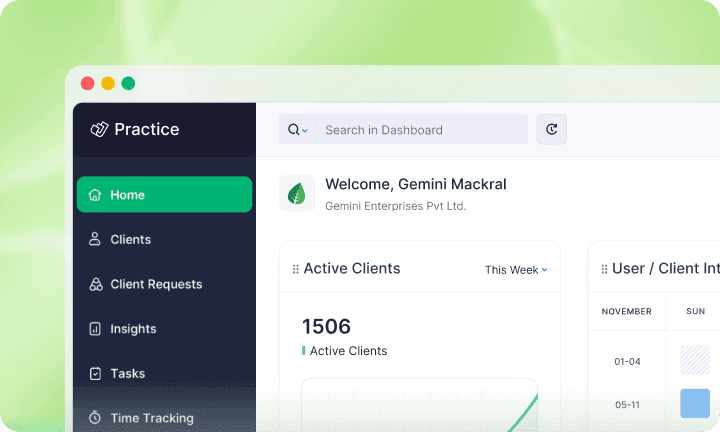
Zoho Practice
You can onboard as many MTD clients and manage them from Zoho Practice, a complete end-to-end practice management solution for UK firms, at £0. With the tightly knit Zoho Books capabilities, you can now manage your practice, bookkeeping and tax compliance for your clients, from a single solution.
When to move and when to leverage Bridging version
While bridging may sound like a comfortable option for those managing your books of accounts on sheets, it is important to know when to move on from it. Scaling your business demands a comprehensive accounting suite. Check out this article to know more.
Frequently Asked Questions
What is the Zoho Books bridging capability, and who is it for?
The Zoho Books bridging version allows UK sole traders, landlords, and their accounting agents to meet Making Tax Digital (MTD) for Income Tax requirements without giving up their existing spreadsheets. Instead of moving day-to-day bookkeeping into accounting software immediately, you continue recording income and expenses in spreadsheets and use Zoho Books to create the HMRC-compliant digital links needed to file quarterly updates.
How does submitting quarterly MTD for Income Tax updates work with the bridging version?
Once you connect your Zoho Books organisation to HMRC, Zoho Books automatically fetches your quarterly update obligations. You download the tailored Zoho Books spreadsheet template for your business type (Self Employment or UK Property), enter your filing details and income/expense transactions, and import the file back into Zoho Books. Zoho Books maps the calculated totals to the corresponding HMRC categories for you to verify before submitting directly to HMRC.
Does the bridging capability support consolidated expenses?
Yes. In the Introduction tab of the downloaded spreadsheet template, you can select whether you want to submit consolidated expenses. If enabled, you simply categorise your transactions under the supported HMRC consolidated categories (such as Consolidated Expenses for Self Employment, or Consolidated Expenses, Residential Financial Cost, and Rent A Room - Amount Claimed for UK Property).
Can an accountant or bookkeeper file bridging updates on behalf of a client?
Yes. Agents authorised by HMRC can connect to HMRC using their Agent Registration Number alongside the client's National Insurance Number (NINO) and business postcode. Additionally, Zoho Books supports one business and one accountant user, making it straightforward for clients and advisors to collaborate on quarterly submissions.
What happens if I spot an error in my spreadsheet after generating a quarterly update?
If you haven't submitted the update to HMRC yet, you can open the finalised quarterly update under the To Be Filed tab, click the More icon, and select Edit. This lets you correct your spreadsheet and re-import the updated figures before sending the submission.
Can I switch from the bridging version to full accounting in Zoho Books later?
Yes. The bridging version serves as a low-friction starting point for MTD compliance. Whenever your business outgrows spreadsheets or wants automated bank feeds, invoicing, and real-time tax tracking, you can upgrade directly to full bookkeeping inside Zoho Books without switching platforms.
Can I upload my own custom spreadsheet, or do I have to use a specific template?
Yes, you can use your own custom spreadsheet, provided it follows the required structure and format.
We recommend using the Zoho Books template as a reference when preparing your spreadsheet. To use your own template, follow these steps:
Copy the "HMRC Update Totals" sheet: Move this sheet from the Zoho Books template into your custom spreadsheet, retaining its existing structure.
Assign HMRC categories: For the income and expenses recorded in your spreadsheet, assign the appropriate HMRC categories. You can refer to the "Zoho Books Categories" sheet in the Zoho Books template to identify the corresponding categories.
Update the formulas: Modify the formulas in the "HMRC Update Totals" sheet to reference the relevant data in your custom spreadsheet.
Once you have completed these steps, you can import your custom spreadsheet into Zoho Books and proceed with submitting your Quarterly Update. If you need any clarification or assistance, please feel free to reach out to us.Is Zoho Books bridging solution free of cost?
Yes. The bridging version of Zoho Books is available for free. In case you have outgrown spreadsheets, you may also avail a free upgrade to start maintaining digital records in Zoho Books without switching platforms. Explore our free plan.