

Quarterly Updates

Under Making Tax Digital for Income Tax, you must submit quarterly updates to HMRC to report your business income and expenses. In Zoho Books, you can fetch your quarterly submission obligations from HMRC and submit the updates directly.
Prerequisite:
Before you can fetch and submit quarterly updates, ensure that you have enabled Making Tax Digital for Income Tax and connected your Zoho Books organisation with HMRC.
Fetch Quarterly Updates
To fetch quarterly updates from HMRC into Zoho Books:
- Go to Filing & Compliance on the left sidebar and select MTD Income Tax.
- Click Fetch Obligations From HMRC.
- In the Fetch Obligations from HMRC pop-up, fill in the following fields:
- Tax Year: Select the tax year for which you want to fetch obligations.
- Business: Select the business for which you want to fetch obligations.
- Period Type: Select the period type:
- Standard: Quarters follow the standard tax year, starting from 6 April (e.g., 6 Apr – 5 Jul, 6 Jul – 5 Oct, and so on).
- Calendar: Quarters follow calendar months, starting from 1 April (e.g., 1 Apr – 30 Jun, 1 Jul – 30 Sep, and so on).
- Tax Basis: Select the tax basis (Accrual or Cash).
- Click Fetch Obligation.
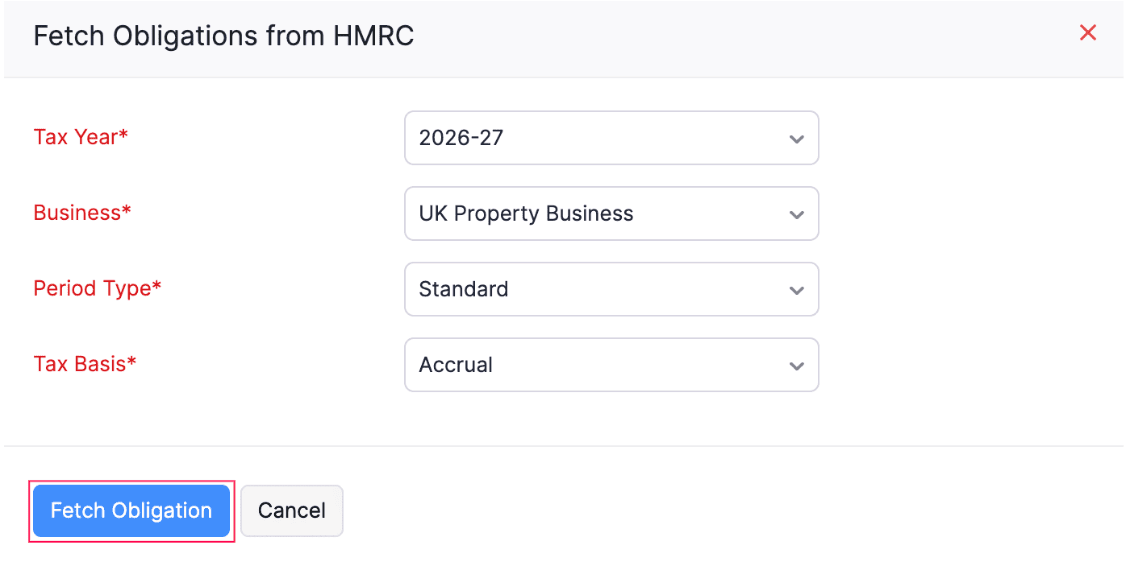
The quarterly submission periods will be fetched from HMRC and listed under the Quarterly Updates section.
Map Foreign Properties with HMRC
Note: Before fetching obligations, add your HMRC-registered Foreign Property business in MTD Income Tax settings. See MTD setup guide.
When you fetch obligations for a foreign property business, select your registered foreign property business in the Business field.
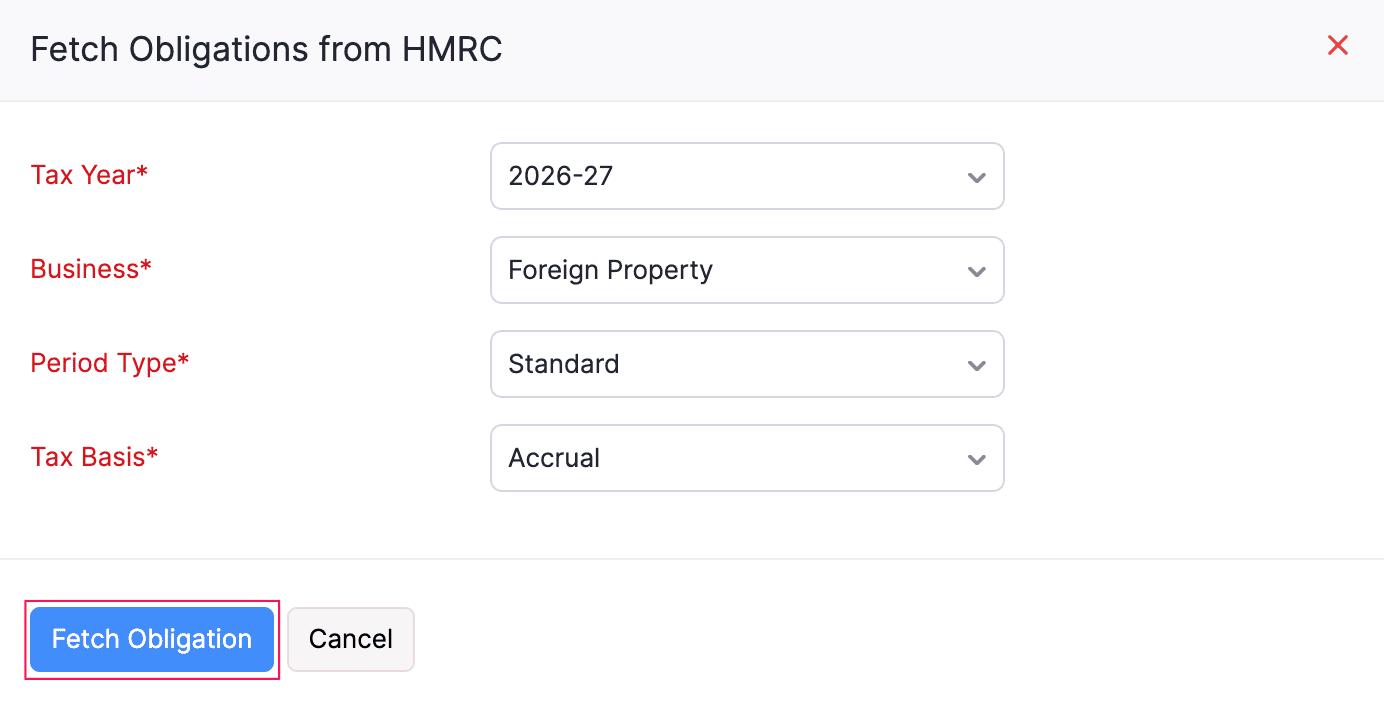
After fetching, go to the Quarterly Updates section and select the relevant Foreign Property quarterly update from the list. The first time you open the update, Zoho Books displays the Map Properties with HMRC page. You must complete the mapping before you can continue.
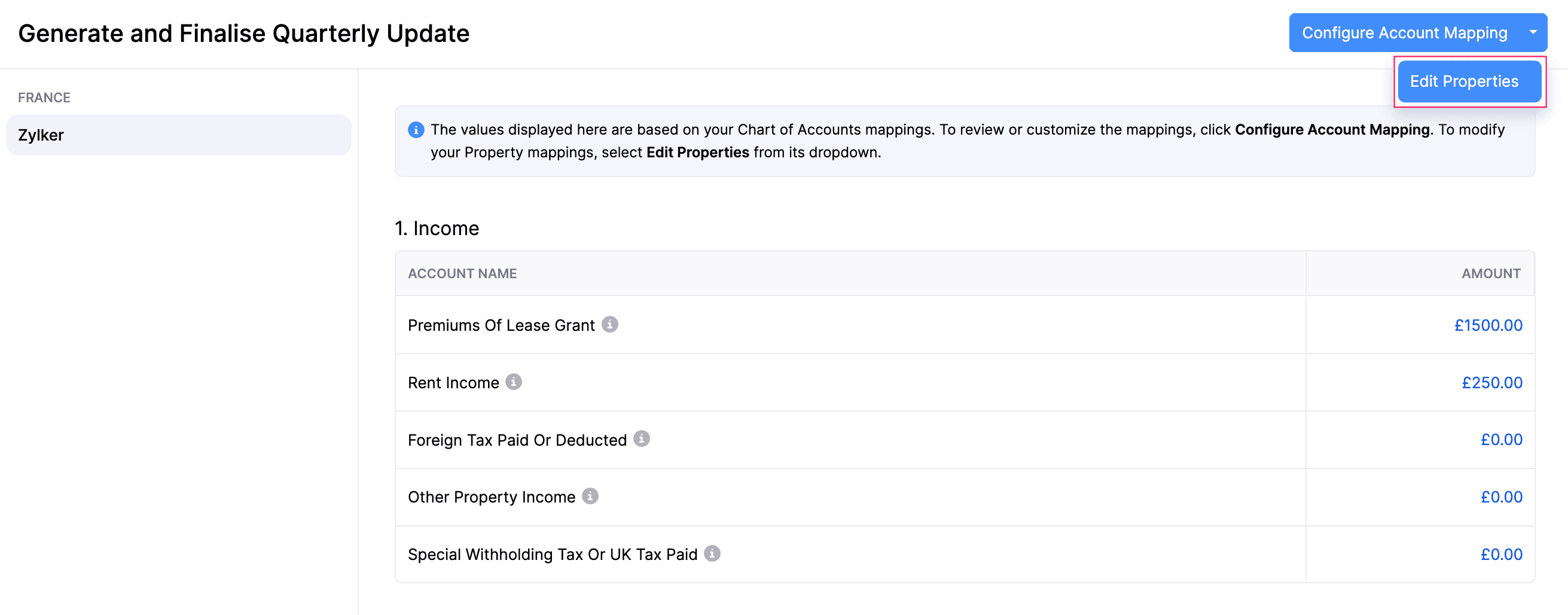
For subsequent updates, your property mappings are carried forward automatically. To change a mapping or manage an HMRC-registered property, open the Generate and Finalise Quarterly Update page, then select Edit Properties from the dropdown beside Configure Account Mapping.
All properties registered with HMRC appear on the mapping page. Match each one to its corresponding property in Zoho Books. If a property is missing, add it in the Properties module first.
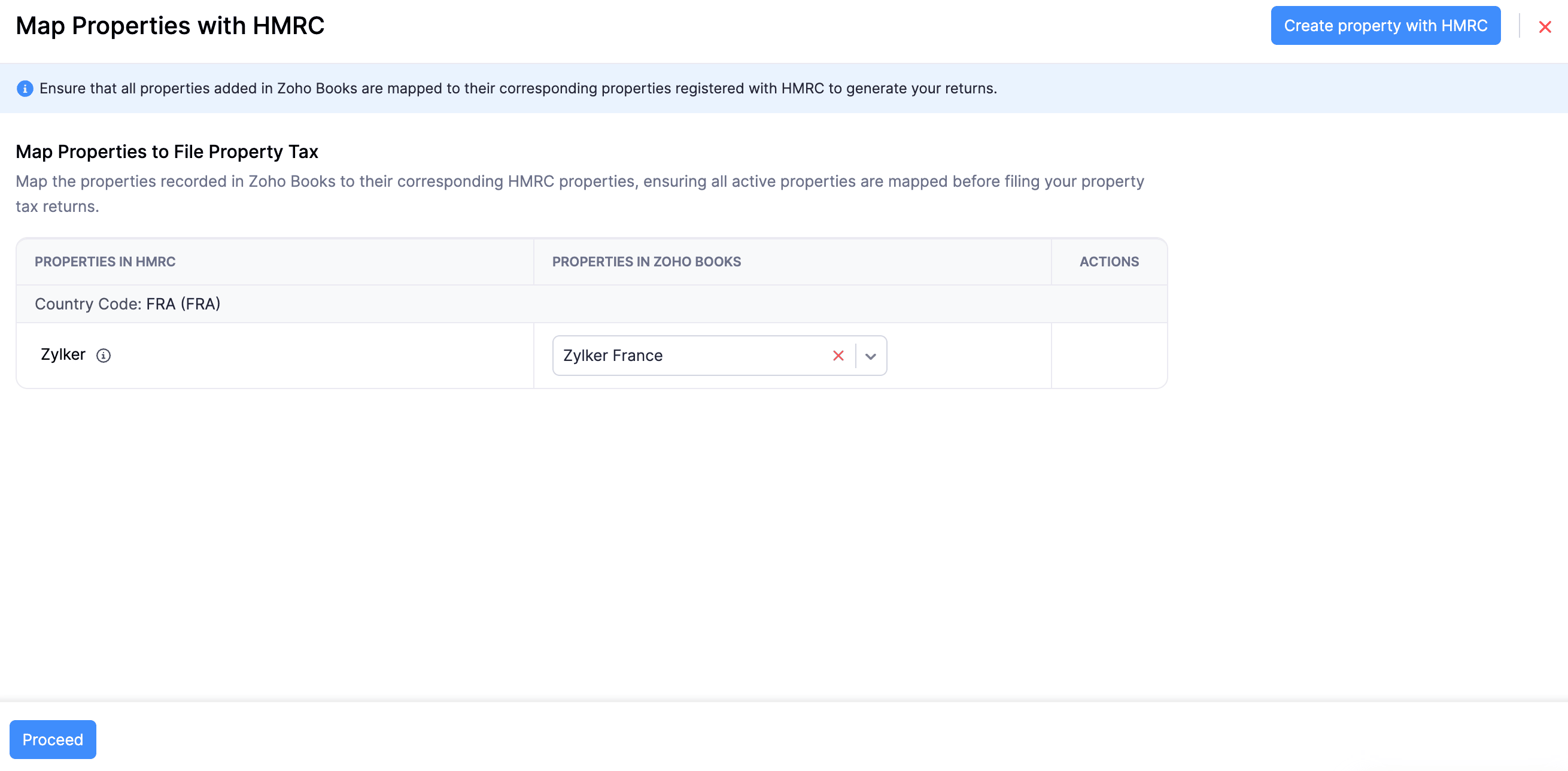
To register a new property with HMRC through Zoho Books:
- Click Create property with HMRC.
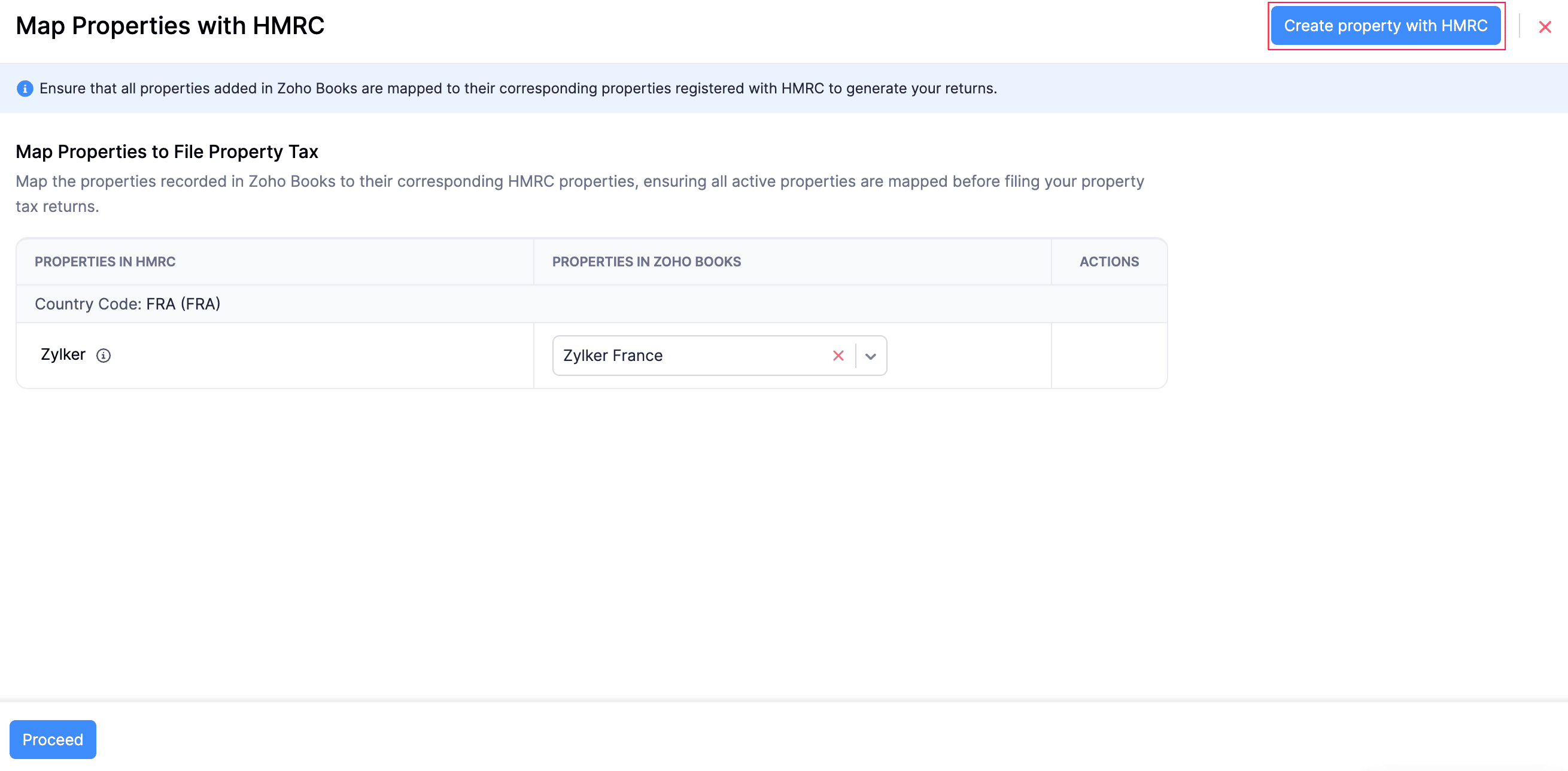
- Enter the Property Name and Country Code.
- Click Save.
You can rename an HMRC-registered property or cease it if you sell your last let property, convert it to non-business use, or permanently stop all rental activities.
To rename or cease an HMRC-registered property:
- In the Properties in HMRC column, locate the property.
- Hover over the Actions column and click the More icon.
- Select Rename Property to change its name, or Cease Property to cease it.
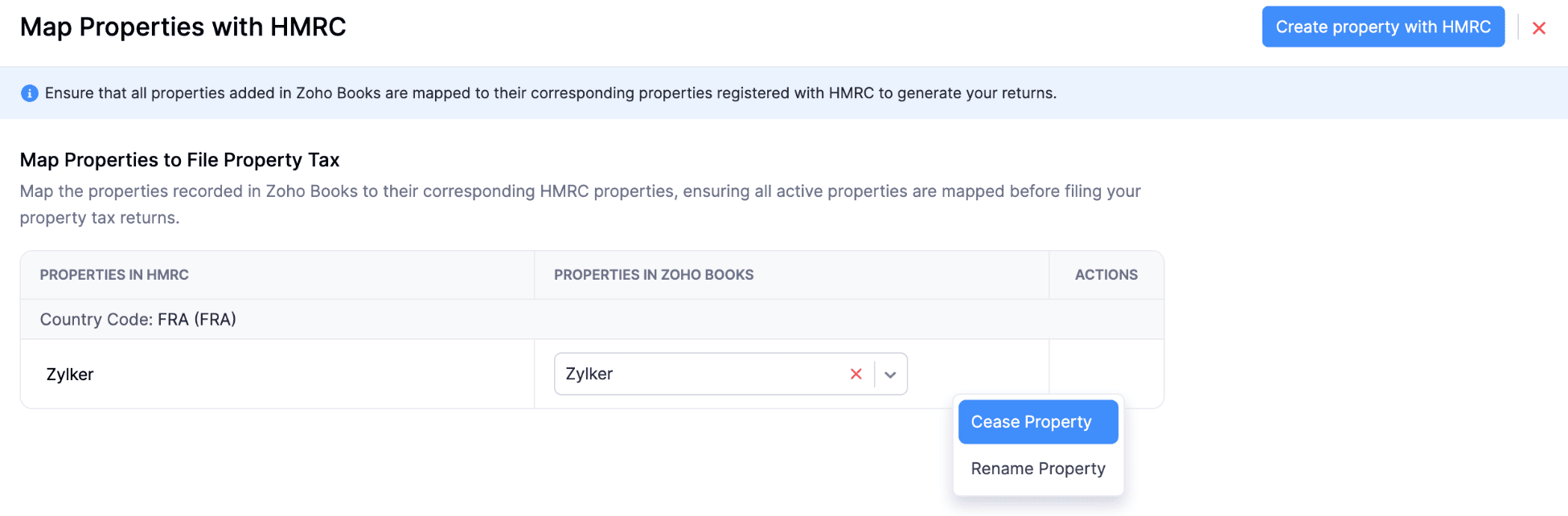
- If you select Rename Property, update the property name and click Save in the Rename Property pop-up.
- If you select Cease Property, enter the End Date, select an End Reason, and click Save in the Cease Property pop-up.
Note: Creating a property with HMRC, renaming a property, or ceasing a property updates its details in the HMRC portal. Matching a Zoho Books property to an HMRC-registered property only creates a mapping in Zoho Books; it does not update HMRC.
- After mapping all properties, click Proceed to continue to the quarterly update.
The transactions tracked for each property will then appear in the property navigation view. Select a property to review its income and expenses by HMRC category. Review and select the Claim Foreign Tax Credit Relief checkbox if applicable, in the Foreign Tax Credit Relief section for each property.
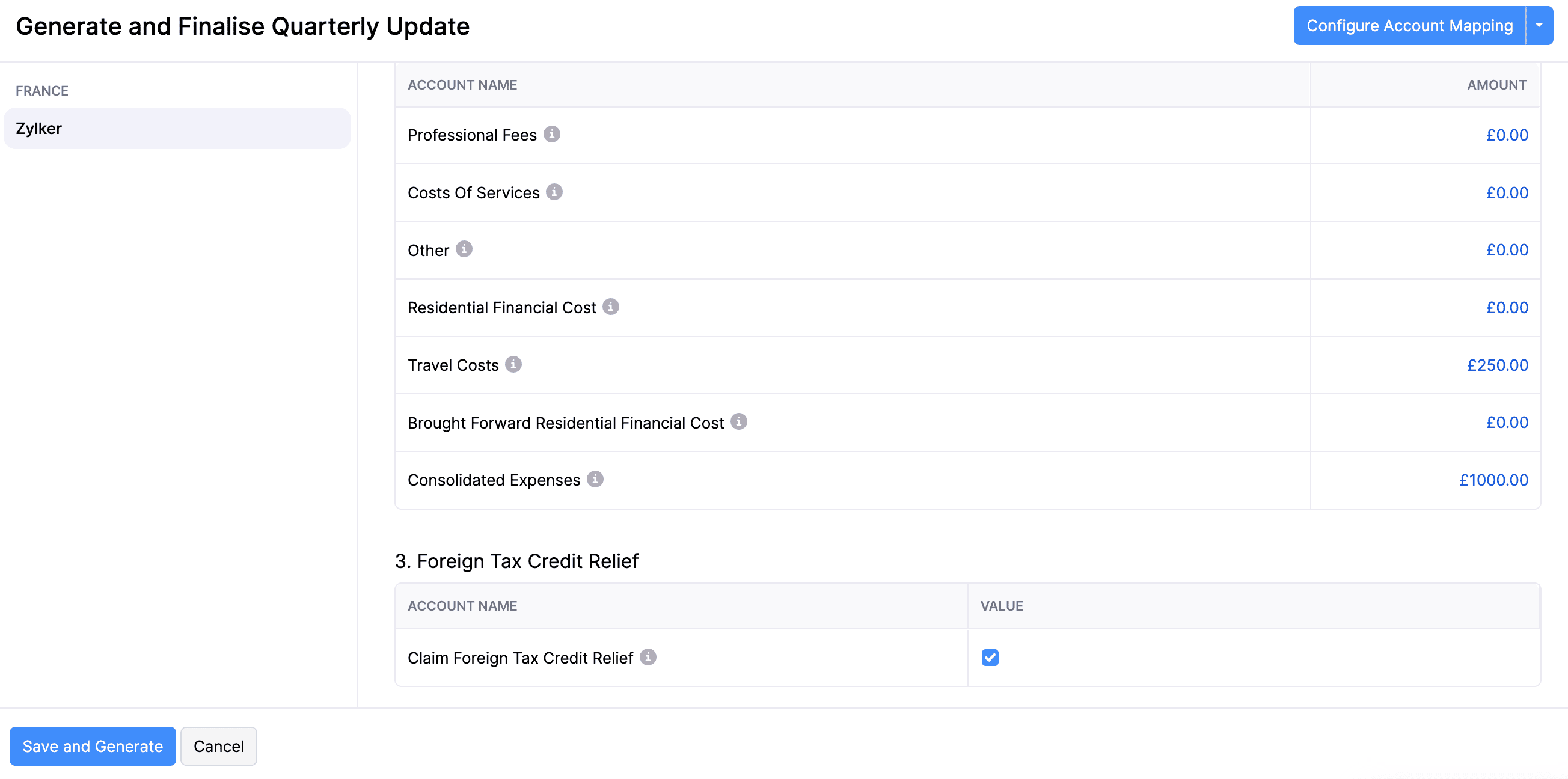
The displayed amounts are based on your Chart of Accounts mappings. Click Configure Account Mapping to review or change which accounts are mapped to these categories.
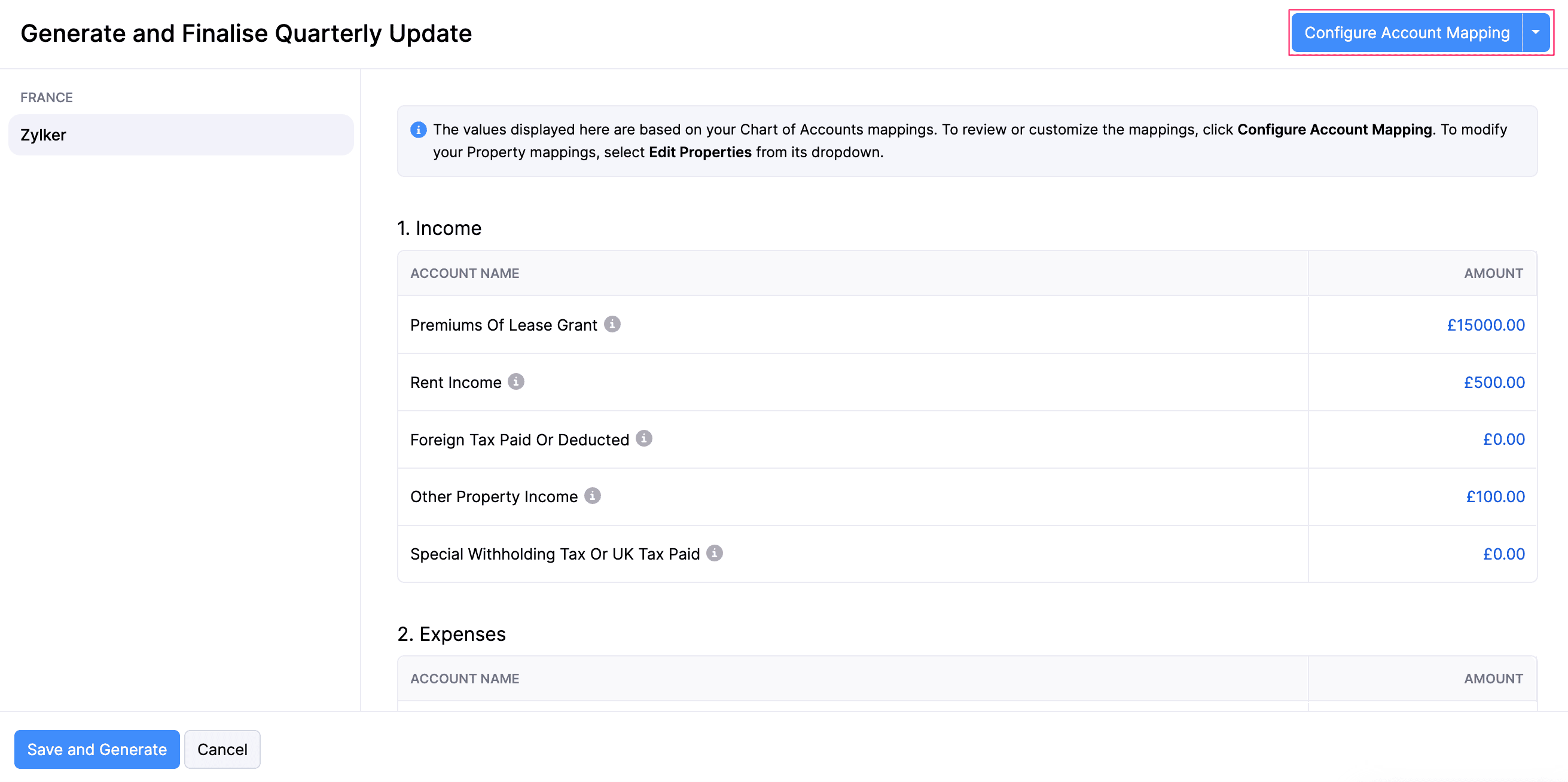
To update account mappings and finalise the quarterly update, see Finalise Quarterly Updates. Then follow Submit Quarterly Updates to submit it to HMRC.
Finalise Quarterly Updates
To finalise your quarterly update:
- Go to Filing & Compliance on the left sidebar and select MTD Income Tax.
- In the Quarterly Updates section, select the quarterly update that you want to finalise.
- In the Generate and Finalise Quarterly Update page, the income and expense values are pre-populated based on the default account mappings. If you have previously submitted a quarterly update, your account mappings from the previous submission will be carried forward automatically.
- To review or update the account mappings, click Configure Account Mapping in the top-right corner.
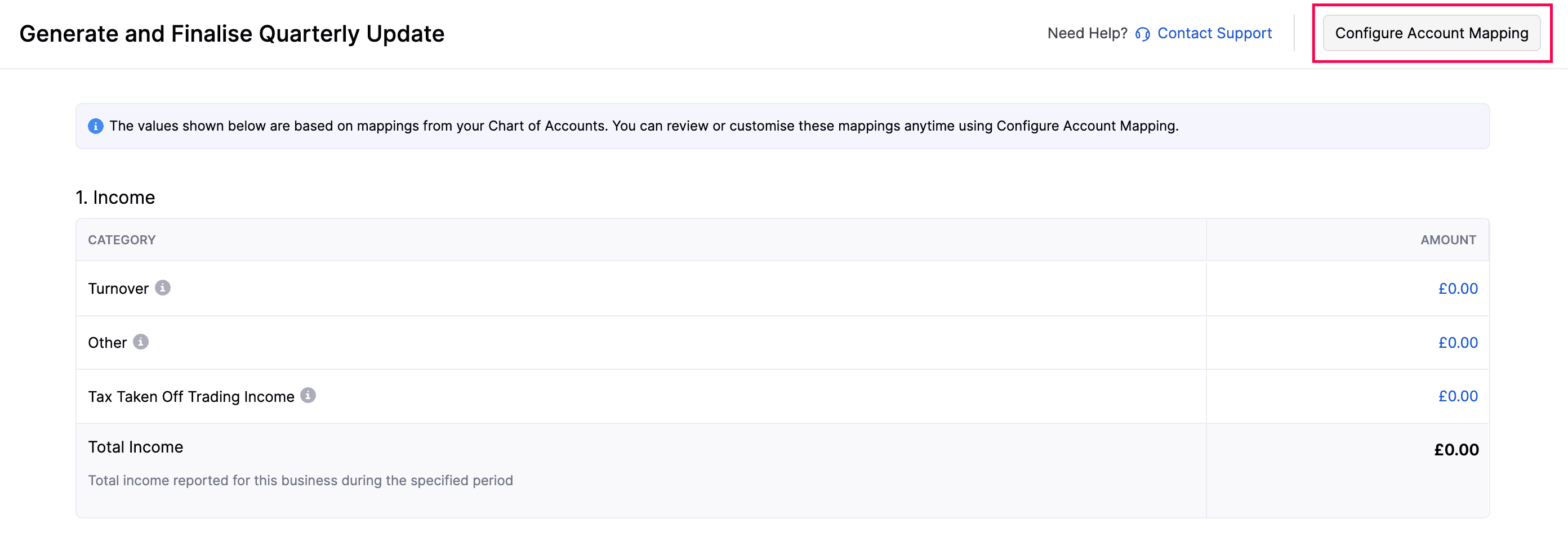
- In the Configure Account Mapping page, under the Income and Expenses sections, click + Add Accounts next to an HMRC category to add or update the mapped accounts.
- In the Add Accounts to Turnover pop-up, select the accounts you want to map under the All Accounts tab, then click Save.
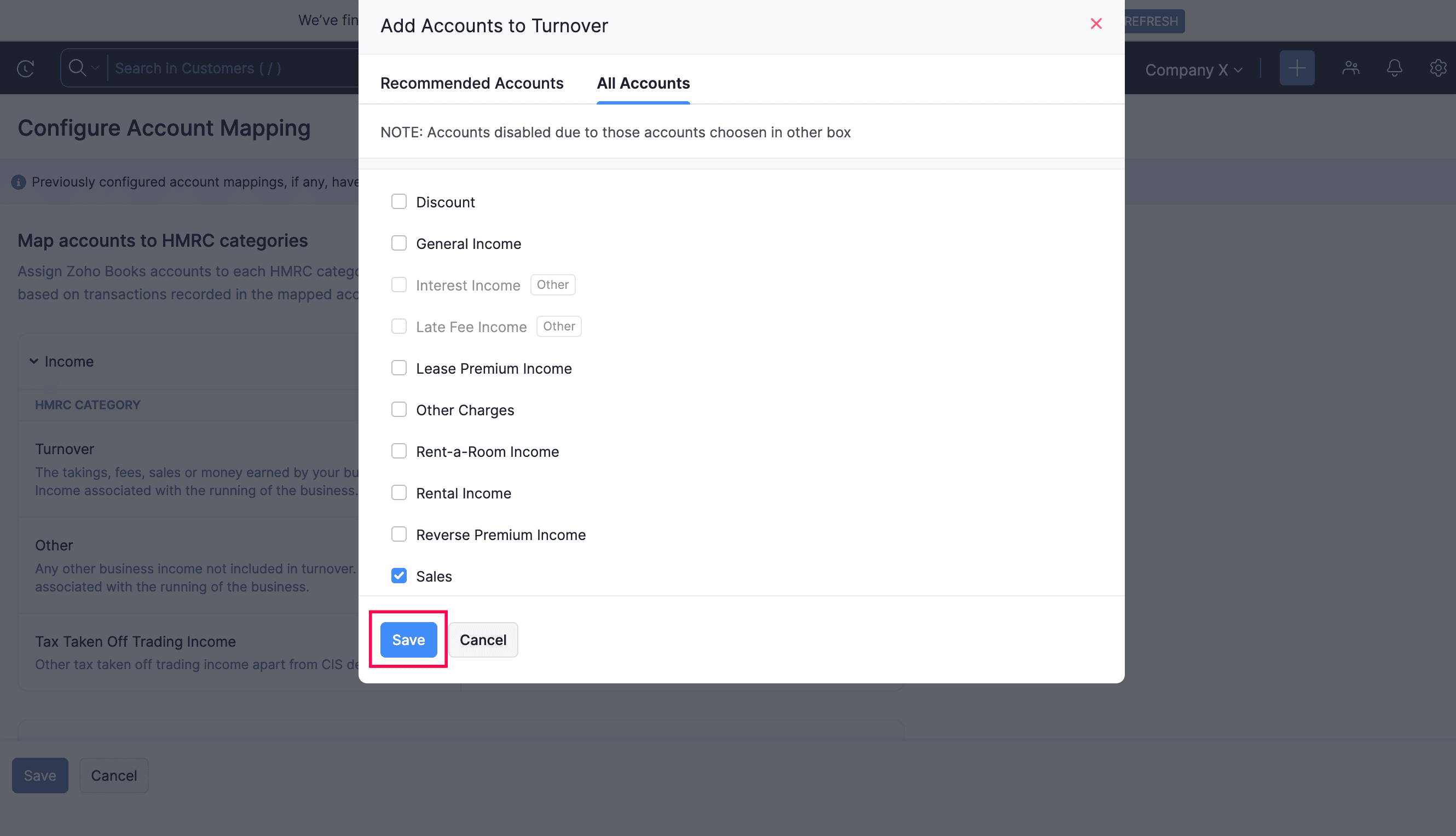
- Review the updated figures and click Save and Generate.
- In the pop-up that appears, click Finalise Update.
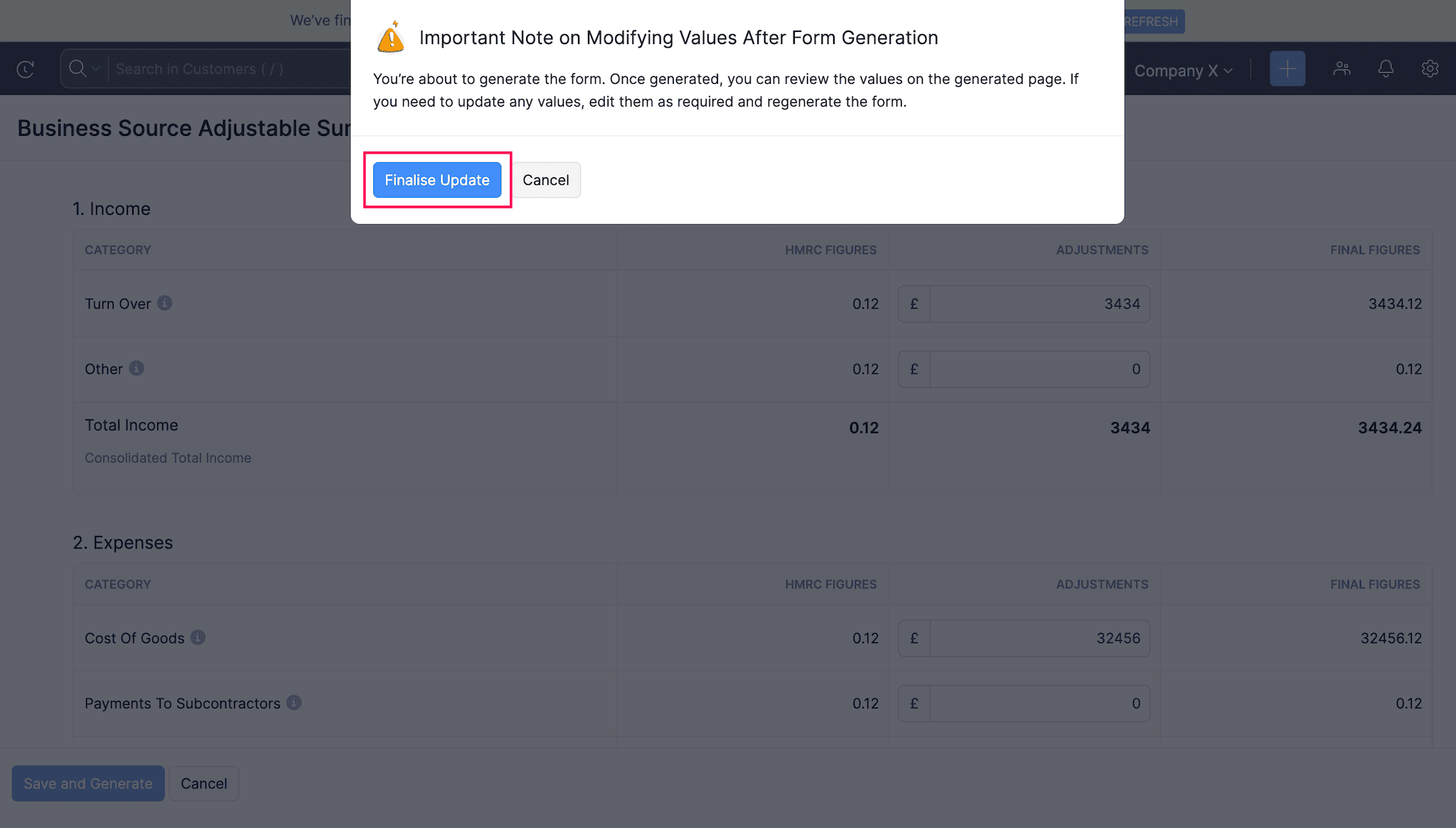
The quarterly update will be marked as Finalised and the summary page will be displayed with the submission details.
Edit Quarterly Updates
Once a quarterly update is finalised, you can only edit the mapped accounts. To edit a quarterly update:
- Go to Filing & Compliance on the left sidebar and select MTD Income Tax.
- Select the quarterly update you want to edit.
- In the quarterly update summary page, click the More icon in the top right corner and select Edit from the dropdown.
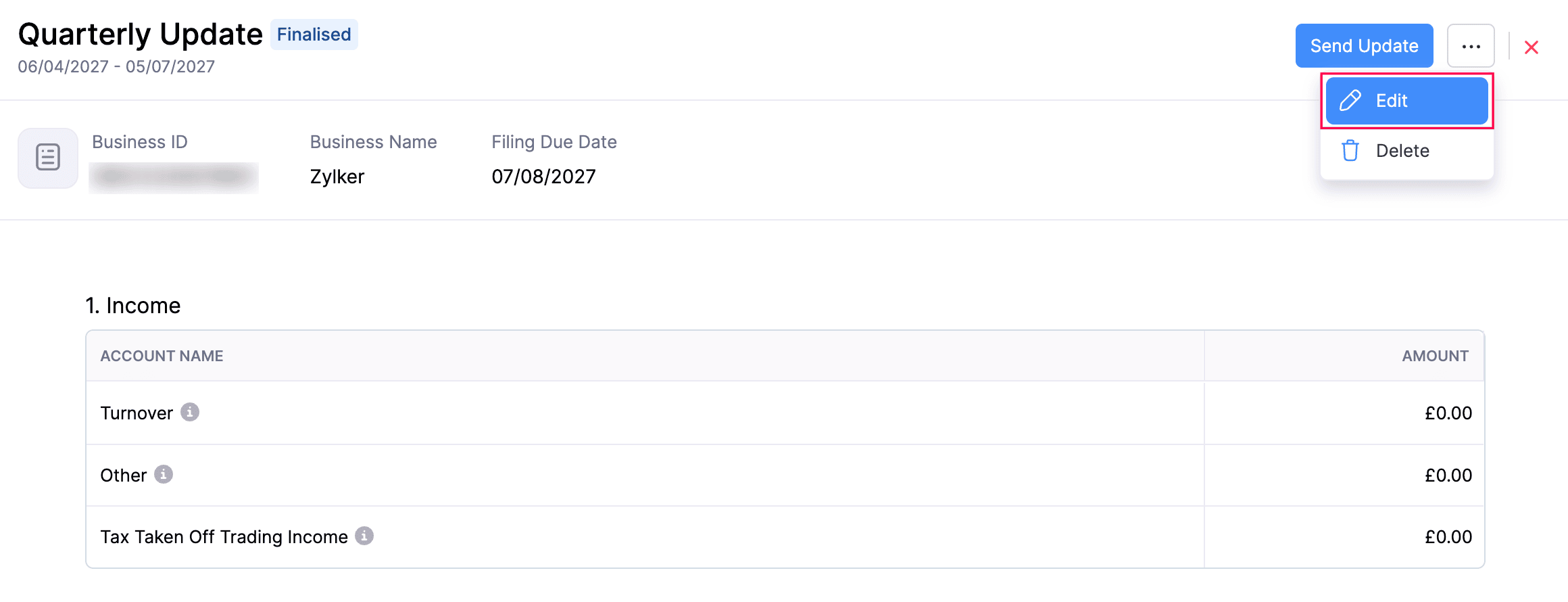
- In the Edit Quarterly Update pop-up, click Continue to Edit. The quarterly update will be moved to Draft status.
- In the form, click Configure Account Mapping and update the mapped accounts as required.
- Click Save and Generate to finalise the update again.
Submit Quarterly Updates
Prerequisite:
Before submitting the quarterly updates to HMRC, ensure that your Zoho Books organisation is connected to HMRC. If not, reauthorise your connection with HMRC to submit the updates.
To submit your quarterly update to HMRC:
- Go to Filing & Compliance on the left sidebar and select MTD Income Tax.
- Select the quarterly update you want to submit.
- In the quarterly update summary page, click Send Update in the top right corner.
- In the Send Quarterly Update to HMRC pop-up, click Send Update.
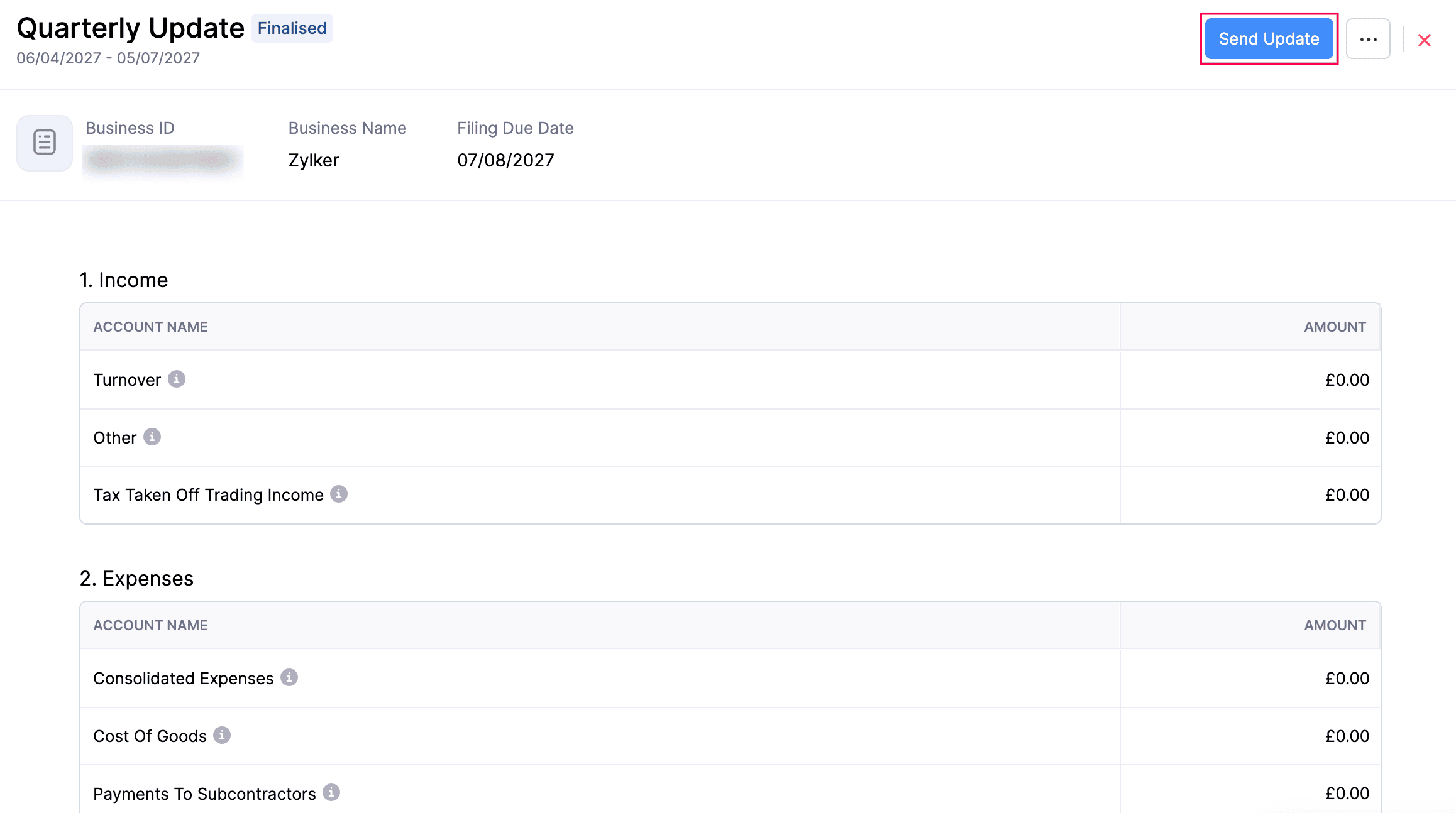
The quarterly update will be marked as Submitted.
Manage Quarterly Updates Using the Mobile App
You can fetch, review, finalise, and submit your MTD Income Tax quarterly updates to HMRC using the Zoho Books mobile app.
Note:
This feature is currently available only in the Zoho Books Android app.
Prerequisite:
Enable Making Tax Digital for Income Tax and connect your Zoho Books organisation to HMRC before managing quarterly updates in the mobile app.
Fetch Quarterly Updates
- Open the Zoho Books mobile app and sign in.
- Tap the Menu icon in the top-left corner.
- Select MTD Income Tax.
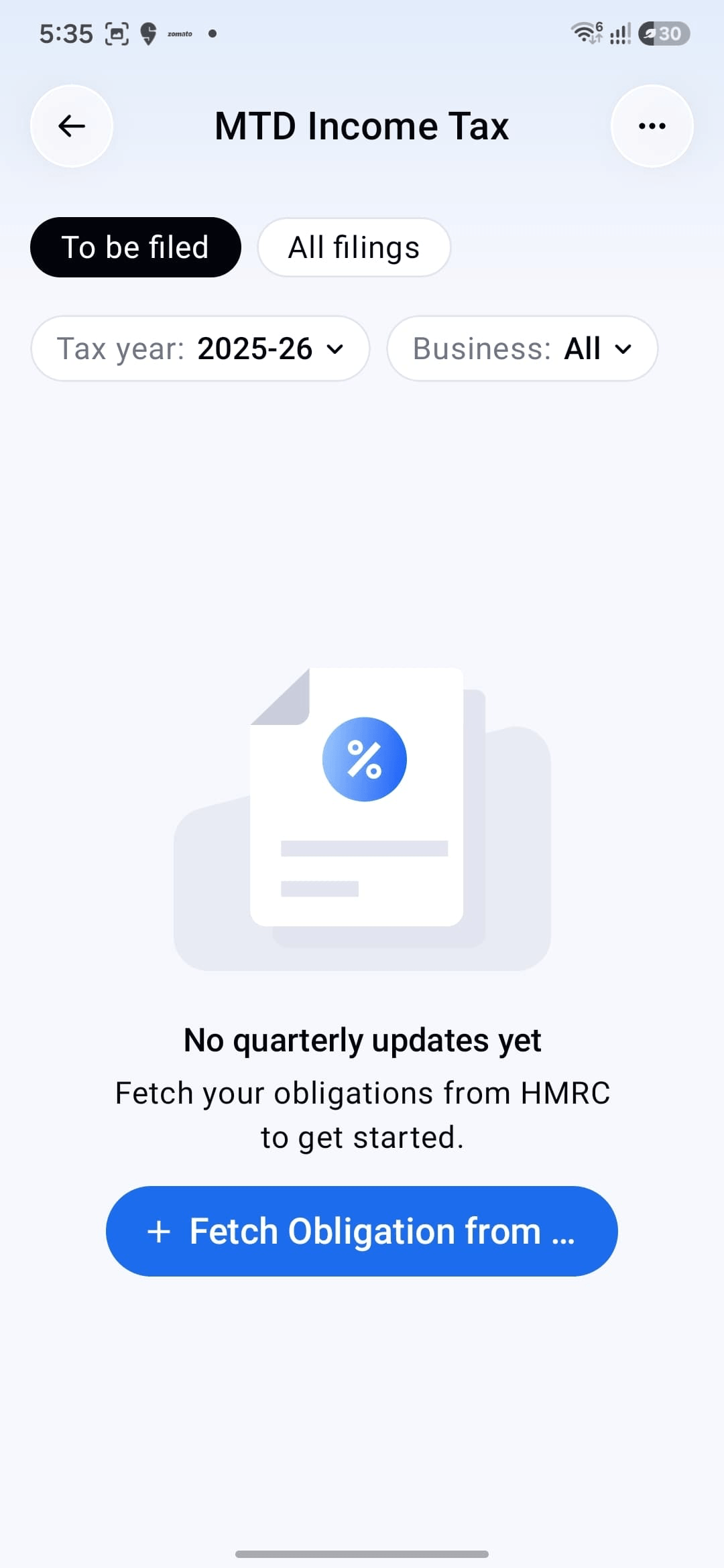
- If you are fetching quarterly updates for the first time, tap Fetch Obligation from HMRC.
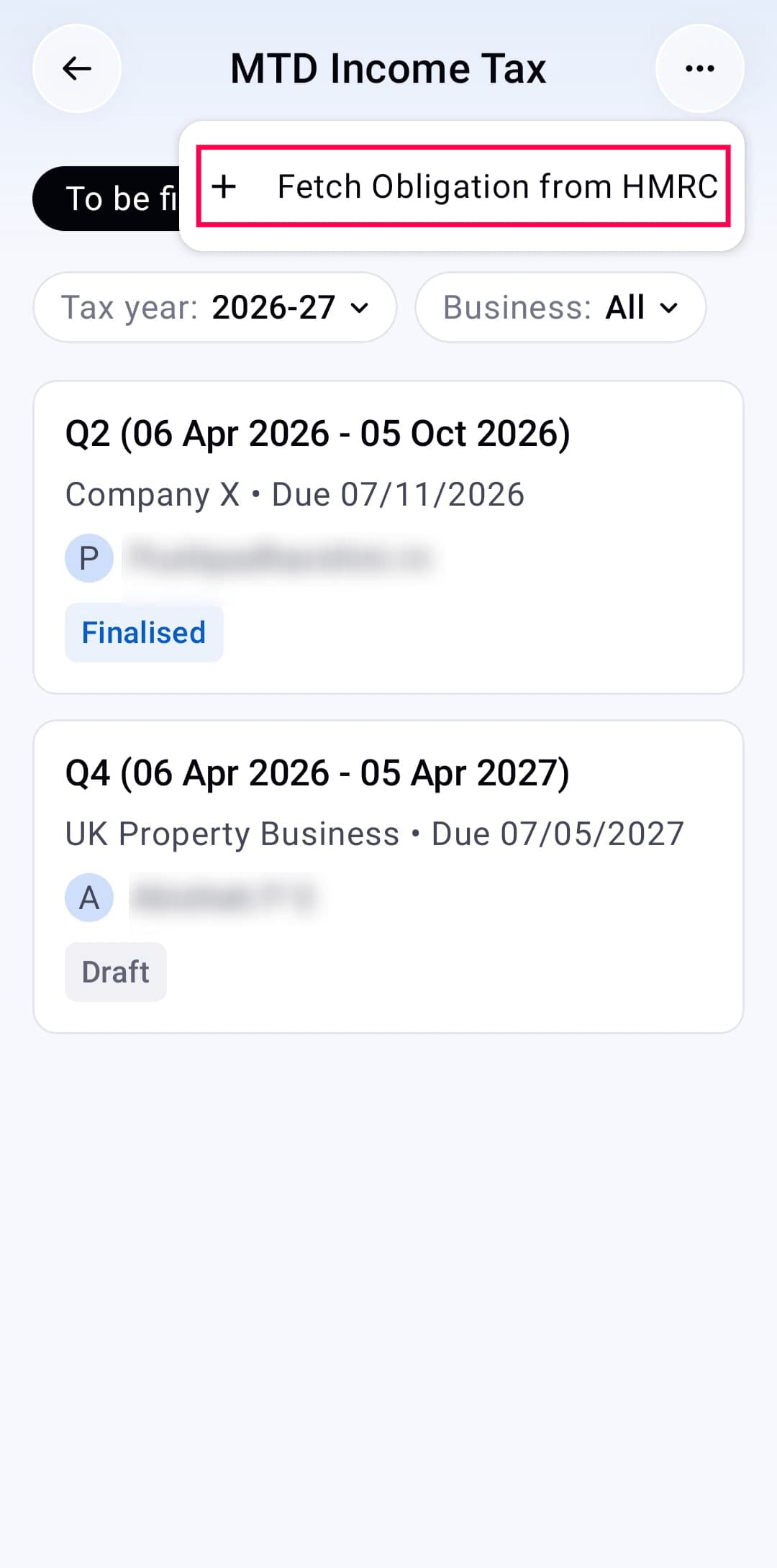
- If quarterly updates are already listed, tap the More icon in the top-right corner.
- Select Fetch Obligation from HMRC.
- Select the Tax Year for which you want to fetch quarterly updates.
- Select the Business for which you want to retrieve the updates.
- Select Standard or Calendar in the Period Type field.
- Select Accrual or Cash in the Tax Basis field.
- Tap Fetch Obligation.
The quarterly submission periods fetched from HMRC will appear on the MTD Income Tax page.
Review and Finalise a Quarterly Update
- Open the Zoho Books mobile app and sign in.
- Tap the Menu icon in the top-left corner.
- Select MTD Income Tax.
- Select a quarterly update from the list.
- Review the income and expense values on the Quarterly Update Details page.
The values are populated based on the configured default account mappings. If you have submitted a quarterly update previously, Zoho Books carries forward the account mappings from the previous submission.
- Tap Configure Accounts Mapping.
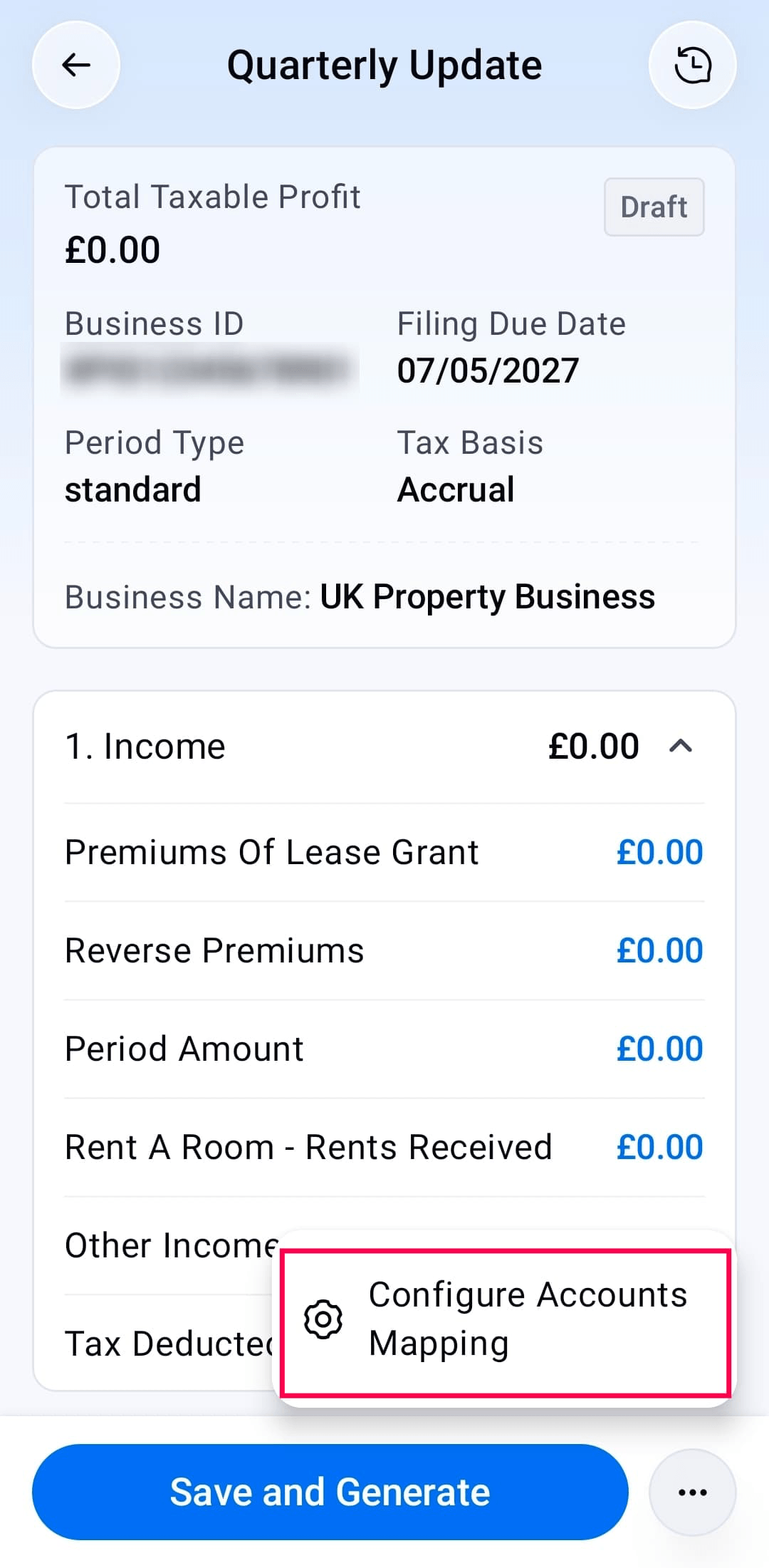
- Tap Add Accounts next to the relevant HMRC category.
- Select the accounts that you want to map.
- Tap Save.
- Repeat these steps for the remaining income and expense categories, if required.
- Tap Save and Generate.
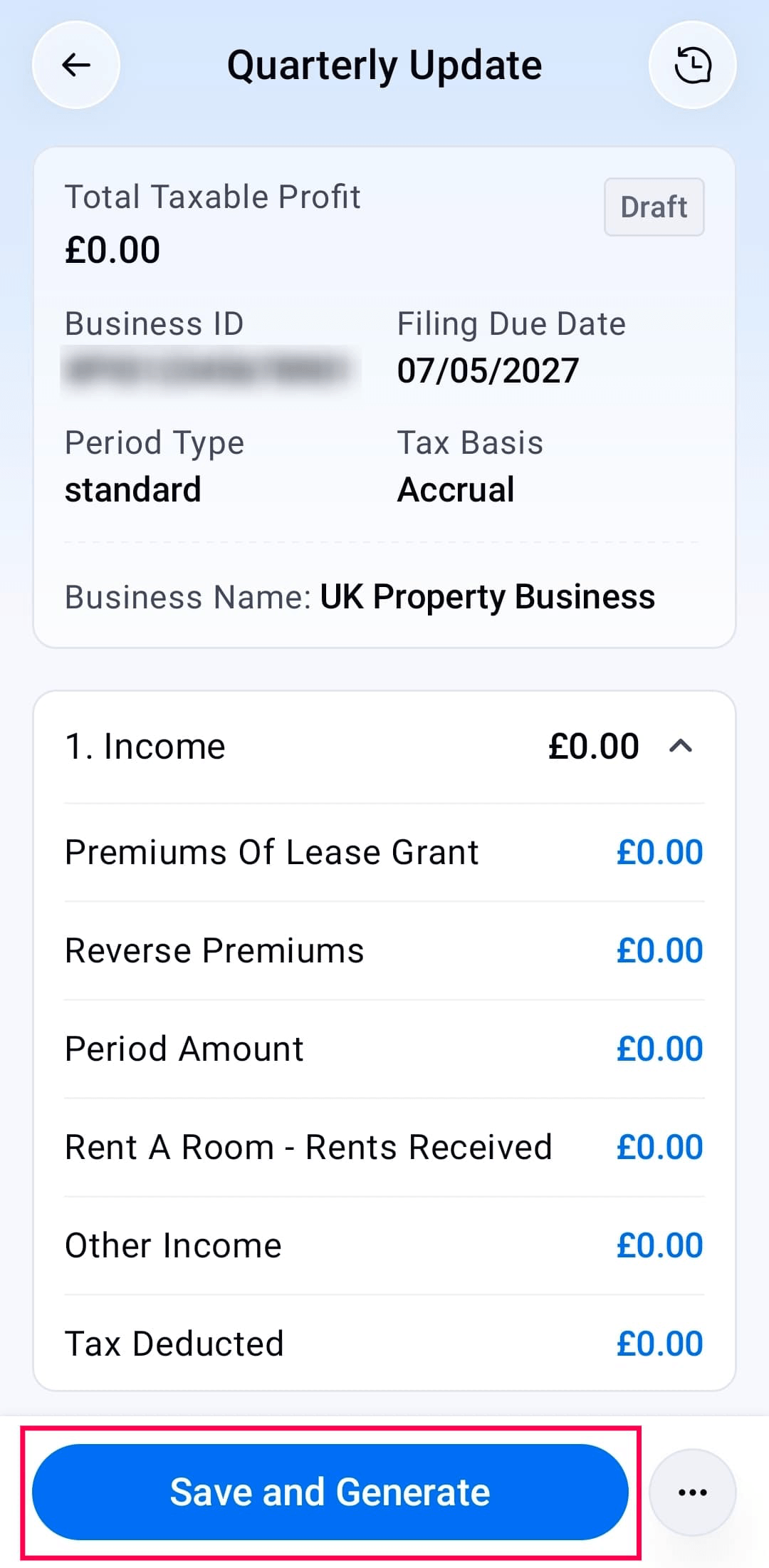
- Review the generated update.
- Tap Finalise Update.
Zoho Books marks the quarterly update as Finalised and displays the submission summary.
Edit a Finalised Quarterly Update
After you finalise a quarterly update, you can edit only its account mappings.
- Open the Zoho Books mobile app and sign in.
- Tap the Menu icon in the top-left corner.
- Select MTD Income Tax.
- Select the finalised quarterly update from the list.
- Tap the More icon and select Edit.
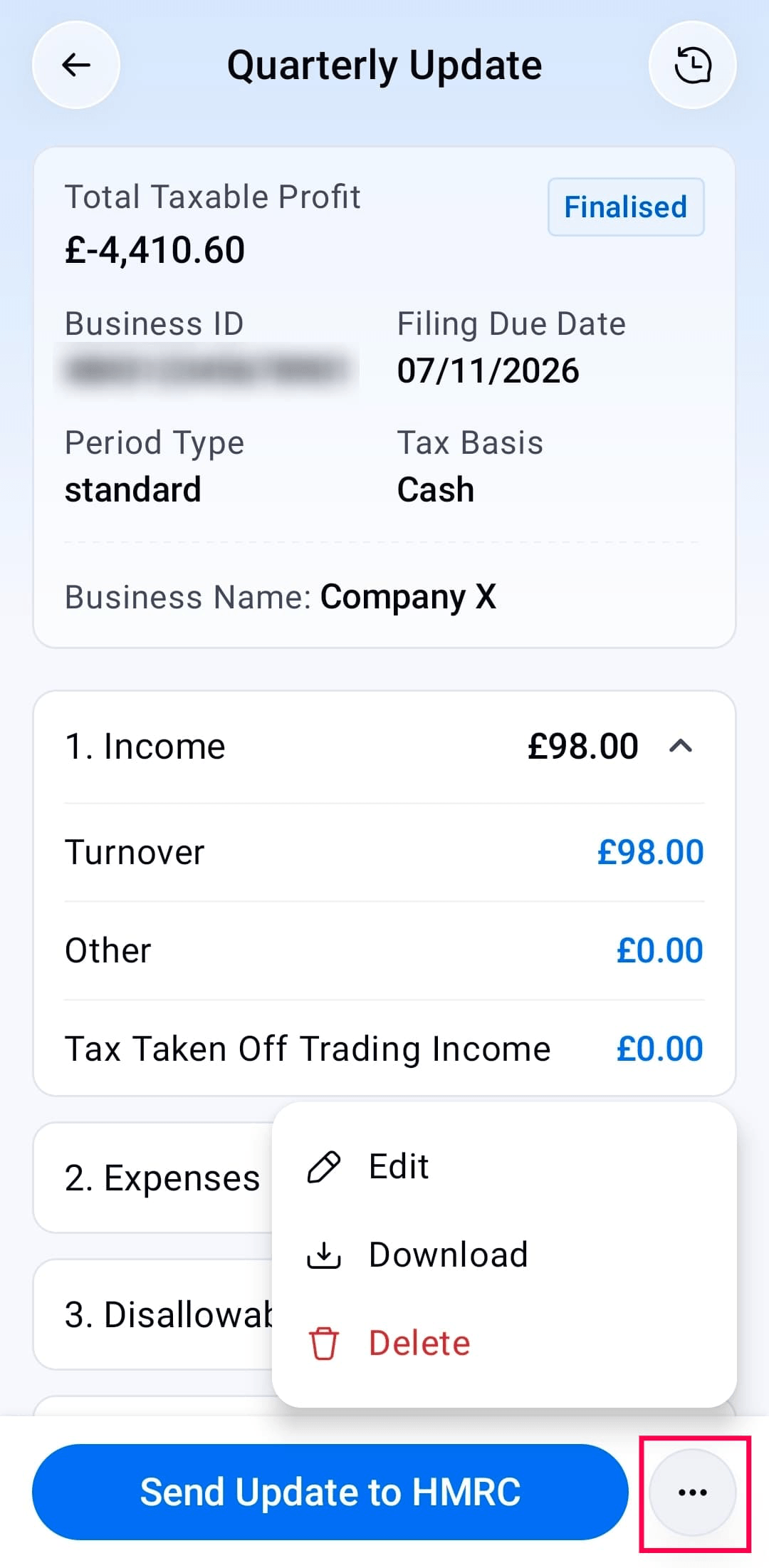
- Tap Continue to Edit.
Zoho Books moves the quarterly update to the Draft status.
- Tap Configure Accounts Mapping and update the mapped accounts.
- Tap Save and Generate to finalise the update again.
Submit a Quarterly Update
- Open the Zoho Books mobile app and sign in.
- Tap the Menu icon in the top-left corner.
- Select MTD Income Tax.
- Select the finalised quarterly update that you want to submit.
- Tap Send Update on the update summary page.
- Review the confirmation prompt.
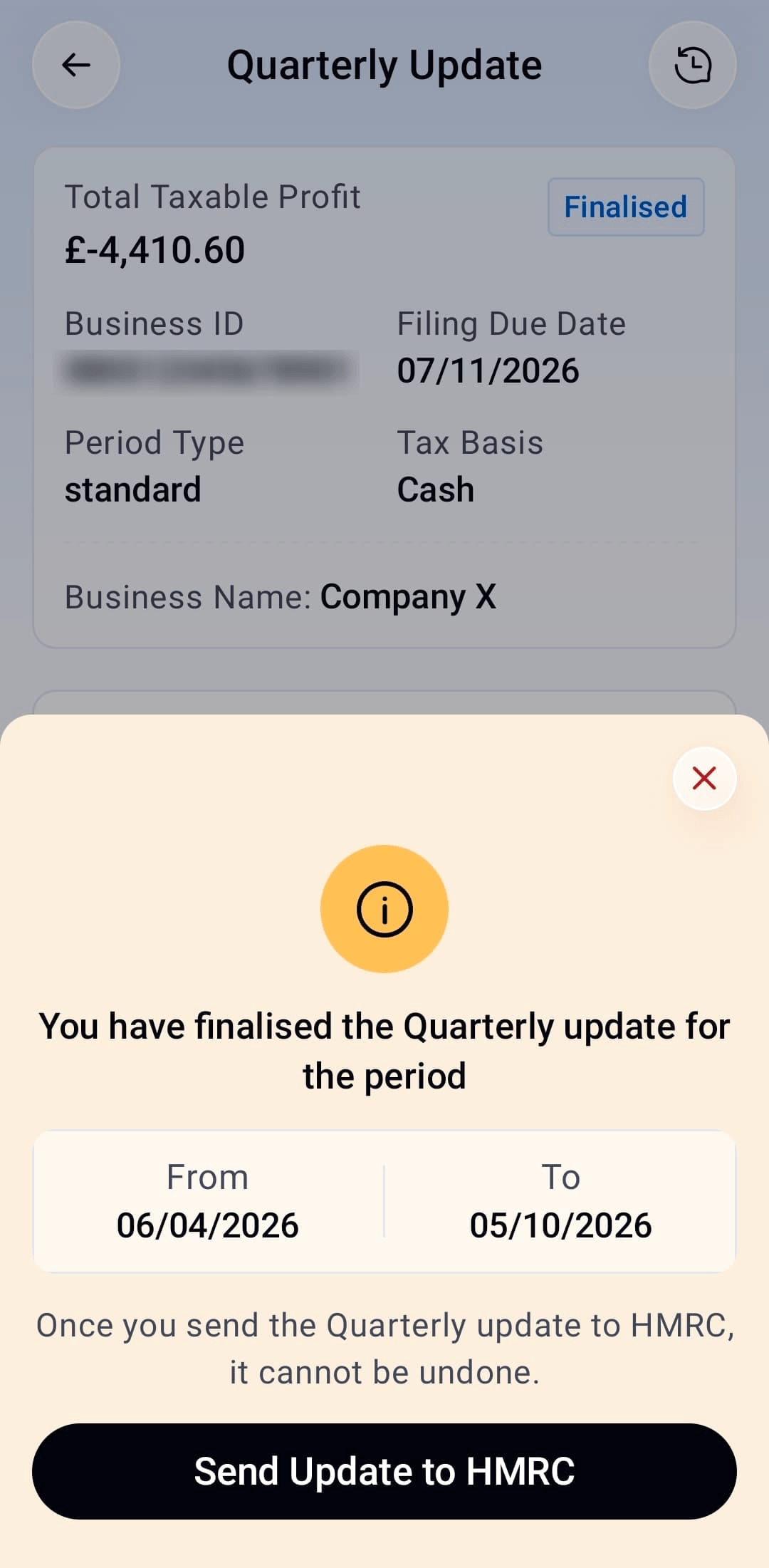
- Tap Send Update to submit the quarterly update to HMRC.
Zoho Books marks the quarterly update as Submitted.
 Yes