


Properties
The Properties module in Zoho Books helps you manage your properties and track their financial activity in one place. You can record rental income, invoices, bills, expenses, and credit notes against each property and maintain accurate records for tax reporting.
Note:The Properties module is currently available only for organizations whose business type is Sole Trader or Landlord.
If you create a new organisation with the Landlord as Business Type, the Properties module will be enabled automatically.
If you have an existing organisation with Landlord or Sole Trader as Business Type or if you create a new organisation with Sole Trader as Business Type, you must enable the Properties module from Settings.
To enable the Properties module:
- Log in to your Zoho Books organisation.
- Go to Settings in the top-right corner of the page.
- Under Organisation Settings, go to Setup & Configuration.
- Under General, navigate to the Select the modules you would like to enable section.
- Enable Properties and click Save.
Once saved, the Properties module will be available for your organisation.
In the Properties module, you can:
Manage Properties Using the Mobile App
You can create and manage properties from the Zoho Books mobile app. You can also view the transactions and activities associated with each property.
Note:
This feature is currently available only in the Zoho Books Android app.
To create a property:
- Open the Zoho Books mobile app and sign in.
- Tap the Menu icon in the top-left corner.
- Select Property.
- Tap the Add (+) icon in the bottom-right corner.
- Enter the required property details.
- Tap Save.
The property will be created and listed on the Properties page.
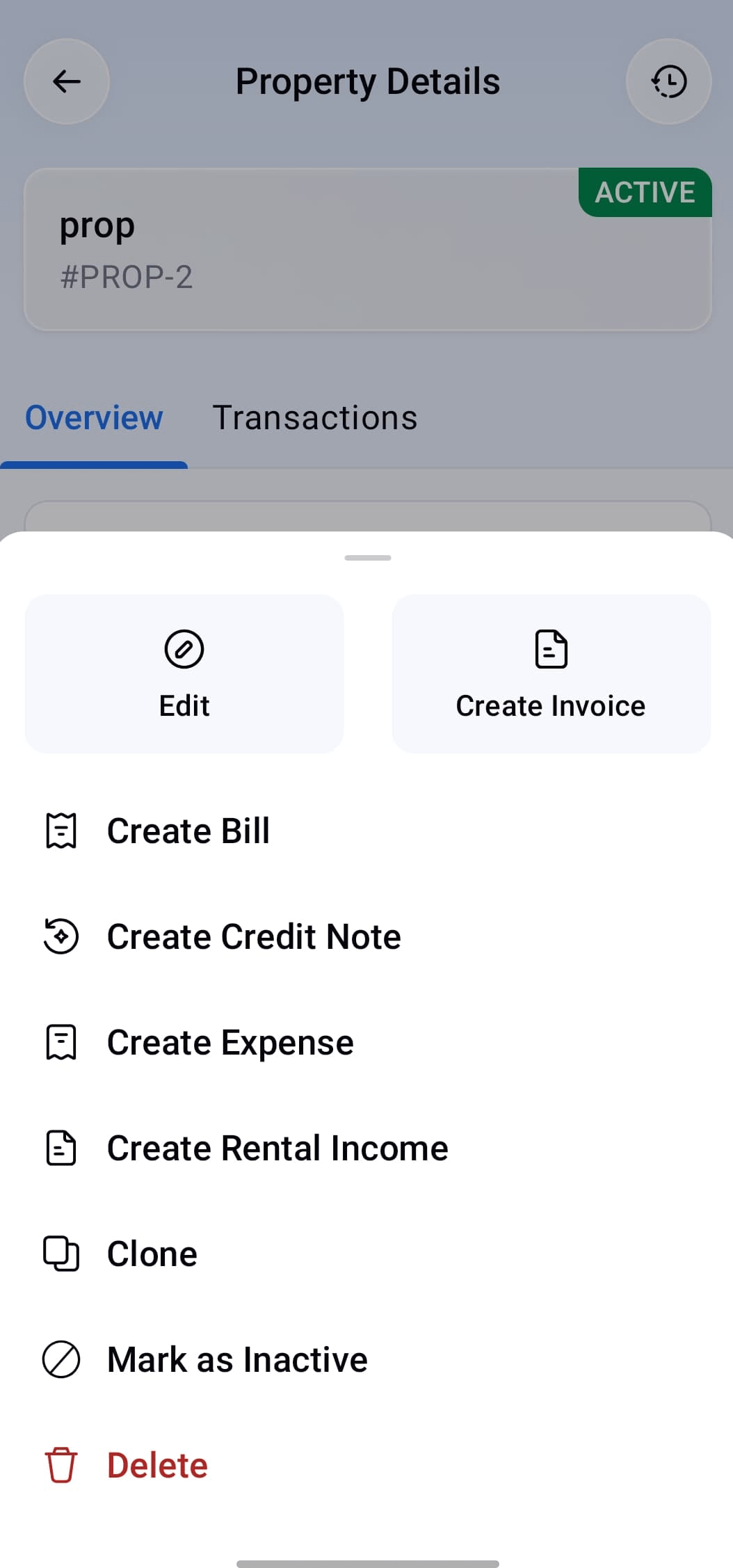
To perform other actions on a property:
- Select the property from the Properties page.
- Tap the More icon in the bottom-right corner.
- Select the required action.
| Action | Description |
|---|---|
| Edit | Update the property details. |
| Create Invoice | Create an invoice associated with the property. |
| Create Bill | Create a bill associated with the property. |
| Create Credit Note | Create a credit note associated with the property. |
| Create Expense | Create an expense associated with the property. |
| Create Rental Income | Record rental income associated with the property. |
| Clone | Create a property with the same details. |
| Mark as Inactive | Mark the property as inactive. |
| Delete | Delete the property. |
To view transactions associated with a property:
- Select the property from the Properties page.
- Select the Transactions tab on the Property Details page.
The transactions associated with the selected property will be displayed in the Transactions tab.