How to automate ecommerce returns and refunds with Zoho Flow
- Last Updated : November 19, 2026
- 47 Views
- 7 Min Read

Key takeaways
- Returns pass through support, the warehouse, and finance, and the details between them are usually copied by hand, which is where delays and missed steps start.
- Zoho Flow helps you connect those apps, so one event, like a return request or a new refund, can set off the next steps across other apps.
- This article covers seven workflows, from turning return requests into support tickets to recording refunds in your books and spotting which products come back the most.
When did you last return something you bought online? All you wanted was a smooth return process and a refund that reached your account without you asking. That’s what your customers expect too when they apply for a return.
According to the National Retail Federation’s (NRF) 2025 report, an estimated 19.3% of online sales will end up as returns. So returns are an inevitable part of an ecommerce business, and how you handle each one decides whether that customer comes back. When a return is approved fast and the refund arrives on time, the customer remembers the experience and buys from you again.
Doing it manually is where it gets tiring. Every time a customer applies for a return, someone has to copy the details into a spreadsheet, let the warehouse team know, and then the refund waits until finance processes it. It’s manageable with a handful of returns, but once orders pile up, steps get missed and customers wait longer for their money.
This is where Zoho Flow helps. It connects your store with the other apps your team uses to handle returns, so when a request comes in, the details reach the right tools without anyone copying them over. Approvals stay with your team, since those need a human call, but everything around them runs on its own.
Here are a few workflows across the returns and refunds process you can start with in Zoho Flow. Pick the step that slows your team down the most and build from there.
Return and refund workflows you can automate with Zoho Flow
Turn return requests into support tickets
Return requests may arrive through different channels. Some customers fill in a form on your website, some send an email, and others message you on WhatsApp or live chat. Whichever way it comes in, someone has to copy the details into your support tool before your team can act on it.
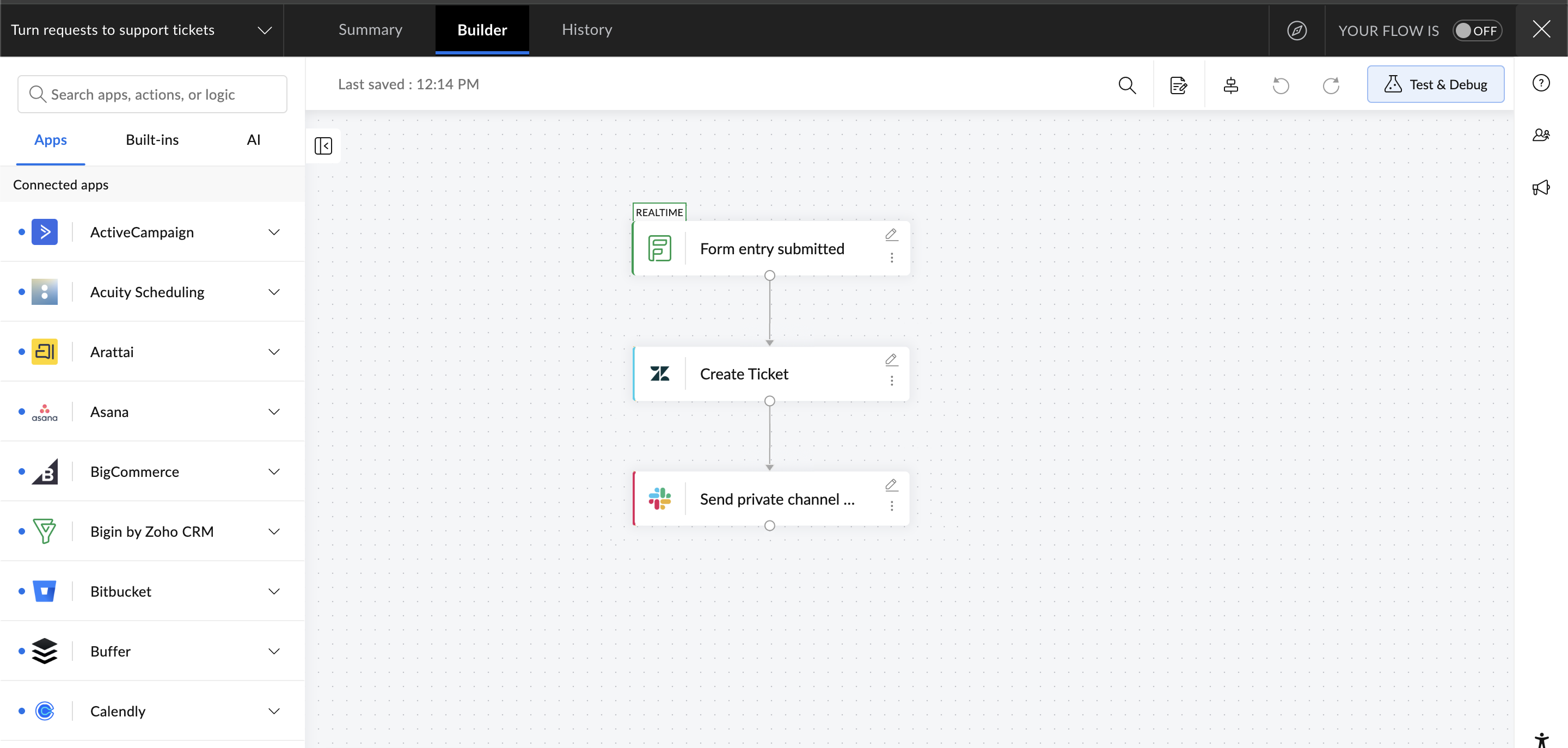
Zoho Flow can create the ticket the moment a request arrives, with the necessary details filled in. Here’s how it works for a return form on your website.
1. Trigger: Form entry submitted in Zoho Forms.
2. Zoho Flow creates a ticket in Zendesk using Create Ticket, with the order number, items, quantities, and return reason from the form.
3. A message goes to your support channel in Slack so the team knows a return is waiting.
This way, every request is tracked as a ticket as soon as it comes in.
Hand approved returns to the warehouse
Once support approves a return, the warehouse needs to know what’s coming back. That usually happens in a chat message or an email, and details often get missed along the way. The warehouse then has to ask support for the same details again.
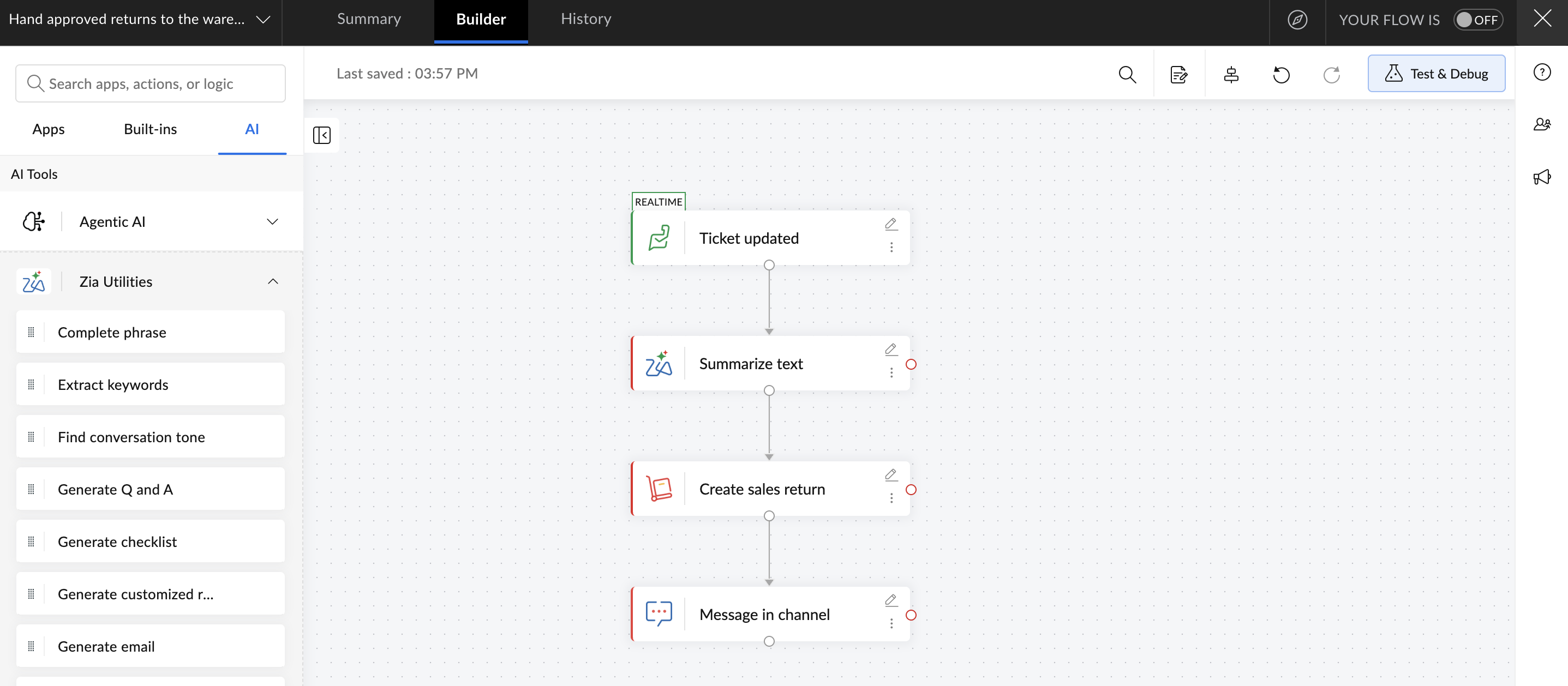
With automation, the handover can go out as soon as an agent approves the request. Zoho’s AI assistant, Zia, also writes a short summary, so the warehouse doesn’t have to read through the whole ticket.
1. Trigger: Ticket status updated in Zoho Desk, filtered to your “Return approved” status.
2. Summarize text: Zia writes a short summary of the return request.
3. Create sales return in Zoho Inventory logs the return against the customer’s order, with the approved items and quantities.
4. The summary and the sales return details are posted to the warehouse channel in Zoho Cliq.
Put good returns back in stock and log the damaged ones
When a returned parcel arrives, someone opens it and checks each item. The good ones need to go back into stock and the damaged ones have to be set aside. It’s easy to forget one of those updates, and then the stock count is wrong or a damaged item goes unrecorded.
Once the warehouse team checks the parcel and logs the details in a sheet, Zoho Flow takes care of the next steps.
1. Trigger: Row created in Zoho Sheet (one row per item checked, with the return number, item, quantity, and condition).
2. Zoho Flow uses a decision block to check the item's condition.
3. If the item is in good condition, Create sales return receive in Zoho Inventory adds it back to stock.
4. If it’s damaged, Create row in Zoho Sheet logs it in a separate damaged products sheet with the return number, item, and date.
Follow up on refunds that are taking too long
Once a returned item is checked, the next step is to send the customer their refund. If someone on your team misses this step, the customer is left waiting and their experience with you takes a hit.
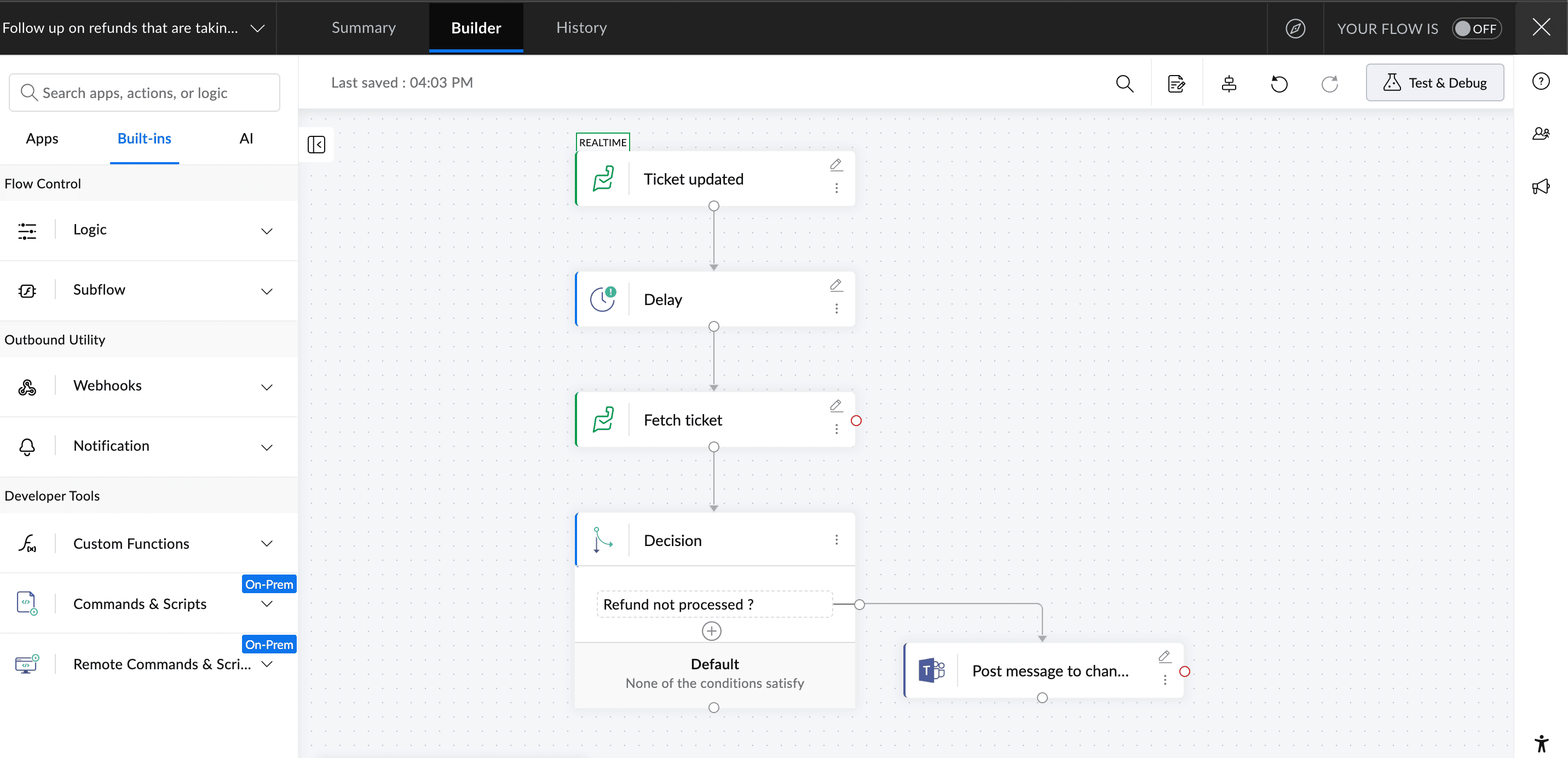
Zoho Flow can keep an eye on it for your team. It waits for the time you set, checks whether the ticket has moved on, and sends a reminder if it hasn’t.
1. Trigger: Ticket status updated in Zoho Desk, filtered to your “Ready for refund” status. 2. A delay holds the flow for your refund window.
3. Fetch ticket gets the latest details of the ticket.
4. Zoho Flow uses a decision block to check whether the refund is processed.
5. If not, Post message to channel in Microsoft Teams sends the ticket details to your finance team.
Record refunds in your accounting software
Once a refund goes out from your store, finance has to enter it again in the accounting software. They need the right invoice, items, and amounts. It’s easy to miss any of these, so credit notes pile up as month end gets closer.
As soon as the store creates a refund, Zoho Flow can create the credit note for you and send it to the customer.
1. Trigger: Refund created in Shopify.
2. Create credit note in Zoho Books matches the refund to the customer and the original invoice, with the refunded items and amounts.
3. Send credit note emails the credit note to the customer.
Track which products come back the most
Return details end up in tickets, sheets, and inboxes. So finding out which product keeps coming back means pulling all of it together by hand, which takes time and effort. Each time a return is logged in Zoho Inventory, Zoho Flow can add it to a sheet and your dashboard. Over time, that sheet shows you which products come back the most.
1. Trigger: Sales return made in Zoho Inventory.
2. Create row in Google Sheets adds a line with the product, quantity, return reason, order number, and date.
3. Create row in Zoho Analytics adds the same details to your return data table.
Let AI sort new return requests
A customer who wants an exchange doesn’t need a refund, and an upset customer shouldn’t wait behind a routine return. Someone has to read each ticket first to know which is which. An agentic action in Zoho Flow can read each new ticket and choose the next step. You set up the actions it can choose from once, and Zia picks the one that fits each request.
1. Trigger: Ticket created in Freshdesk.
2. Run agentic action reads the ticket description and picks the most suitable of the actions you’ve set up:
- For a standard return, Send email in Zoho Mail sends the customer an acknowledgement with the return steps.
- For an exchange request, Create task in Asana adds a task for your exchanges team, with the ticket details.
- For an upset customer, Update ticket in Freshdesk raises the priority and assigns it to your senior agents.
Returns will always be part of selling online, but the manual follow-up around them doesn’t have to be. Zoho Flow lets you connect the apps your team already uses, so that follow-up happens on its own. With 1,000+ apps available, you can pick where to start and add more workflows as you go.
Sign up for Zoho Flow and get started today!
Related reading
- Ecommerce automation: Tools and workflows for every part of your business
- Automate your ecommerce workflows from orders to fulfillment
- How to automate inventory management across your ecommerce tools
Frequently asked questions
1. How is Zoho Flow different from the returns tools built into Shopify or WooCommerce?
Built-in tools only work within their own platform. In Shopify, for example, a customer can request a return and your team approves it there. The follow-up in other tools, like recording the refund in your accounting software, updating stock in your inventory system, or alerting finance, still has to be done by someone. Zoho Flow connects those apps, so one event in your store can set off the rest.
2. Which ecommerce platforms and apps does Zoho Flow work with?
Zoho Flow connects with Shopify, WooCommerce, BigCommerce, Zoho Commerce, and 1,000+ other apps, including support tools, accounting software, and shipping apps. The events each app can start a workflow from vary, so check the app’s page in the Zoho Flow gallery before you plan a workflow around it.
3. How much does Zoho Flow cost?
Zoho Flow has a free plan that lets you build and run basic workflows at no cost. If you’d like to try its advanced features first, you can start a 15-day free trial, with no credit card required. Paid plans are available for teams that need more flows, advanced workflow elements, or higher usage limits.
4. Should I automate refund approvals?
It’s better to keep a person on approvals. Automation can log the return, update stock, create the credit note, and remind finance when a refund is delayed. Whether to approve a return, and whether to refund it in full or in part, is a call your team should make.
5. Do I need coding skills to automate returns with Zoho Flow?
You can build most return workflows without writing code using Zoho Flow’s drag-and-drop builder. For more complex requirements, you can add custom functions, which require some coding knowledge.
6. What happens if a return workflow fails midway?
You can check the workflow’s execution history in Zoho Flow to see which step failed and why. After fixing the issue, rerun the execution and choose Resume, which picks up from the step that failed. For example, if a support ticket was created but the warehouse notification failed, you can resume from the notification without creating another ticket.
 Gayathri Babu
Content writer for Zoho Flow. Passionate about creating engaging content that truly resonates with the readers.