How to automate IT lifecycle management: 6 use cases with Zoho Flow
- Last Updated : November 19, 2026
- 68 Views
- 8 Min Read
Key takeaways
- IT lifecycle management is the process of handling devices, licenses, and accounts from purchase to retirement, with HR, finance, and IT each playing a part.
- When every step depends on an email or a manual update, new hires wait for access, unused licenses keep renewing, and old accounts stay active.
- Zoho Flow helps you connect the tools your team already uses to automate routine steps across the lifecycle. This guide covers six workflows, from logging new devices to coordinating their disposal.
How often do you stop to think about what happens to a single laptop, license, or user account on its way from the IT team to a user and back again?
Take a new hire who's about to join on Monday. Her laptop is in stock, but it needs to be picked up, set up, and loaded with her accounts and access.
After that, it becomes hers. She uses it every day, and IT keeps it running by installing updates and fixing it when something breaks. Then one day she leaves, and everything has to be taken back: the laptop returned, her accounts switched off, her access removed.
That's the life of one laptop. Now multiply it across every device, software license, and server the company owns. Add the planning that happens before anything is bought and the secure disposal that happens after it’s retired. All of that, from the first decision to buy to the final disposal, is IT lifecycle management.
The manual work behind IT tasks
Most IT lifecycle tasks depend on someone passing information from one person or system to another. HR sends an email about a joiner or leaver, then IT updates a spreadsheet, creates or removes accounts, and assigns or reclaims assets.
Purchases wait on finance approval, and requests from managers arrive by chat or ticket, often with details missing.
Because each step relies on someone remembering to act, things get missed. Some of it costs money, like licenses that keep renewing for people who have left. Some of it is a security gap, like an old account that nobody switched off.
The numbers back this up. A 2025 survey of 600 professionals by WanAware found that nearly a quarter of IT teams still track their assets with spreadsheets and email threads. The same survey estimates that up to 25% of IT spend goes to “ghost assets,” which are devices and licenses no longer in use but still on the books.
How automation makes a difference
Behind the manual work is a simple pattern: When something happens, something else needs to follow. A joiner is added, so accounts need creating. An alert fires, so a ticket needs logging.
Automation takes that pattern and runs it in the background. You define the event and the response once, and every future event is handled the same way, with the same details, every time.
The result is an IT lifecycle that runs faster, with fewer slips and clearer records. Routine steps start when they're needed, so nobody waits on a handoff. Records match what's actually happening, which helps cut down on ghost assets. Access and assets are handled on time. And IT spends less of the day on repetitive work and more on the problems that need an actual person to solve.
Zoho Flow makes this possible by connecting the apps IT already uses, so you can build this automation without replacing any of them. Here's how some common IT workflows can be automated with Zoho Flow.
Key IT lifecycle workflows you can automate
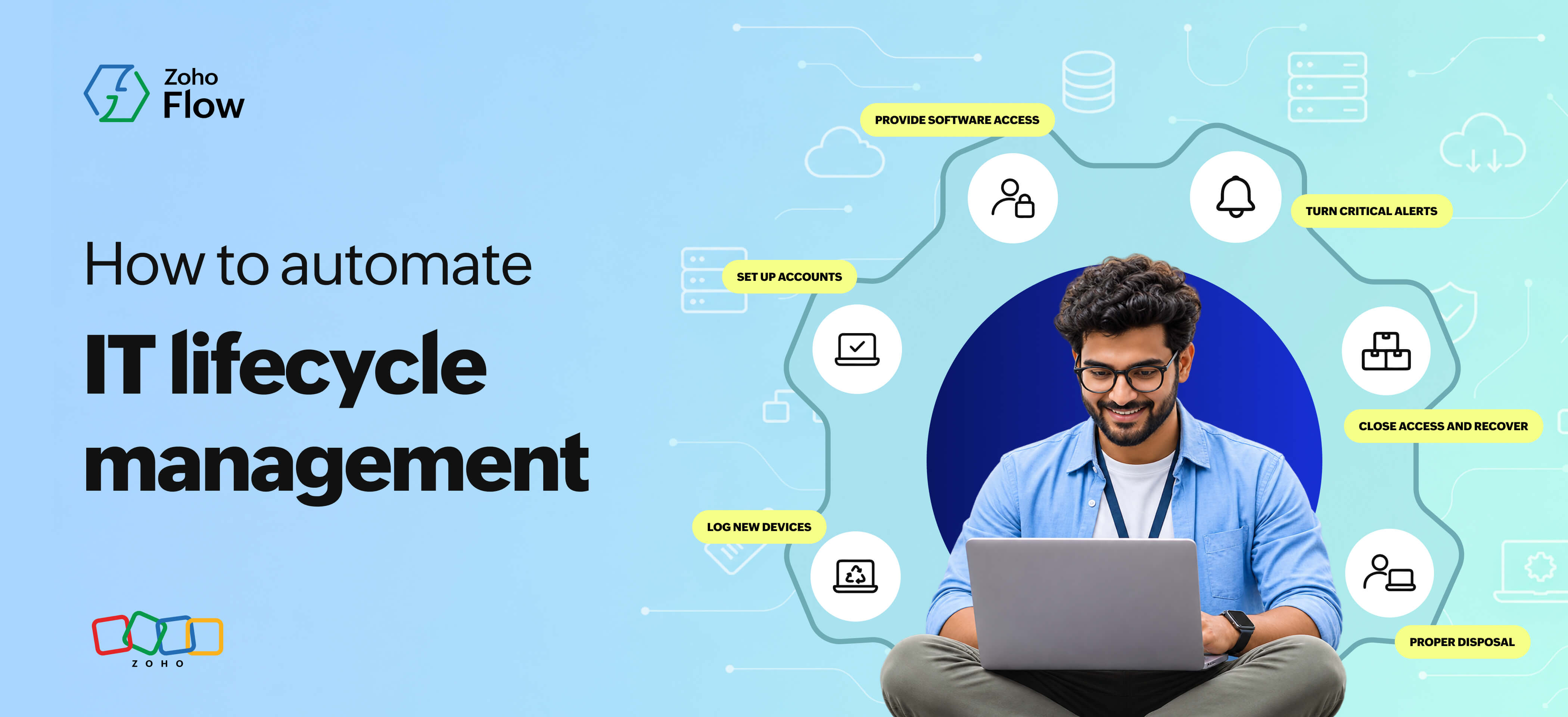
Log new devices as soon as stock arrives
When a new batch of devices arrives, someone has to enter each one into the asset system. That means typing in the model, the vendor, the cost, and the purchase details, one device at a time. Since it isn’t urgent, it gets pushed back, and the new stock sits on the shelf without a record. But with automation, marking the goods as received is the only step anyone takes.
Trigger: Goods are marked as received against a purchase order in Zoho Inventory.
The flow creates an asset in EZOfficeInventory for each device received, with the model, vendor, and cost from the order. The IT manager then gets an email letting them know new stock has arrived and can be assigned.
Set up accounts and laptops for new joiners before day one
When someone joins your company, IT often has to wait for an email from HR before creating accounts, giving them access to the right groups, or setting up their laptop. If that email is delayed, everything else has to wait.
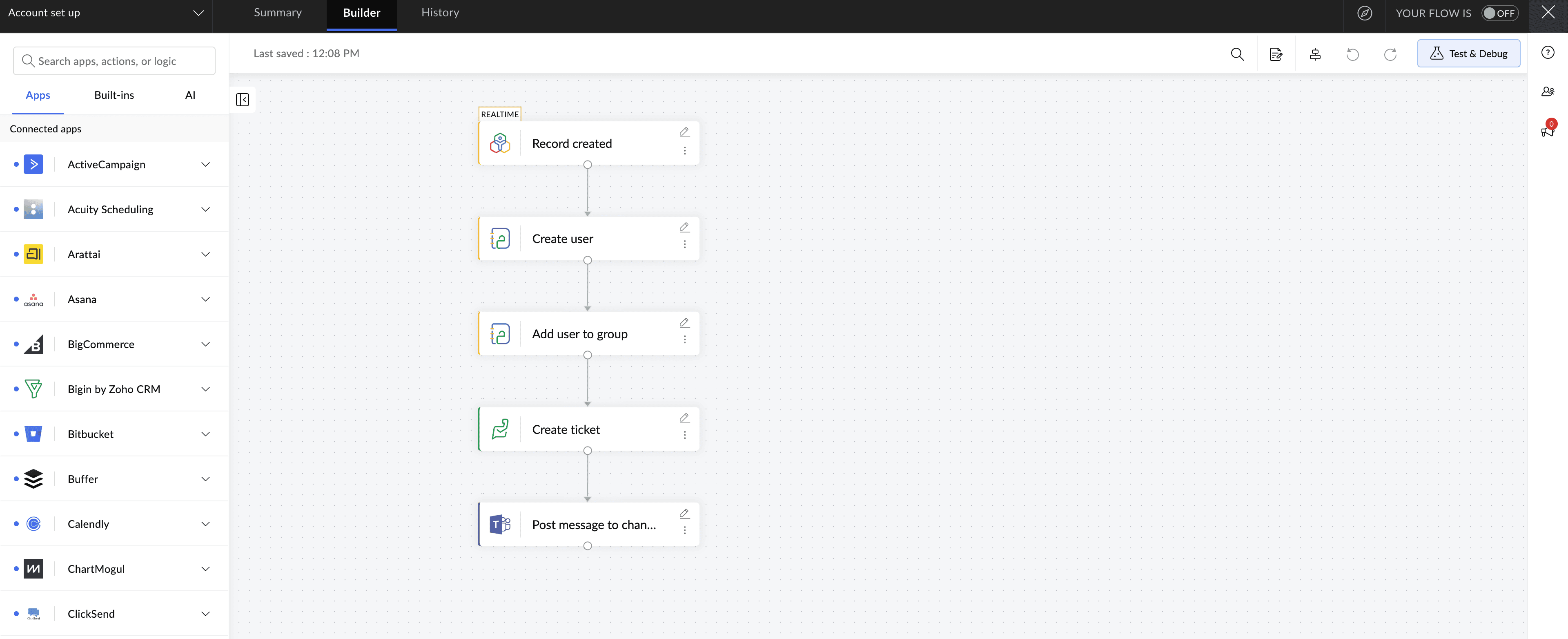
You can automate this so that creating an employee profile starts the next steps right away, without HR having to send a separate email. Here’s how it works in Zoho Flow.
Trigger: A new employee record is added in Zoho People.
Once HR adds a new employee, their account is created in Zoho Directory with the details already in the record, and they land in the group for their department. A Zoho Desk ticket goes to IT to pick up a laptop from stock and set it up. The IT channel on Microsoft Teams also gets a note with the joiner’s name and start date.
Give employees software access as soon as it’s approved
When an employee needs a design tool for a project, they message IT. IT asks the manager whether it’s okay, the manager replies a day later, and then someone assigns the license by hand. The employee waits days for something that takes minutes.
Once the manager says yes, the rest is routine work that doesn’t need a person.
Trigger: A manager approves a software access request in Zoho Forms.
The employee submits the request through a simple form. Once the manager approves it, the flow assigns the license in Microsoft Entra ID and adds them to the right group. A direct message on Slack then tells the employee their access is ready to use.
Turn critical alerts into incidents without delay
The usual way IT finds out about an outage is a user telling them. By then the problem had been running for a while, even though the monitoring tool spotted it earlier. Connecting your monitoring tool to your incident system gives every critical alert an owner straight away, and Zia, Zoho’s AI assistant, can make the alert easier to read.
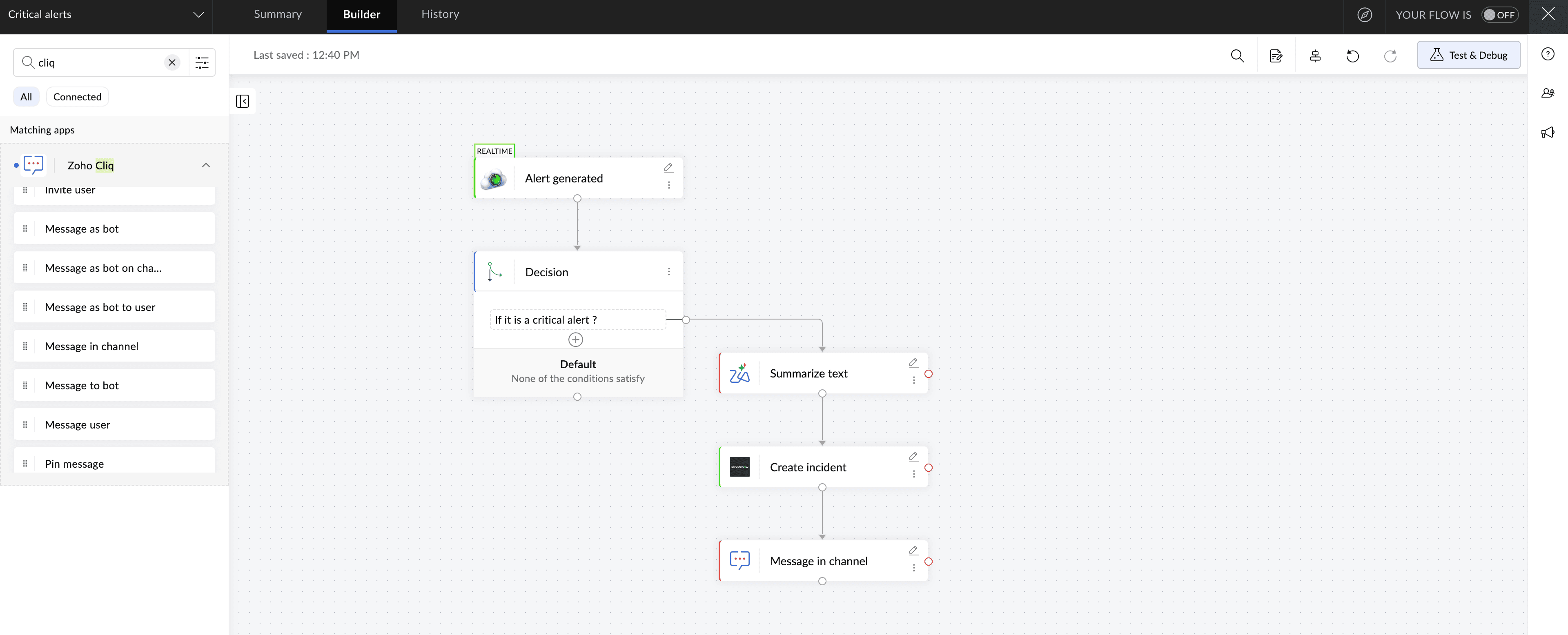
Trigger: An alert is generated in Site24x7.
Only critical alerts, such as a site or server going down, are picked up. Zia turns the raw alert details into a short, plain-language summary, which is logged as an incident in ServiceNow along with the monitor name. The on-call team is then notified in Zoho Cliq with a link, so whoever is on duty knows what’s wrong before they open it.
Close access and recover devices when someone leaves
Offboarding is where a missed step costs the most. Once an employee leaves, IT has a list of follow-up tasks: closing accounts, releasing licenses, removing shared access, and getting the laptop back.
Relying on someone to tell IT every time an employee leaves is risky. If the message is late or never sent, those tasks wait, and that's how ghost assets build up. When the HR status change starts the next steps on its own, nothing depends on that message.
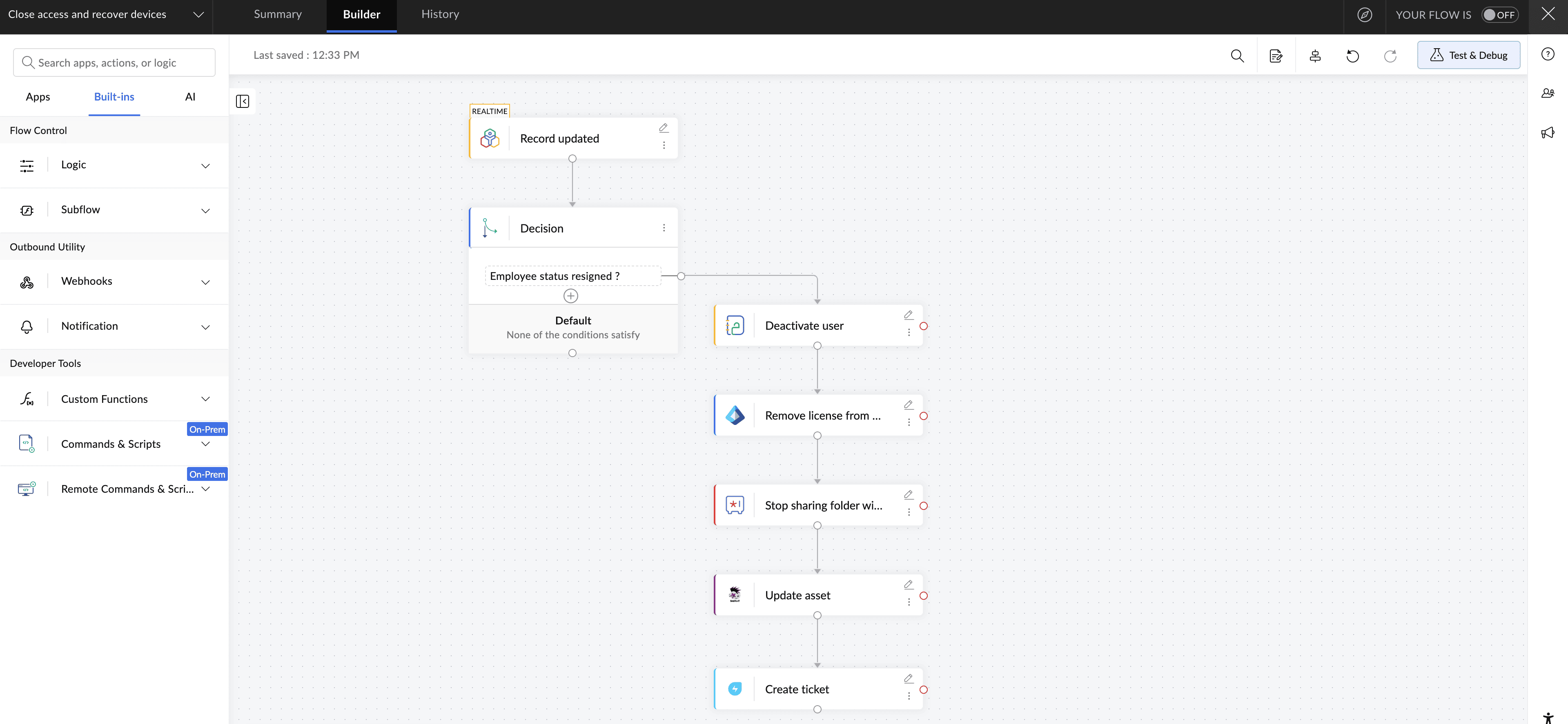
Trigger: An employee is marked as leaving in Zoho People.
The moment HR updates the record, the flow closes the employee’s account in Zoho Directory and removes their Microsoft license in Entra ID. It also cuts off their access to shared passwords in Zoho Vault. For the laptop, the flow marks it as pending return in Snipe-IT and raises a ticket in Freshservice asking IT to collect the laptop, clear it, and keep it ready for the next person.
Proper disposal of old devices once they retire
When a laptop is beyond repair or too old to use, IT replaces it. But the old device still needs attention. Someone has to arrange for its data to be securely erased, organize recycling or disposal, and update the asset record. Without a clear process, it can sit in storage for months with company data still on it.
But you can automate the follow-up work so that every device marked for retirement has a ticket and a record of what needs to happen.
Trigger: IT submits a device retirement form in Zoho Forms.
The form captures the asset tag, serial number, and reason for retirement. Once it’s submitted, a ticket is created in Jira Service Management for IT to arrange secure data erasure and disposal. The ticket carries the device details, so the asset record can be updated once the work is done.
These are some of the IT tasks that come up regularly in your teams’ everyday work, and they’re a starting point. Depending on how your team operates, there are many more worth automating, such as routing tickets to the right person or keeping requesters updated as their tickets move along.
Zoho Flow lets you connect with 1,000+ apps, so it can work with the tools you already use. And if one of your IT apps isn’t in the gallery, you can still connect it with a webhook, as long as the app supports them.
Ready to build your first IT workflow? Sign up for Zoho Flow and get started.
Related reading
- ServiceDesk Plus integrations: How to automate requests, changes, and workflows
- Keep your IT operations in sync with workflow automation
- Employee onboarding automation: A practical guide for HR teams
Frequently asked questions
1. Can Zoho Flow connect with the IT tools my team uses?
Yes. Zoho Flow connects with 1,000+ apps across categories, and that includes popular IT tools like Freshservice, Jira Service Management, ServiceNow, PagerDuty, and Site24x7. If the app you're trying to connect isn’t available in the gallery, you can connect it with a webhook or URL trigger.
2. How long does it take to set up an IT workflow?
A simple workflow, like creating a ticket when a monitoring alert fires, can be live in under 10 minutes using a prebuilt template. Longer workflows across several apps, such as a full onboarding sequence, usually take 30–60 minutes to build and test.
3. Is Zoho Flow secure enough for IT workflows?
Data is encrypted in transit (TLS) and at rest (AES-256). Zoho Flow is GDPR compliant and ISO 27001 certified, and role-based access controls let you decide who can view or edit workflows. You can refer to Zoho's compliance page to read more on this.
4. What happens if a workflow fails?
Zoho Flow sends a notification when a workflow fails. Every run is logged, so you can see exactly where it stopped and rerun the flow after fixing the issue.
5. Do I need coding skills to build these workflows?
No. You build workflows in a drag-and-drop builder by picking a trigger and the actions that follow. Even on your first day in Zoho Flow, Zia can help. Describe what you want in plain language, and it drafts a flow with the triggers and actions for you to review.
6. Is there a free plan, and how is Zoho Flow priced?
Yes. The free edition lets you create up to 5 flows and use up to 100 tasks a month, and it includes logic features like decision, delay, and more. There’s also a 15-day free trial. Paid plans (Standard and Professional) are priced by how many tasks you run each month. Current prices are on Zoho Flow’s pricing page.
 Gayathri Babu
Content writer for Zoho Flow. Passionate about creating engaging content that truly resonates with the readers.