- HOME
- Work Culture
- How to collect customer documents without email attachments using Zoho WorkDrive
How to collect customer documents without email attachments using Zoho WorkDrive
- Last Updated : November 17, 2026
- 33 Views
- 7 Min Read

From customer onboarding to contract reviews and project submissions, collecting documents from external stakeholders is a routine yet critical part of business operations.
However, collecting these documents isn't always as straightforward as it seems. A Canopy study found that 69% of surveyed accountants spend too much time gathering documents from their clients, highlighting a challenge that can arise in document-intensive business workflows.
For many teams, the process still involves sending emails, requesting attachments, following up on missing files, and manually organizing submissions. As the volume of requests grows, tracking incoming documents becomes increasingly difficult.
What businesses need is a simpler, more structured way to collect documents while maintaining control over where they're stored and who can access them.
Why email attachments aren't ideal for collecting customer files
Email works well for communication, but collecting business documents through attachments presents several challenges.
Scattered submissions: Files received from multiple customers get buried across email threads, making them difficult to locate and track.
Manual organization: Teams must download attachments, rename files, and move them into appropriate folders.
File size restrictions: Large documents, presentations, and other project files may exceed email attachment limits.
Limited submission controls: Email doesn't provide a structured way to set upload deadlines, restrict submissions, or organize files by customer.
Time-consuming follow-ups: Tracking received and missing documents often requires searching through conversations or maintaining separate trackers.
A dedicated file collection process helps eliminate these inefficiencies by bringing incoming documents into a centralized, controlled workspace.
Simplify customer document collection with Zoho WorkDrive
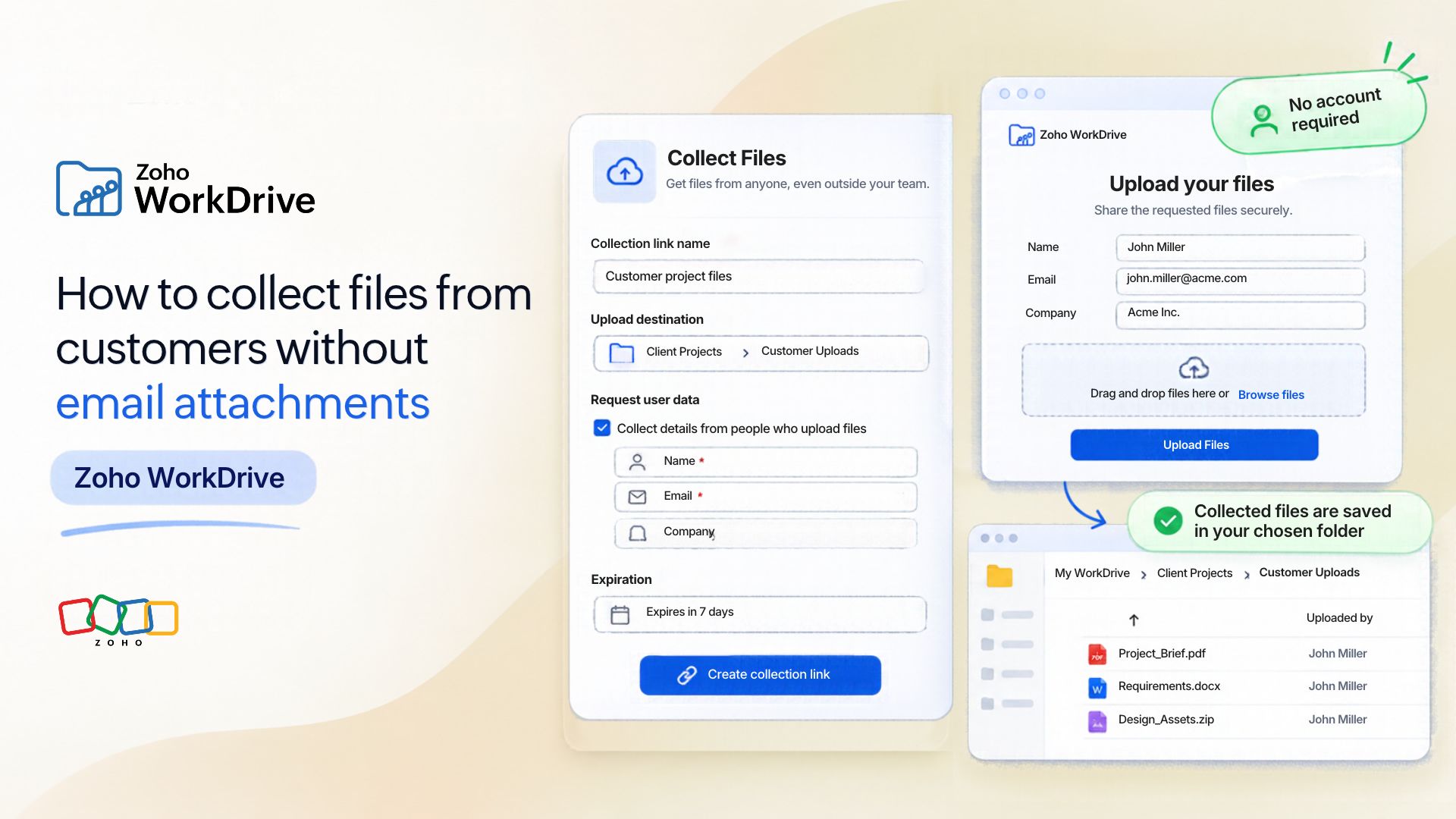
Zoho WorkDrive's Collect Files feature enables businesses to request documents from customers, vendors, and other external stakeholders through dedicated collection links.
Instead of exchanging email attachments, you can share a link that allows recipients to upload files directly into a designated WorkDrive folder. Customers don't need a Zoho account to submit files, and they can't access existing documents or submissions from other users.
Beyond simplifying uploads, WorkDrive lets you organize incoming files, configure submission limits and deadlines, and monitor collections from one place. Let's explore how these capabilities help businesses streamline customer document collection.
How Zoho WorkDrive helps you collect and manage customer files
1. Create dedicated collection links for different document requests
Whether you're onboarding a new customer, requesting compliance certificates, or collecting project deliverables, you can create a separate collection link for each requirement.
For example, a customer onboarding team can create a link to collect business registration certificates, agreements, and verification documents. Similarly, a project manager can create dedicated links for briefs, design assets, and deliverables.
Each collection can have a name and description outlining what recipients need to submit. Once created, the link can be shared through email, chat, or other communication channels. This gives every document request a dedicated submission point, making files easier to collect and manage without relying on lengthy email conversations.
2. Let customers upload files without creating an account
Asking customers to register for another application just to submit a document can create unnecessary friction. With WorkDrive's external collection links, recipients can upload files directly through their browser without signing up for or logging in to a Zoho account.
For instance, a vendor responding to a compliance request can open the shared link, provide the required information, and upload relevant certificates or supporting documents.
You can also request the uploader's name, email address, or phone number to help identify submissions. This keeps the upload experience simple for customers while giving your team the information needed to associate documents with the right sender.
3. Automatically organize submissions in designated folders
Collecting documents is only half the task. Ensuring they reach the right destination is equally important. WorkDrive lets you choose where incoming files are stored, whether in a dedicated folder in My Folders or an eligible Team Folder.
For example, a sales team can direct customer onboarding documents into a designated Team Folder to make them accessible to authorized team members.
You can also organize submissions into separate folders based on uploader information, such as name or email address. This is particularly useful when collecting similar documents from multiple customers or vendors. By directing submissions to predefined locations, teams can reduce manual sorting and keep related documents organized from the moment they're received.
4. Set clear submission deadlines and upload limits
Not every document collection request needs to remain open indefinitely. For time-sensitive processes such as vendor renewals, compliance audits, or customer onboarding, WorkDrive lets you configure collection links with expiration dates.
You can also limit the number of files each recipient can upload and set a maximum file size within your plan's supported limits.
For instance, a procurement team requesting updated vendor certificates can share a collection link that automatically expires after the submission deadline. These controls help businesses manage incoming documents within defined requirements and avoid leaving unnecessary upload links active.
5. Monitor submissions and simplify follow-ups
When documents arrive through multiple email threads, identifying who has submitted what can become a task in itself.
With WorkDrive, you can monitor collections, review uploaded documents, and access submission details from the Collect Files section.
You can also:
Receive notifications: Stay informed when new files are submitted.
Track submissions: View the number of uploaders and files received for each collection.
Export submission details: Download submission reports in XLSX format for tracking and follow-ups.
Manage active collections: Update supported settings or disable links when submissions are no longer required.
For example, an operations team collecting documents from multiple vendors can review submissions in one place and use the records to identify outstanding requests.
This improves visibility into the collection process and reduces the effort required to track incoming documents.
Keep customer document collection secure and governed
Making file collection easier shouldn't come at the expense of control over business content. With WorkDrive, external document collection becomes part of a broader content management process that helps organizations govern how files enter their workspace and who can access them.
Protect existing business content: Collection links provide upload-only access. Customers can submit their files without browsing the destination folder, viewing other customers' submissions, or accessing existing workspace content.
Control who can create collections: Team admins can enable or disable Collect Files and determine whether collection creation is available to team members or restricted to administrators.
Keep documents within governed workspaces: By choosing a Team Folder as the upload destination, businesses can make incoming documents accessible to authorized team members under existing folder permissions.
Close collection links when they're no longer needed: Expiration dates and the option to manually disable collection links help businesses limit how long external upload channels remain active. Together, these controls enable teams to collect customer documents conveniently while maintaining visibility and control over incoming business content.
Note: Collect Files requires an eligible Zoho WorkDrive Team or Business plan. The feature must be enabled for your team, and you must have permission to create collection links. For detailed setup instructions, refer to the Zoho WorkDrive Collect Files help guide.
Frequently asked questions
1. Do customers need a Zoho account to upload files?
No. External users can open a WorkDrive collection link and upload files without creating or signing in to a Zoho account. They only need to provide the information requested in the collection form.
2. Can collected files be stored individually instead of being packaged as a ZIP?
Files uploaded through collection links are stored in the selected WorkDrive destination as individual files. You can also organize submissions into separate folders based on uploader details.
3. Can a WorkDrive collection link be embedded in Zoho Creator?
WorkDrive collection links can be shared as URLs. However, directly embedding the collection upload interface within a Zoho Creator page is not a documented native Collect Files capability.
If you need an embedded upload experience, you can evaluate Zoho Creator's file-upload functionality or a custom integration.
4. How can I change the language of a public collection page?
The documented collection settings don't provide a dedicated option for changing the language of the public upload interface.
You can write the collection name and instructions in your customer's preferred language. For specific interface localization requirements, check with Zoho WorkDrive support.
5. Can customers see files submitted by other users?
No. External users can only submit files through the collection link. They cannot browse the destination folder, view files submitted by others, or access existing workspace content.
6. Can a collection link expire automatically?
Yes. You can enable Set expiration and specify a date when creating a collection. The link stops accepting submissions after it expires. You can also manually disable an active collection link.
7. Where are collected files stored?
Files are automatically saved in the destination folder selected during collection setup. By default, WorkDrive creates a collection folder in My Folders. You can also select an eligible Team Folder or another supported destination.
8. Is Collect Files available on free WorkDrive plans?
No. Collect Files is available with Zoho WorkDrive's Team and Business plans. It isn't included in the Free or Starter plans.
9. Why isn't my collection link working?
If recipients cannot access a collection link or upload files, check the following:
Collection status: Make sure the link hasn't expired or been disabled.
Team settings: Confirm that Collect Files is enabled in the Admin Console.
Folder access: Verify that the destination folder exists and the collection owner has the required permissions.
Collection owner: Check whether the owner is still an active WorkDrive team member.
Upload restrictions: Ensure that files meet the configured size and upload limits.
Available storage: Confirm that sufficient storage space is available.
If the issue persists, contact Zoho WorkDrive support with the error details.
Simplify customer document collection with Zoho WorkDrive
Collecting customer documents shouldn't mean managing endless email attachments, manual downloads, and scattered submissions.
With Zoho WorkDrive, businesses can create dedicated collection links, receive files without requiring customer accounts, and automatically organize submissions in designated folders—all while maintaining control over incoming content.
Explore Zoho WorkDrive plans or start a free trial to simplify how your business collects and manages customer documents.