WorkDrive migration troubleshooting: How to fix missing, failed, or mismatched files
- Last Updated : November 10, 2026
- 51 Views
- 7 Min Read

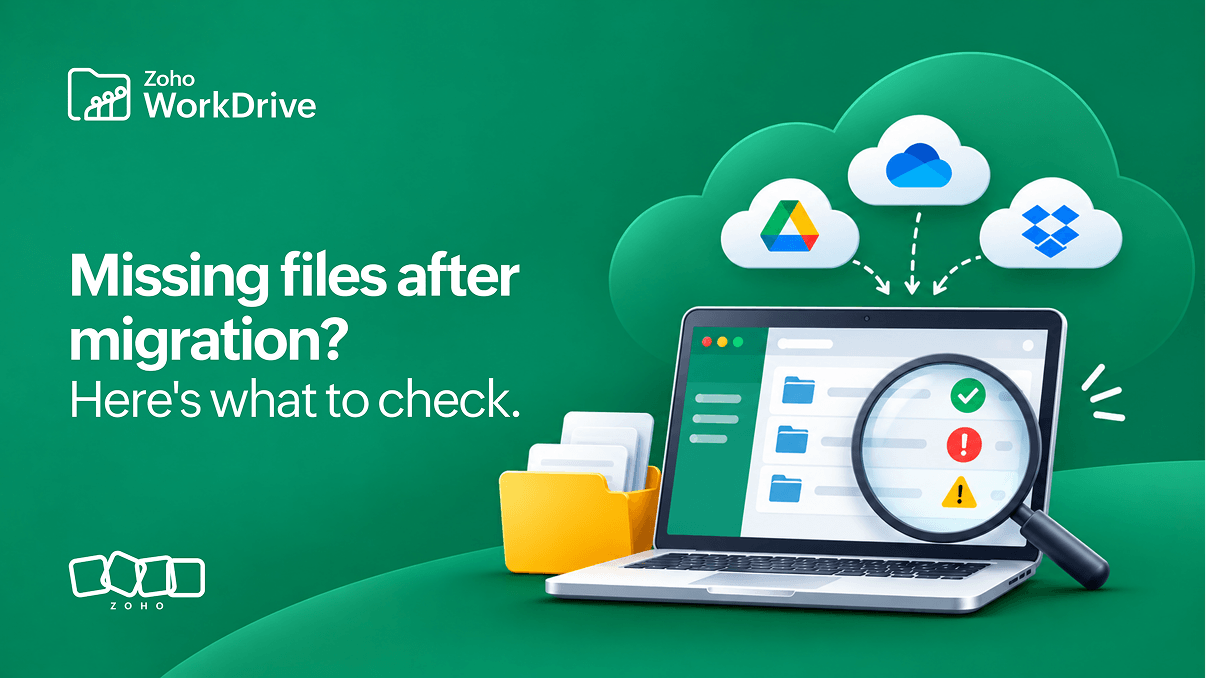
Moving business content to a new platform takes planning, but even a well-planned migration can leave a few questions unanswered. An employee might struggle to find a project folder, a department might notice that some documents haven't transferred, or a manager might discover that colleagues can no longer access files they previously worked on.
These situations can be frustrating, especially when teams are ready to start working in Zoho WorkDrive. However, a missing or inaccessible file doesn't always mean the migration failed. The content may have been excluded because of a source limitation, transferred to an unexpected location, or migrated without its original sharing permissions.
Understanding what happened is the first step toward resolving the issue. Let's look at some common migration problems and how to approach them without repeating work unnecessarily.
If you're still planning your move, our migration planning guide covers everything from preparation to cutover. Here, we'll focus on what to do when files go missing, transfers fail, or access doesn't work as expected.
Start by reviewing your migration reports
Say your marketing team can't find several campaign assets after migrating to WorkDrive. Instead of searching every folder or attempting another transfer, start with the migration reports in the WorkDrive Admin Console.
These reports provide an overview of the files and folders processed during migration, including successful transfers and failures. If the missing assets appear under Migration Failures, the reported reason can help you understand what prevented them from transferring. If they don't appear in the report, it's worth checking whether their original location was included in the migration.
The reports are also useful when several employees report similar problems. Rather than investigating each complaint independently, administrators can identify affected users, review unsuccessful transfers, and determine which issues require attention. Since migration logs expire after 90 days, downloading the reports gives you a useful record for validation and future reference.
Why are some files missing after migration?
Not every file an employee works with necessarily belongs to them. Consider a project manager who regularly accesses documents shared by another department. Those files may have been visible in their previous storage account for years, but their original location and ownership determine how they're handled during migration.
For example, OneDrive migration transfers content from My Files to My Folders in WorkDrive. Files under Shared with you and SharePoint shared libraries aren't included in that migration. Google Workspace follows a different approach, supporting My Drive and Shared Drives while excluding content stored under Computers through Backup and Sync, Google Forms, Sites, and certain other native file types.
File size can also affect the outcome. Individual files larger than 25 GB aren't supported in either Google Workspace and OneDrive migrations, while Google Docs, Sheets, and Slides larger than 10 MB are excluded from Google Workspace migration.
Before assuming that content has disappeared, consider where it originally lived, who owned it, and whether its format was supported. If a file falls outside the migration scope, you may need to arrange a separate transfer rather than retrying the same migration.
What should you do when files fail to migrate?
Sometimes the content is eligible for migration, but the transfer doesn't go through. A file might no longer be available in the source account, its owner may have restricted downloads, or the migration account might lack the permissions required to access it.
WorkDrive's migration reports help administrators distinguish these situations by showing the reasons behind reported failures. This matters because attempting another transfer without addressing the underlying issue may produce the same result.
Reported issue | What to check | What to do next |
File unavailable | Whether the source file still exists | Locate or restore it before retrying |
Permission denied | Whether the migration account can access the file | Review access with the source administrator or owner |
Download restricted | Whether the owner has restricted downloads | Ask the owner to review the restriction |
File flagged as unsafe | Whether the source has identified a security risk | Investigate the warning before attempting a transfer |
Unclear failure | The error details and affected files | Review the report and contact WorkDrive support if needed |
Once the problem is resolved, administrators can retry failed files through the migration interface. Where a retry isn't possible, manually transferring accessible and supported content may be an alternative. The WorkDrive migration FAQs explain the available retry options and procedures.
Why are users unmapped or files in unexpected locations?
Account changes are common when organizations move between platforms. Employees may have new email addresses, departments may have changed, or the company might be migrating to a different domain. If these changes aren't reflected in the user mapping, some accounts may remain unmapped during migration.
Incorrect email addresses, duplicate entries in the mapping CSV, and users who haven't joined the intended WorkDrive team can all affect mapping. The Unmapped Users tab helps administrators identify these issues before making corrections. Accounts that have already been migrated cannot be migrated again through the same service.
Files appearing in unexpected folders are a separate concern. Google Workspace shortcuts, for example, aren't recreated in WorkDrive. A file referenced by shortcuts in several locations may appear in only one destination, while duplicate file names within the same folder may receive numbered suffixes.
Before reorganizing or uploading content again, compare the original folder structure with the migrated destination. If important departmental documents previously lived in individual accounts, this may also be a good time to consider whether they belong in WorkDrive Team Folders, where access and ownership can be managed at the team level rather than in an individual employee's files.
Why can't employees access migrated files?
Imagine a sales manager who has been sharing proposals with colleagues and customers for years. After migration, all the proposals are available in WorkDrive, but some of the people who previously accessed them can no longer open the files. The documents have been transferred successfully, yet the sharing arrangements haven't necessarily followed them.
Permission handling depends on the source platform. OneDrive migration doesn't retain internal or external sharing permissions. Google Workspace migration supports certain internal sharing permissions for individually shared My Drive content, but external sharing permissions and Shared Drive file- and folder-level sharing permissions aren't retained. Users who weren't mapped or active in WorkDrive may also lose access to previously shared content.
Rather than recreating every old permission, consider whether those sharing relationships still reflect how people work today. Employees may have moved to different roles, external projects may have ended, and some collaborators may no longer need access. Reviewing these arrangements gives teams an opportunity to establish appropriate access in WorkDrive using its file-sharing capabilities.
What if the files look different after migration?
A finance team might discover that an earlier version of a spreadsheet is unavailable, while a project manager might notice that comments explaining previous changes are missing. Although the documents have migrated, some source-specific information may not have transferred with them.
Google Workspace comments and revision history aren't migrated, shortcuts aren't retained as links, and emoji characters in file and folder names are excluded. Supported Google Docs, Sheets, and Slides are converted to their corresponding Zoho formats. OneDrive migration transfers only the latest file version and retains created and modified timestamps, but not the original last-modified user information.
These differences are worth considering when teams rely on historical versions, comments, or document records for reviews and audits. If that information is important to ongoing work, compare the migrated content with the originals and preserve the required records separately.
How do you confirm everything is working?
A completed migration status tells you that the transfer process has finished, but it doesn't necessarily mean every employee can find and use the content they need. That's why validation should involve both migration reports and the people who work with those files.
Start by comparing the reports with your original file inventory to identify failed transfers, exclusions, and unresolved issues. Then ask department owners to review their important content. Finance can verify monthly reports, project teams can check shared folders, and employees can confirm that they can open and edit the documents they use regularly.
It's also worth recording which issues remain unresolved, who's responsible for addressing them, and what action has been taken. WorkDrive doesn't delete original files during supported migrations, so the source content remains available for comparison while teams validate the destination.
Get your teams back on track
Missing or inaccessible files can interrupt work after migration, but resolving them becomes easier once you understand whether the problem involves unsupported content, a failed transfer, incorrect user mapping, or changed permissions.
The objective is to account for important business content, resolve outstanding exceptions, and make sure employees can continue working with the files they need. For source-specific limitations and configuration instructions, refer to the Zoho WorkDrive migration documentation.
Frequently asked questions
Can I retry files that failed during migration?
Yes. Administrators can review reported failures and retry affected files through the migration interface. Some files may require a separate manual transfer.
Why are my Google Drive files in different folders?
Google Workspace shortcuts aren't retained during migration. Files referenced by shortcuts in multiple locations may appear in only one destination.
Can I migrate users who were left out earlier?
Yes. You can create a new migration for users who weren't included previously. However, each user can only be migrated once per service.
Will my original sharing permissions be retained?
It depends on the source platform. OneDrive sharing permissions aren't retained, while Google Workspace supports certain internal sharing permissions with limitations.
Are my original files deleted if migration fails?
No. WorkDrive doesn't delete files from the supported source services during migration.