Connecting Zoho WorkDrive to business apps and workflows
- Last Updated : November 16, 2026
- 44 Views
- 10 Min Read

Think about what happens when a document moves between applications. Someone creates it in one tool, shares it through another, downloads a copy for review, and uploads the approved version somewhere else. Along the way, a simple document handoff becomes a series of repetitive tasks. Now imagine handling hundreds of similar handoffs every month, with files moving between applications and workspaces.
Most businesses use specialized tools for communication, project management, content creation, collaboration, and operations. While these applications help employees complete their tasks, the supporting content often remains scattered across systems. Employees spend time moving files, finding the latest versions, and coordinating handoffs that could otherwise happen automatically.
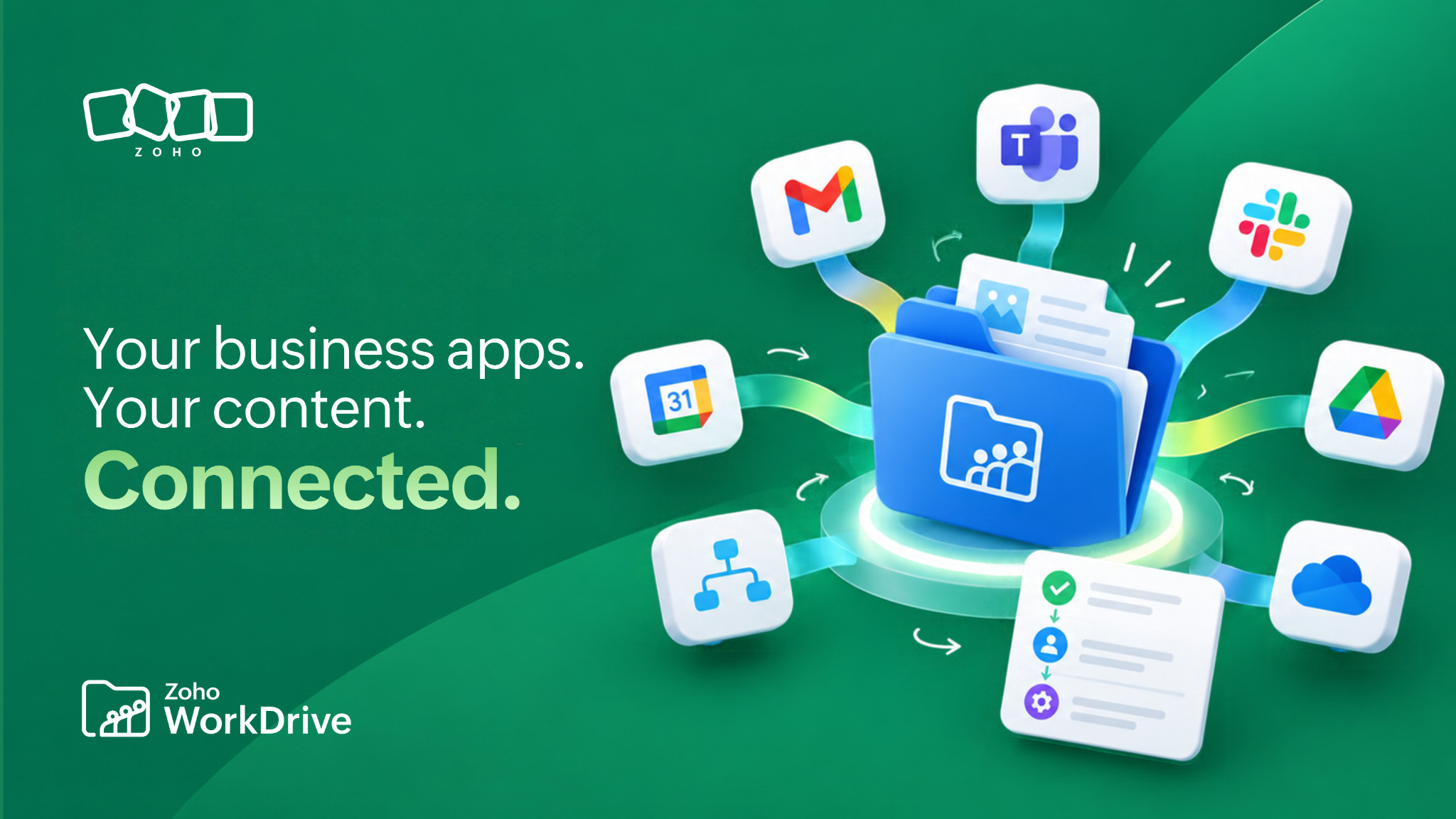
Zoho WorkDrive helps connect business content with these processes. We serve as a unified content layer across the Zoho ecosystem and support third-party connectivity through automation platforms, developer APIs, custom apps, webhooks, and AI-powered tools. Through Zoho Flow and Zapier, you can connect WorkDrive with 1,000+ business applications and build workflows around the software you already use. Let's explore how these connections make content more accessible, organized, and useful across your business.
Why connect WorkDrive with your business applications?
A business document rarely serves just one purpose. A project brief might be drafted in one application, reviewed in another, and shared with collaborators before the final version is archived. The same file could later become a reference for another project. When applications operate independently, employees often move information between them manually, downloading attachments, uploading copies, sharing links, and updating records whenever something changes.
Over time, these repetitive activities create duplicate files, inconsistent versions, and uncertainty about which document to use. Connecting WorkDrive with business applications helps reduce these interruptions by enabling supported actions such as folder creation, document transfers, file associations, notifications, and automated responses to content changes. By establishing where original content belongs and how other applications access it, employees can continue using their preferred tools while documents remain organized and available.
WorkDrive as the unified content layer across Zoho
Organizations using multiple Zoho applications work with business content throughout the day. Documents are created, reviewed, shared, and reused across project delivery, marketing coordination, employee onboarding, and internal operations. Although these activities happen in different applications, they depend on a common requirement: a reliable place to manage and collaborate on business documents.
WorkDrive serves as the unified content layer across the Zoho ecosystem, bringing content management into different business functions. Instead of treating files as isolated attachments, supported Zoho applications can use WorkDrive-powered capabilities to organize, access, share, and collaborate on content.
For example, our integration with Zoho CRM supports WorkDrive-powered document management, Zoho Projects enables project-related document collaboration, and Bigin supports customer document sharing and collection. These are examples of how WorkDrive supports content management across Zoho, rather than an exhaustive list of connected applications.
Keep content access consistent across the Zoho ecosystem
An important advantage of working within the Zoho ecosystem is how supported applications coordinate content access. WorkDrive Team Folders maintain assigned roles and permissions, while connected Zoho applications can apply contextual access rules. For example, Zoho Projects can provide access to an attached WorkDrive document based on task access. In Zoho CRM, supported Team Folder membership and sharing changes are reflected in WorkDrive, while record attachments follow CRM record access rules.
This helps organizations maintain access continuity as documents move through supported workflows. Standalone applications operating as separate content repositories may require additional permission mapping, identity configuration, or administration to achieve similar coordination. Within Zoho, supported integrations provide application-aware ways to manage content access while WorkDrive supplies the shared content-management foundation.
Permissions aren't automatically identical across every Zoho application. For instance, CRM Documents permissions and WorkDrive permissions remain separate, so administrators should understand how access is managed within each connected application. You can learn more through our Zoho Projects integration and Zoho CRM integration documentation.
Connect WorkDrive with 1,000+ third-party applications
Not every business uses the same software. One organization might depend on Slack and Google Workspace, while another uses Microsoft 365, task management software, and custom applications. Regardless of the tools, documents need to move between systems, and employees often spend time coordinating these transfers manually. WorkDrive supports automation platforms that help connect applications without requiring businesses to develop every integration individually.
Zoho Flow: Automate content workflows across applications
Say your company collects documents through an online form. Each submission needs to reach the appropriate folder and become available for review. Managing this manually may work initially, but the effort grows with the number of submissions. Zoho Flow connects WorkDrive with more than 1,000 applications across communication, content creation, project coordination, and operations.
Using supported triggers and actions, you can build workflows where an event in one application initiates an action in WorkDrive, or vice versa. For example, a new form submission could initiate a supported file action, while a file event could trigger an update in another application. This allows organizations to automate recurring document-related activities while keeping their existing applications connected.
Zapier: Connect WorkDrive with your existing software
If your organization already uses Zapier, you can extend existing automations to WorkDrive. Through our Zapier integration, you can connect WorkDrive with thousands of web applications and create automated workflows called Zaps. Imagine receiving campaign assets through an online form. Instead of downloading and uploading each submission, you can explore a Zap that transfers files into WorkDrive using supported actions.
Other possibilities include folder creation, file notifications, and document-related tasks across connected services such as Slack, Google Drive, Dropbox, and DocuSign. These connections are enabled through automation platforms rather than individual native WorkDrive integrations, and available workflows depend on each application's supported triggers and actions. This gives businesses flexibility to automate content-related tasks across the applications they already use.
Access WorkDrive files through productivity add-ons
Not every connection needs to automate a business process. Sometimes employees simply want to work with files from an application they already have open. Consider preparing an email with several supporting documents. Downloading and attaching each file creates unnecessary copies, especially when documents are frequently updated.
Our productivity add-ons help you access and share WorkDrive files directly from supported applications. The WorkDrive add-on for Gmail lets you save email attachments to WorkDrive and share files through links without leaving Gmail, with supported sharing controls available when needed. Similarly, our Outlook add-in helps you save attachments and share WorkDrive files from Microsoft Outlook.
WorkDrive also supports working with Microsoft Office applications, allowing you to use familiar productivity tools with supported WorkDrive documents. Add-ons make WorkDrive functionality available within another application, while integrations and automation services connect processes and actions across systems. Both reduce application switching, but they serve different purposes depending on how employees work with content.
Build custom integrations with WorkDrive APIs
Ready-made connections address common requirements, but organizations sometimes depend on proprietary applications. A logistics company might use a shipment-management system, a consulting firm may operate a client portal, and a manufacturer could rely on custom software for technical documentation. These systems may need to store, retrieve, or share documents without maintaining separate content repositories.
Our developer APIs let you incorporate supported WorkDrive capabilities into custom applications. For example, you could build a portal that uploads documents, retrieves authorized files, searches content, or generates supported sharing links through WorkDrive APIs. Employees can manage the documents in WorkDrive while users interact through the custom interface.
We also provide administrative APIs for teams, Team Folders, members, permissions, groups, and metadata. This allows organizations to build content-management capabilities into existing systems while maintaining control over how documents are accessed and managed. Available functionality depends on the APIs used, authentication, and configured access permissions.
Use custom apps and webhooks to respond to file activity
Some processes don't require another application to open a document. They simply need to know when something happens to it. Say a shared workspace receives updated reference documents, and each new upload requires a notification and an update to an internal tracking system. Instead of notifying everyone manually, you can use a webhook to inform another application when a supported event occurs.
Our custom apps and webhooks support event-driven connections with external systems. Administrators can configure webhooks to send notifications to designated endpoints when events such as file uploads or modifications occur. The receiving application can process the event and perform its configured actions, supporting document monitoring, operational alerts, and internal tracking. Custom apps and webhooks are available under the WorkDrive Business plan, subject to documented limits.
Extend workflows with Custom Functions and Connections
What happens when a workflow requires more than a straightforward trigger and action? Imagine receiving different document types in a shared folder, where some need internal review, others require approval, and a few must be shared externally afterward. You may need to evaluate file information, apply conditions, update another application, and initiate different actions based on the result.
Our Custom Functions let you extend workflows using Deluge scripts. They support advanced file-management operations, communication with external services, and actions beyond standard workflow capabilities. Connections provide authorized access to Zoho and third-party services, with supported OAuth authorization and tokens managed through WorkDrive so developers don't have to handle credentials manually in scripts.
For example, a custom function could notify a Slack channel when a file reaches a particular workflow stage or communicate with an internal application when further processing is required. Together, custom functions and Connections support workflows built around your business rules, particularly when standard automation actions don't cover every requirement.
Connect WorkDrive with AI agents through MCP
Traditional automation follows predefined triggers and actions, while AI agents introduce another way to interact with business applications. Instead of navigating several tools, employees can describe what they want to accomplish in natural language. With appropriate connections and permissions, an AI agent can perform supported operations through Zoho MCP (Model Context Protocol), which enables compatible AI clients to interact with WorkDrive and other connected applications.
For example, you could ask an authorized agent to locate a presentation, move it to an approved folder, and share it with a colleague. The agent can perform these actions through configured MCP tools. With Zoho MCP, we support connectivity across 30+ Zoho applications and 300+ third-party applications, enabling AI-assisted workflows across supported business tools.
WorkDrive MCP is currently available through early access for selected customers and partners, with supported actions depending on available tools, applications, and permissions. As AI connectivity expands, it's important to understand what information an agent can access and which actions it's authorized to perform.
What can you automate with WorkDrive integrations?
The value of these connections becomes clearer when you consider how documents move through everyday processes. A document review might begin with an online form, continue through file organization and approval, and end with an update to another application. Rather than treating every handoff as a separate task, you can connect the applications involved and build workflows around the content.
Workflow | What it enables |
File collection | Bring documents from supported forms or applications into WorkDrive |
Folder creation | Create folders when relevant events occur in connected applications |
Document transfers | Move or copy supported files between applications |
Notifications | Inform connected systems about specified file or folder events |
File organization | Organize content using supported workflow conditions |
Custom applications | Incorporate WorkDrive capabilities into proprietary systems |
AI-assisted actions | Retrieve information and perform authorized file operations through supported agents |
These are examples of workflows you can build using WorkDrive's connectivity options. Actual capabilities depend on supported application actions, account permissions, and subscription requirements.
How do you choose the right connection for your business?
With so many possibilities, it's tempting to connect applications simply because the option exists. A better approach is to begin with the work employees already do. Say employees spend several hours each week downloading submitted documents and organizing them into shared folders. Before automating the process, understand where the files arrive, how they should be categorized, and who needs to review them.
For transferring information between supported applications, Zoho Flow or Zapier may be suitable. If employees need WorkDrive files within their email applications, the Gmail add-on or Outlook add-in may be enough. Organizations with proprietary applications can explore WorkDrive APIs, while custom apps and webhooks support event-driven notifications. Custom functions and Connections provide flexibility for business logic and external API calls, and MCP offers another approach for conversational automation where supported and available.
Whichever option you choose, begin with a manageable workflow and test it. Confirm that documents reach the expected locations, permissions work as intended, and failures are handled appropriately. Assign responsibility for maintaining each connection, too, because applications change, employees move between roles, and workflows may need adjustments. Our integration documentation provides details about supported capabilities and configuration.
Make business content part of your connected ecosystem
Businesses depend on multiple applications to get work done. The challenge is ensuring that the supporting documents don't become isolated across systems or require employees to manage every handoff manually. WorkDrive brings content management into the Zoho ecosystem while extending connectivity to third-party applications through automation platforms, APIs, custom apps, webhooks, and AI-powered tools. Productivity add-ons also help employees work with files from familiar applications without unnecessary switching.
Whether you're connecting productivity tools, automating file collection, building a custom portal, or exploring AI-assisted workflows, start by understanding how content moves through your business and who needs to work with it. When these processes are connected thoughtfully, employees can spend less time moving files between applications and more time working with the information that matters.
Frequently asked questions
Can Zoho WorkDrive connect with third-party applications?
Yes. You can connect WorkDrive through Zoho Flow, Zapier, developer APIs, custom apps, webhooks, custom functions, and Connections. Supported applications and actions vary by method.
Can WorkDrive connect with more than 1,000 business applications?
Yes. Zoho Flow connects with more than 1,000 applications, while Zapier provides access to thousands of web apps. These are automation-platform connections, not individual native WorkDrive integrations.
Does WorkDrive work with applications across the Zoho ecosystem?
Yes. WorkDrive serves as a unified content layer across Zoho, with supported content-management capabilities available through different business applications. Functionality varies by application.
What's the difference between a WorkDrive add-on and an integration?
An add-on makes WorkDrive functionality available within another application, such as Gmail or Outlook. An integration connects applications or services to exchange information or perform supported actions.
Can I integrate WorkDrive with a custom application?
Yes. Our APIs support custom integrations. You can also use custom apps, webhooks, custom functions, and Connections for supported automation requirements.
Can WorkDrive automate document-related tasks?
Yes. WorkDrive supports built-in workflows and connections with automation platforms for file organization, notifications, document transfers, and custom actions.
Can AI agents interact with WorkDrive?
Yes. WorkDrive supports AI-agent connectivity through Zoho MCP. It's currently an early-access capability, with supported tools and actions depending on availability and configuration.